
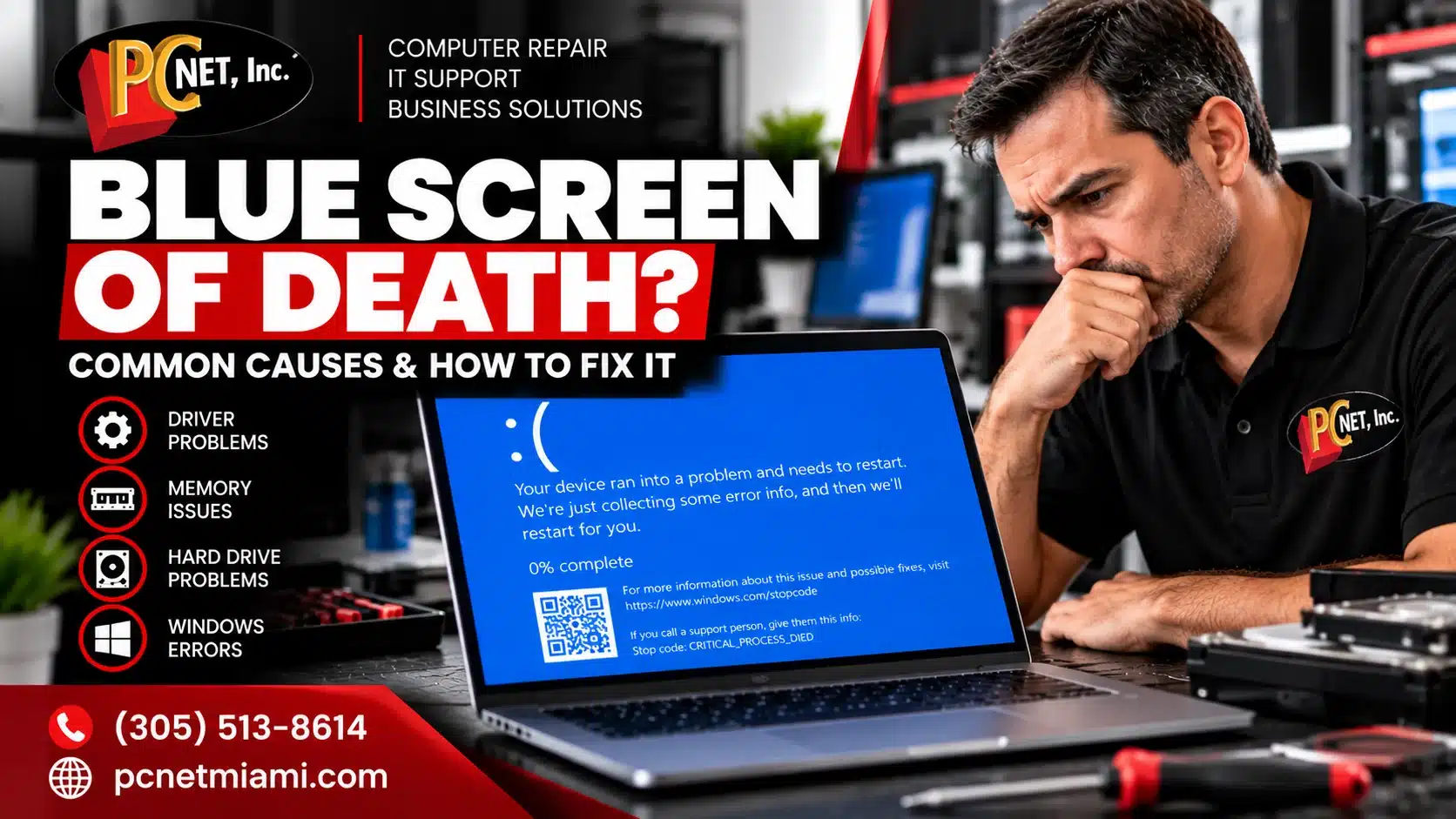
A Blue Screen of Death (BSOD) can appear suddenly and cause your computer to restart, freeze, or stop working altogether. While an occasional blue screen may result from a temporary Windows or driver issue, repeated blue screen errors can be a warning sign of a more serious software or hardware problem.
Common causes include faulty device drivers, memory (RAM) problems, failing hard drives or SSDs, corrupted Windows files, overheating, and other hardware failures. The stop code displayed on the blue screen can also provide an important clue about what caused the crash.
In this guide, we’ll explain the most common causes of Blue Screen of Death errors, what you can safely check yourself, and when it may be time to have the computer professionally diagnosed.
What Is the Blue Screen of Death (BSOD)?
The Blue Screen of Death, commonly called a BSOD, is an error screen Windows displays when it encounters a serious problem that prevents the operating system from continuing safely.
When this happens, Windows stops normal operation and may display a message such as “Your device ran into a problem and needs to restart.” The screen may also include a stop code that identifies the type of error Windows detected.
A blue screen doesn’t automatically mean your computer is permanently damaged. Software conflicts, corrupted drivers, or a problematic Windows update can sometimes cause a one-time crash. However, if your computer keeps displaying blue screens, restarts unexpectedly, freezes, or has difficulty loading Windows, the underlying problem should be investigated.
Why Does My Computer Keep Getting a Blue Screen?
Repeated blue screen errors usually mean that Windows is encountering a problem it cannot safely recover from. The cause may be software-related, hardware-related, or a combination of both.
One of the most useful troubleshooting clues is when the blue screen occurs. For example, does it happen while Windows is starting, immediately after an update, when opening a particular program, during demanding work, or seemingly at random?
You should also pay attention to the stop code shown on the screen. If possible, take a photo of the blue screen before the computer restarts. The stop code, along with the symptoms and timing of the crash, can help narrow down the cause.
Some of the most common causes of recurring BSOD errors include faulty drivers, memory problems, storage-device failures, corrupted Windows files, problematic updates, overheating, and failing hardware.

8 Common Causes of Blue Screen of Death Errors
A Blue Screen of Death can be triggered by many different problems, ranging from a faulty device driver to failing computer hardware. Identifying what changed before the blue screen started appearing—and noting any Windows stop code—can make troubleshooting much easier.
Here are eight common causes of recurring BSOD errors.
1. Faulty or Incompatible Device Drivers
Device drivers allow Windows to communicate with hardware such as graphics cards, printers, network adapters, storage controllers, and other components.
If a driver becomes corrupted, outdated, or incompatible with Windows, it can cause system instability and trigger a blue screen. Driver-related crashes may begin after installing new hardware, updating Windows, or installing a new driver.
If the BSOD started immediately after a driver update, rolling back the recently updated driver may help. However, repeatedly installing random drivers from third-party websites can create additional problems. Whenever possible, drivers should come from Windows Update or the hardware manufacturer’s official support site.
2. Memory (RAM) Problems
Faulty or unstable RAM can cause Windows to crash because important system data is temporarily stored in memory while the computer is operating.
Symptoms of a memory problem can include random blue screens, application crashes, freezing, unexpected restarts, or different stop codes appearing at different times.
Windows includes memory diagnostic tools that can help identify some RAM problems, but intermittent memory failures can be more difficult to diagnose. Testing individual memory modules or performing more extensive hardware diagnostics may be necessary when blue screens continue.
3. Failing Hard Drive or SSD
A failing hard drive or SSD can also cause Blue Screen of Death errors. Windows constantly reads and writes system files, drivers, applications, and other data to the storage device. If important data becomes unreadable or corrupted, Windows may crash.
Other warning signs of a failing hard drive can include slow startup, corrupted files, unusual errors, programs that stop responding, difficulty loading Windows, or a computer that becomes increasingly unstable.
If you suspect a storage problem, back up important files as soon as possible. Continuing to use a failing drive can increase the risk of data loss.
4. Corrupted Windows System Files
Windows depends on thousands of system files to operate correctly. If critical files become damaged or corrupted, the operating system may become unstable and eventually display a blue screen.
System-file corruption can occur after an interrupted update, improper shutdown, malware infection, storage problem, or software failure.
Windows troubleshooting utilities may sometimes repair damaged system files. However, if corruption repeatedly returns after being repaired, the underlying cause should also be investigated. Persistent corruption can sometimes indicate a storage or hardware problem rather than Windows itself.
5. Windows Update Problems
Windows updates are designed to improve security, stability, and compatibility, but occasionally an update can conflict with an existing driver, application, or hardware component.
If blue screen errors begin shortly after a Windows update, the timing may provide an important troubleshooting clue. In some cases, Windows may automatically correct the problem with a subsequent update. In others, the problematic update or incompatible driver may need to be identified and addressed.
Before removing updates or making major changes to Windows, it is a good idea to protect important files and determine whether the update is actually responsible for the crashes.
6. Overheating or Hardware Instability
Excessive heat can make a computer unstable and may contribute to crashes, unexpected shutdowns, or blue screen errors. Dust buildup, blocked airflow, failing cooling fans, or problems with the cooling system can cause internal temperatures to rise.
Overheating problems may become more noticeable when the computer is under heavier workloads. You may also notice unusually loud fans, excessive heat coming from the computer, reduced performance, or sudden shutdowns.
If your computer is both displaying blue screens and shutting down or restarting unexpectedly, the symptoms may be related and should be diagnosed together.
7. Recently Installed Hardware or Software
If the Blue Screen of Death started after installing new hardware or software, the recent change may be involved.
New RAM, storage devices, graphics cards, USB devices, drivers, security software, and other applications can sometimes create compatibility problems. Even properly functioning hardware can cause crashes if the wrong driver is installed or if the component is not fully compatible with the computer.
Think about what changed immediately before the BSOD errors began. Temporarily removing or reversing a recent change can sometimes help determine whether it is related to the problem.
Malware can also cause blue screens. Security software, system utilities, and programs that install low-level drivers work closely with Windows and can crash it if they become corrupted or incompatible. Watch for crashes that began after installing new software, crashes when launching a particular program, or unfamiliar programs running in the background. Still, repeated blue screens shouldn’t automatically be blamed on a virus; hardware, drivers, and Windows itself should be checked too.
8. Motherboard or Other Hardware Failure
When software, drivers, memory, and storage have been ruled out, recurring blue screens may be caused by another hardware problem. A failing motherboard, graphics card, power-related component, or other internal device can make a computer unstable.
Hardware failures can be difficult to identify because different components may produce similar symptoms. A computer may freeze, restart, fail to boot, or display different stop codes even though all of the symptoms originate from the same failing component.
This is where systematic hardware diagnostics become important. Replacing parts based only on guesswork can become expensive without identifying the actual cause first.
What Does a Blue Screen Stop Code Mean?
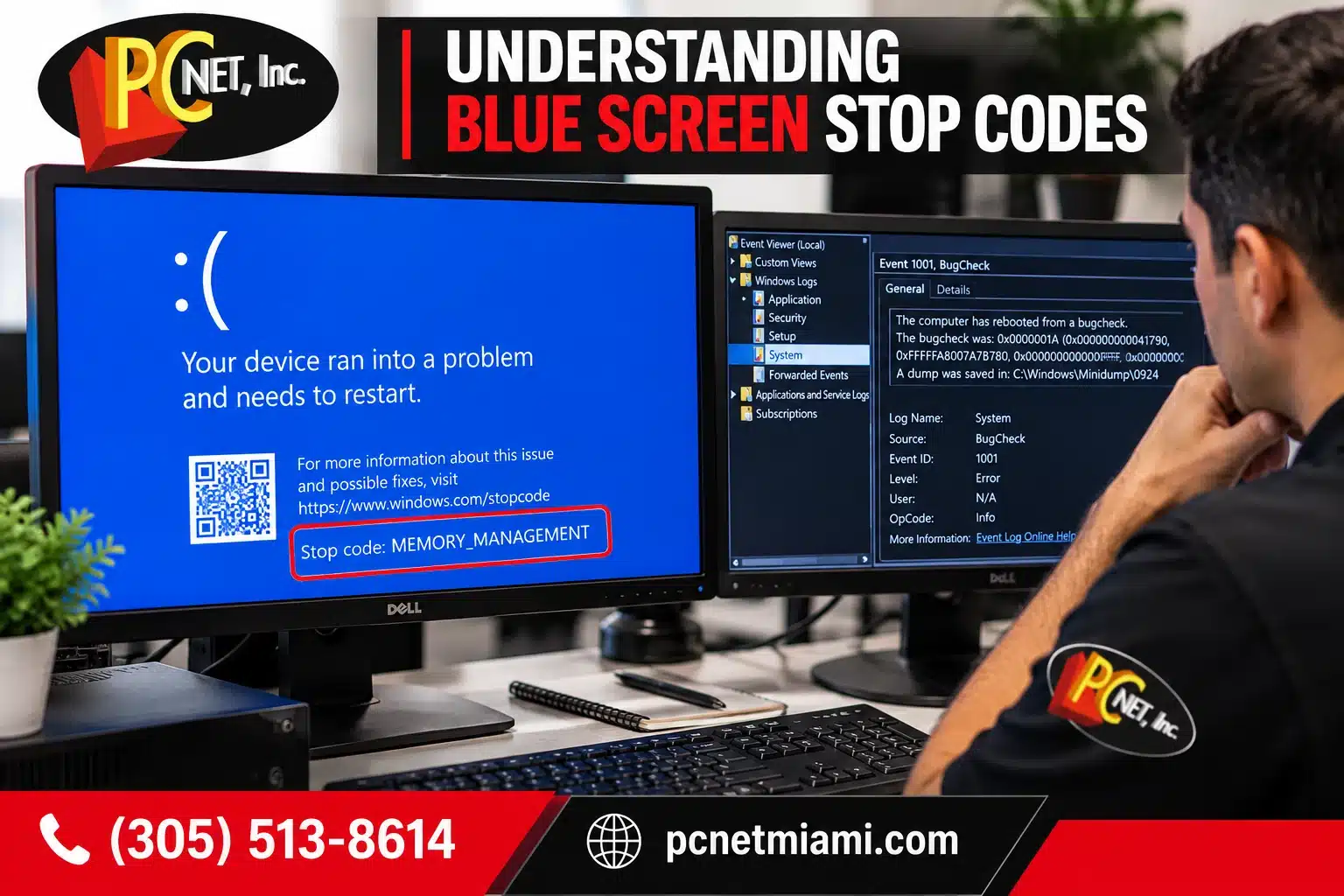
When Windows encounters a critical error, the Blue Screen of Death may display a stop code that provides information about the type of problem that caused the system to crash.
Depending on the version of Windows and the error, you may see stop codes such as CRITICAL_PROCESS_DIED, MEMORY_MANAGEMENT, SYSTEM_SERVICE_EXCEPTION, or IRQL_NOT_LESS_OR_EQUAL.
A stop code is an important troubleshooting clue, but it does not always identify the exact failed component. For example, a memory-related error could be caused by faulty RAM, a driver problem, corrupted system files, or another hardware issue.
If your computer repeatedly displays a blue screen, take a photo of the error screen before the computer restarts. Recording the stop code and noting what you were doing when the crash occurred can make diagnosing the problem much easier.
Should You Search the Stop Code Online?
Searching for a Windows stop code can provide useful information about the general type of error, but avoid assuming that every computer displaying the same stop code has the same problem.
The stop code should be considered together with other symptoms, recent hardware or software changes, Windows logs, and diagnostic test results. This is especially important when the computer displays several different stop codes instead of the same error each time.
What You Can Safely Try Before Calling a Technician
If your computer displays a Blue Screen of Death, there are several basic troubleshooting steps you can try before assuming that major hardware has failed. The safest approach is to start with simple changes and avoid replacing components until the actual cause has been identified.
Restart the Computer and Watch for Another Blue Screen
A single blue screen does not always indicate a serious problem. Restart the computer and see whether Windows loads normally.
If the BSOD occurs again, pay attention to when it happens and photograph the stop code if possible. Repeated crashes are much more useful diagnostically than a single isolated error.
Think About What Recently Changed
Consider whether the problem started after installing a Windows update, new program, driver, peripheral device, RAM, storage drive, or other hardware.
If the blue screens began immediately after a specific change, that information can help narrow down the cause.
Disconnect Unnecessary External Devices
Disconnect nonessential USB devices, external drives, printers, docking stations, and other peripherals, then restart the computer.
If the blue screens stop after a device is disconnected, the device itself, its driver, or its connection may be contributing to the problem.
Check Windows Update
Check whether Windows has pending updates, particularly if the computer recently installed a major update or driver. Microsoft may release additional updates that correct compatibility or stability problems.
Avoid installing multiple unofficial drivers or system utilities at the same time. Making several changes at once can make it more difficult to determine what actually solved—or worsened—the problem.
Back Up Important Files
If the computer is still usable, back up important files before performing extensive troubleshooting. Repeated blue screens can sometimes be associated with storage or other hardware problems that may worsen over time.
Documents, photos, accounting files, business records, and other irreplaceable data should be protected before attempting repairs that could affect Windows or the storage device.

When a Blue Screen May Indicate a Hardware Problem
Blue screens are not always caused by Windows. If the errors continue after software and driver problems have been investigated, a hardware component may be unstable or beginning to fail.
Warning signs that the problem may be hardware-related include:
- Blue screens occurring more frequently
- Different stop codes appearing at different times
- Freezing or unexpected restarts in addition to the BSOD
- Windows having difficulty starting
- Files becoming corrupted or inaccessible
- The computer becoming unusually hot
- Memory or storage diagnostic errors
- Blue screens occurring even after Windows repairs or updates
These symptoms do not identify a specific failed component by themselves. Proper diagnostics may require testing the RAM, storage device, temperatures, power delivery, and other hardware individually.
When to Call a Computer Repair Technician
If your computer keeps displaying blue screens after basic troubleshooting, professional diagnostics can help determine whether the problem is caused by Windows, a driver, RAM, the storage device, overheating, or another hardware component.
This is especially important when the computer contains valuable files or business data. Reinstalling Windows, replacing components, or repeatedly forcing the computer to restart without identifying the underlying problem can create additional complications.
PC Net provides computer repair in Miami for desktops and laptops experiencing Blue Screen of Death errors, freezing, unexpected restarts, startup problems, and other Windows or hardware issues. Our technicians can diagnose the problem and recommend the appropriate repair based on what is actually causing the crashes.
Blue Screen of Death Computer Repair in Miami
A recurring Blue Screen of Death should not be ignored, especially when the computer is becoming increasingly unstable.
PC Net, Inc. has been providing computer and technology services to businesses and residents in Miami for more than 27 years. If your desktop or laptop keeps displaying blue screen errors, our technicians can troubleshoot the system to determine whether the cause is related to Windows, drivers, memory, storage, overheating, or another hardware problem.
Need help with a computer that keeps blue screening? Call PC Net at (305) 513-8614 to schedule computer repair service.
Frequently Asked Questions About Blue Screen of Death Errors
Is a Blue Screen Bad?
A single blue screen usually doesn’t damage your computer. Windows stops on purpose when it detects a problem it can’t safely continue with. Repeated blue screens shouldn’t be ignored, though: if the cause is failing hardware, overheating, or a storage problem, continuing to use the computer could lead to more problems or data loss.
Can a Blue Screen of Death Fix Itself?
Sometimes. A single blue screen may be caused by a temporary driver, software, or Windows problem and may not return after the computer restarts. However, repeated BSOD errors usually indicate an underlying issue that should be investigated.
Does a Blue Screen Mean My Hard Drive Is Failing?
Not necessarily. A failing hard drive or SSD can cause blue screen errors, but BSODs can also result from faulty RAM, drivers, corrupted Windows files, overheating, or other hardware problems. The stop code and additional diagnostic testing can help identify the cause.
Can a Windows Update Cause a Blue Screen?
Yes. An update can introduce a driver compatibility problem or run into an issue during installation. It can also expose an existing problem with a driver, drive, or memory that hadn’t caused symptoms before. If blue screens started right after an update, review the update history and recently changed drivers before deciding what to remove or repair.
Can Bad RAM Cause a Blue Screen?
Yes. Faulty or unstable RAM can cause Windows to crash and display blue screens. Other symptoms may include freezing, application crashes, unexpected restarts, or different stop codes appearing at different times.
Why Does My Computer Blue Screen and Then Restart?
Windows is normally configured to restart after certain critical system errors. The blue screen appears because Windows encountered a problem it could not safely recover from, and the computer may then restart automatically.
If this happens repeatedly, record the stop code and investigate the underlying cause rather than simply continuing to restart the computer.
Should I Reinstall Windows if I Keep Getting Blue Screens?
Not as a first step. Reinstalling Windows may help if the problem is caused by serious operating-system corruption, but it will not repair faulty RAM, a failing storage device, overheating, or another hardware problem.
Diagnosing the cause before reinstalling Windows can prevent unnecessary work and help protect important files.
Need Help With a Computer That Keeps Blue Screening?
If your computer keeps displaying the Blue Screen of Death, don’t rely on guesswork or start replacing parts without knowing what is causing the problem.
PC Net, Inc. provides professional computer diagnostics and repair for Windows crashes, BSOD errors, freezing, startup problems, hardware failures, and other computer issues throughout Miami and nearby areas.
Call PC Net today at (305) 513-8614 or visit our Computer Repair Miami page to learn more about our computer repair services.
Need Help With a Computer That Keeps Blue Screening?
If your computer keeps displaying the Blue Screen of Death, don’t rely on guesswork or start replacing parts without knowing what is causing the problem.
PC Net, Inc. provides professional computer diagnostics and repair for Windows crashes, BSOD errors, freezing, startup problems, hardware failures, and other computer issues throughout Miami and nearby areas.
Call PC Net today at (305) 513-8614 or visit our Computer Repair Miami page to learn more about our computer repair services.