
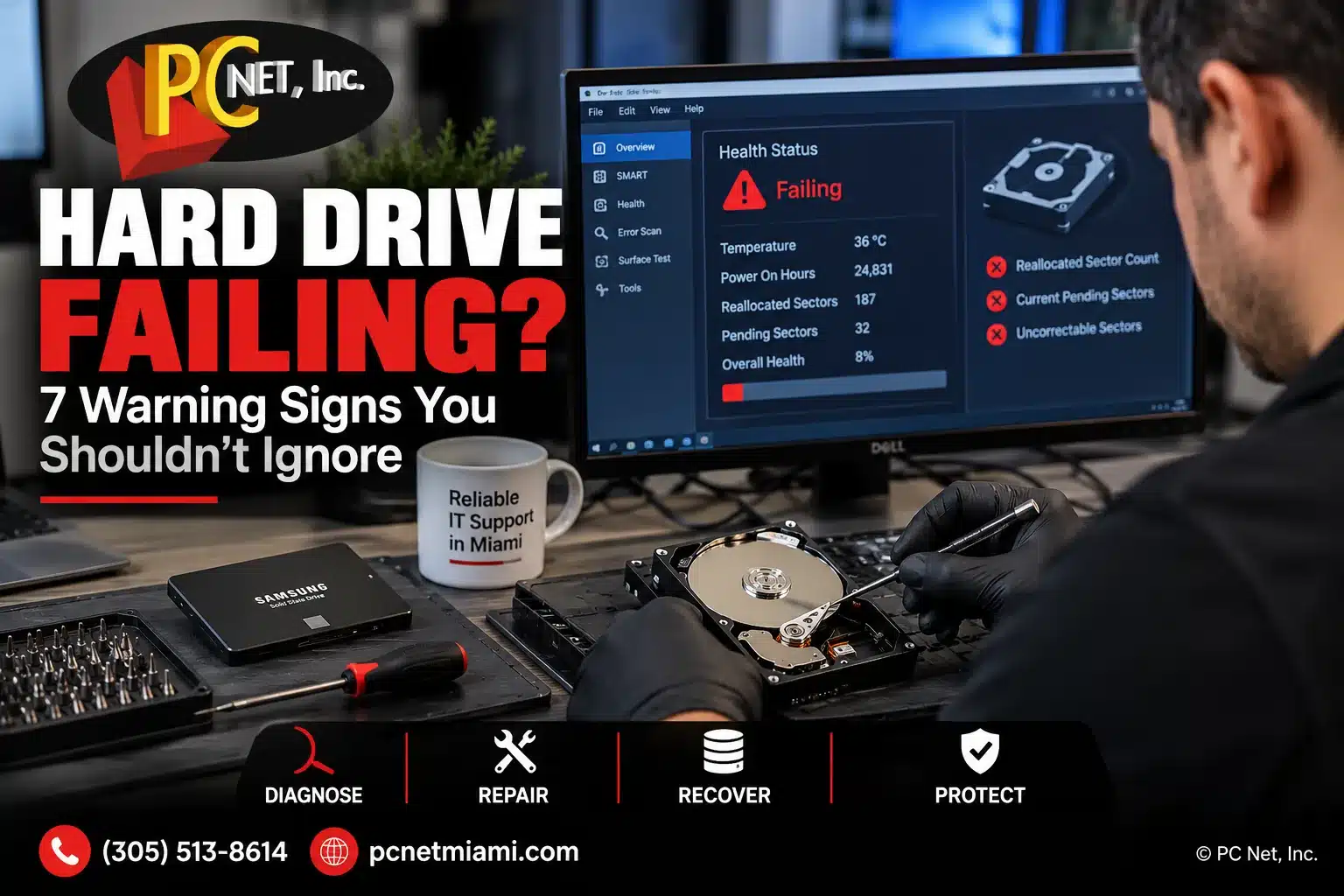
Hard drive failing? It may start with small warning signs—slower performance, unusual noises, corrupted files, or Windows taking longer than normal to start. In other cases, a drive can fail with very little warning. Because your hard drive or SSD may contain important documents, photos, business files, and other data, recognizing the symptoms early can make a significant difference.
At PC Net, Inc., we diagnose computer storage problems to determine whether the issue is actually the drive or another hardware or Windows problem producing similar symptoms. Below are seven warning signs that may indicate a hard drive is failing and what you should do if you notice them.
1. Your Computer Is Taking Much Longer to Start
A computer that suddenly takes much longer to start may have a storage problem, especially if Windows previously loaded normally. During startup, Windows must read thousands of files from the drive. If the hard drive is having difficulty reading certain areas, startup can become noticeably slower.
However, slow startup does not automatically mean the hard drive is failing. Too many startup programs, Windows updates, insufficient memory, malware, or other software problems can produce similar symptoms. This is why the drive should be tested rather than replaced based on startup speed alone.
Warning signs to watch for: Windows taking several minutes to load, long delays before the desktop becomes usable, programs opening unusually slowly after startup, or the computer frequently becoming unresponsive while the drive is being accessed.
2. Files Take a Long Time to Open or Become Corrupted
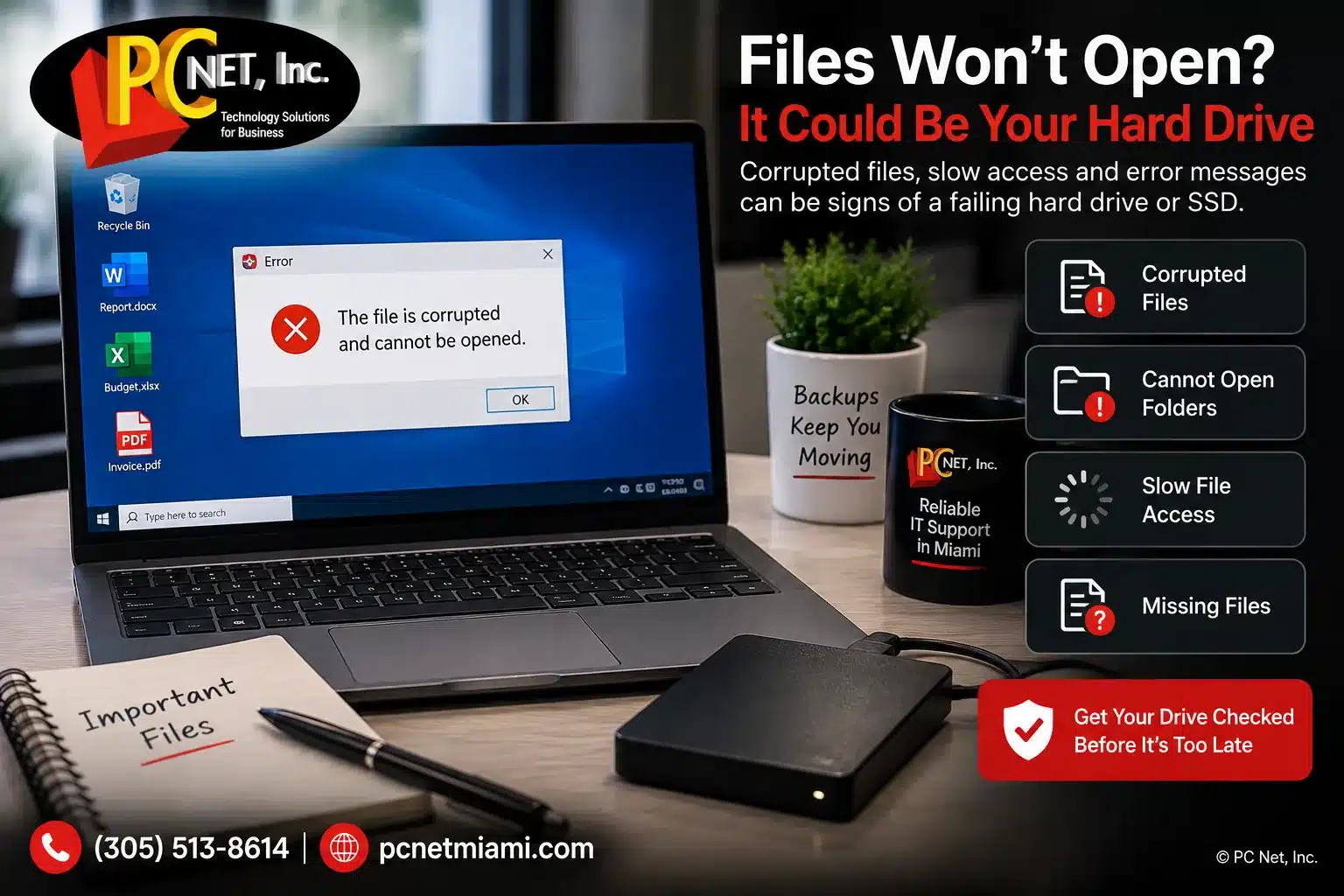
When files that normally open quickly begin taking much longer to load, the storage drive may be having difficulty reading the data. You may also notice documents that suddenly will not open, files reporting errors, or folders that become inaccessible.
File corruption can have several causes, including improper shutdowns, Windows or application problems, malware, and storage-drive errors. When corruption occurs repeatedly—especially together with freezing, slow performance, or disk-related errors—the condition of the hard drive or SSD should be checked.
Warning signs to watch for: files that suddenly cannot be opened, repeated “file corrupted” messages, folders becoming inaccessible, unusually long delays when opening or saving documents, or files that disappear unexpectedly.
If the affected drive contains important information, avoid repeatedly copying, moving, deleting, or attempting to repair files before determining the condition of the drive. Continued activity on a failing drive can make data recovery more difficult.
3. Your Computer Freezes When Opening or Saving Files
Frequent freezing can sometimes be related to the storage drive, particularly when the computer becomes unresponsive while opening programs, accessing folders, saving documents, or copying files. If Windows is waiting for a drive that is having difficulty reading or writing data, the entire computer may appear to freeze temporarily.
However, freezing can also be caused by memory problems, overheating, Windows corruption, drivers, or software conflicts. The important clue is when the freezing occurs. If it consistently happens during disk activity, the hard drive or SSD should be included in the diagnostic process.
Warning signs to watch for: File Explorer stops responding, programs freeze while opening or saving files, file transfers stall or fail, the computer pauses for long periods during disk activity, or Windows repeatedly becomes unresponsive.
A drive-health test and other diagnostic checks can help determine whether the storage device is actually responsible before replacing hardware.
4. You Hear Clicking, Grinding, or Unusual Noises
Unusual noises are one of the more serious warning signs associated with a traditional mechanical hard drive (HDD). Because an HDD contains spinning platters and moving components, clicking, repeated ticking, grinding, or other new mechanical sounds may indicate that the drive is having difficulty operating correctly.
This warning applies specifically to mechanical hard drives. SSDs have no moving parts, so an SSD will not produce clicking or grinding noises when it fails.
Warning signs to watch for: repeated clicking that was not present before, grinding or scraping sounds, unusual noises occurring while files are being accessed, or a drive repeatedly attempting to spin up.
If a hard drive begins making unusual mechanical noises and contains important data, stop unnecessary use of the computer and make data protection the priority. Repeatedly restarting the system or running intensive tests against a mechanically failing drive may put additional stress on it.
5. Windows Reports Disk Errors or Asks to Repair the Drive
Windows may sometimes detect problems with the file system or storage device and display messages indicating that a drive needs to be scanned or repaired. A single disk error does not necessarily mean the drive is physically failing, but repeated disk-related warnings should not be ignored. Microsoft also provides built-in Windows tools for checking and repairing certain hard drive errors.
These errors can occur after an improper shutdown, power interruption, Windows problem, or file-system corruption. They can also appear when a hard drive or SSD begins developing problems that prevent data from being read or written reliably.
Warning signs to watch for: repeated drive-repair messages during startup, disk-related errors in Windows, Windows repeatedly checking the drive, files becoming inaccessible after disk errors, or the computer having difficulty completing a disk scan.
If these warnings keep returning, the better approach is to check the health of the drive and protect important data before attempting repeated repairs. Repairing the file system may correct logical errors, but it does not repair a storage device that is physically or electronically failing.
6. The Hard Drive or SSD Is No Longer Detected
A storage drive that suddenly disappears from Windows or is no longer detected by the computer can indicate a serious problem. The cause may be the hard drive or SSD itself, but it can also involve a loose connection, damaged cable, storage controller, power issue, or another hardware problem.
One important distinction is whether the drive is missing only from Windows or whether the computer cannot detect it at the hardware or BIOS level. That information can help narrow down whether the problem involves Windows, the connection, or the storage device itself.
Warning signs to watch for: the drive disappears from File Explorer, Windows reports that the drive cannot be accessed, the computer suddenly stops recognizing a secondary drive, the drive appears intermittently, or the system reports that no boot device was found.
If a drive containing important data is no longer detected, avoid repeatedly disconnecting, reconnecting, or attempting to initialize or format it. Those actions will not repair a failing drive and could complicate data recovery.
7. Windows Will Not Boot or Shows a “No Boot Device” Error
When Windows suddenly stops loading, the storage drive is one of several components that should be checked. A failing hard drive or SSD may prevent Windows from reading the files required to start, but boot problems can also be caused by corrupted Windows files, boot configuration problems, updates, or other hardware issues.
The exact behavior provides useful diagnostic information. A computer that detects the drive but cannot load Windows is different from a system that reports “No Boot Device,” “Boot Device Not Found,” or does not detect the storage drive at all.
Warning signs to watch for: Windows repeatedly attempts automatic repair, the computer remains stuck during startup, boot-related error messages appear, a “No Boot Device” message is displayed, or Windows suddenly stops loading after previous storage-related problems.
If important files are stored on the computer, do not immediately reinstall Windows or format the drive. The data should be considered before performing repairs that could overwrite information on the storage device.
Hard Drive Failing? What Should You Do Next?
If you notice several of these warning signs, the first priority should be protecting important data. If the computer is still operating normally enough to access your files, make sure important documents and other irreplaceable data are backed up. However, if the drive is making unusual mechanical noises, repeatedly disconnecting, or causing serious errors, continuing to use it may not be advisable.
A proper diagnosis can help determine whether the problem is actually the hard drive or SSD, Windows, memory, a connection problem, or another component producing similar symptoms.
At PC Net, Inc., we diagnose hard drive and SSD problems in Miami for desktop and laptop computers. Depending on the condition of the computer and storage device, the appropriate solution may involve correcting a software problem, replacing the drive, upgrading to an SSD, reinstalling Windows, or evaluating options for protecting or recovering important data.
The goal is to identify the actual problem before replacing parts or performing repairs that may not be necessary.
Can an SSD Fail Without Warning?
Yes. SSDs can fail even though they do not have the moving mechanical parts found in traditional hard drives. An SSD may develop problems with its memory, controller, firmware, or other electronic components, and some failures can occur with fewer obvious warning signs than a mechanical hard drive.
An SSD will not make clicking or grinding noises, but symptoms such as corrupted files, freezing during file access, Windows boot problems, repeated disk errors, or a drive that suddenly disappears can still indicate a storage problem.
This is one reason regular backups are important even when a computer appears to be working normally. Drive-health monitoring can sometimes identify developing problems, but no diagnostic tool can guarantee that a drive will provide advance warning before it fails.
Frequently Asked Questions About Failing Hard Drives
How can I tell if my hard drive is actually failing?
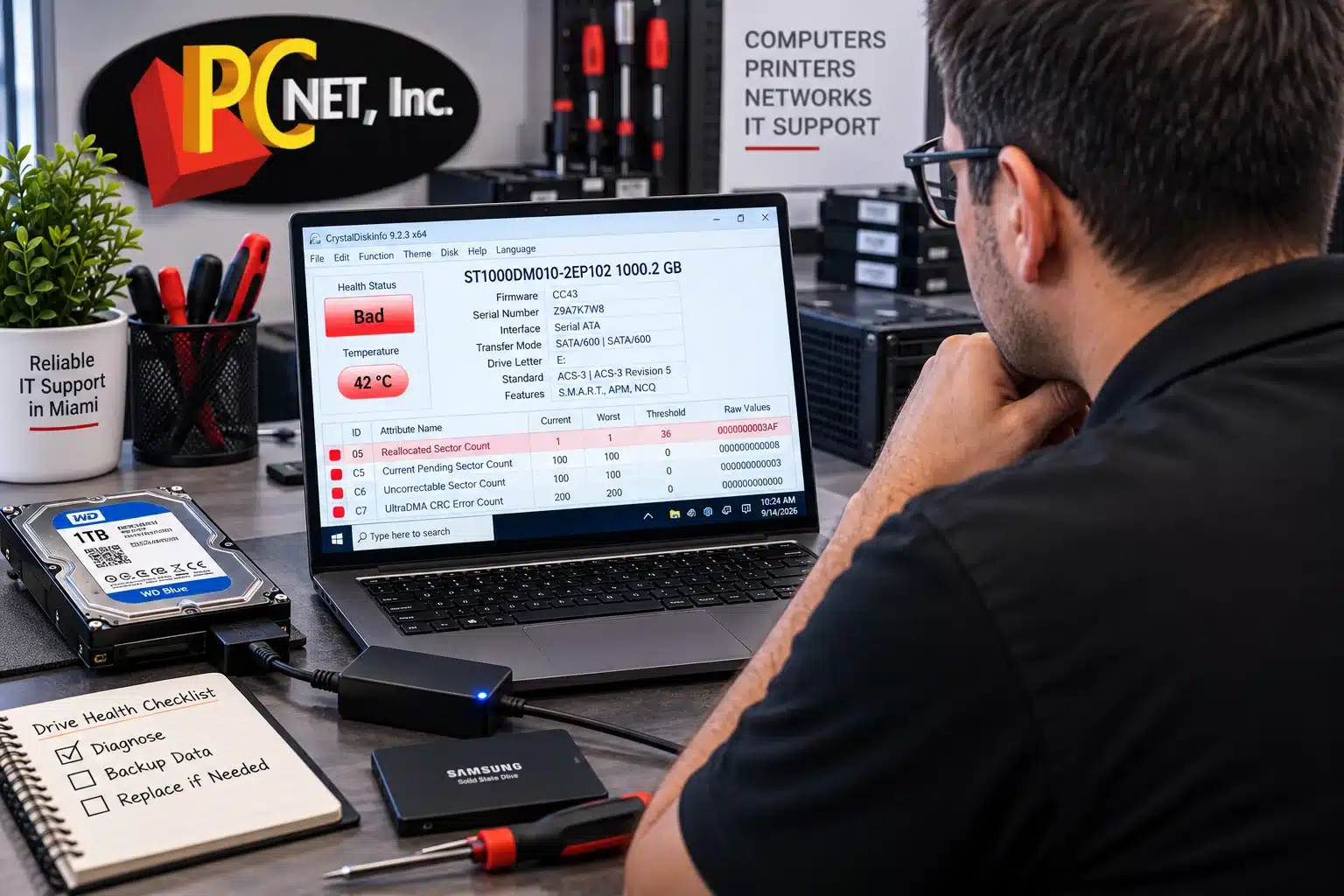
Symptoms such as slow file access, corrupted files, repeated disk errors, unusual clicking noises, freezing during disk activity, or a drive that disappears can indicate a storage problem. However, several Windows and hardware problems can produce similar symptoms. Drive-health information, SMART data, and other diagnostic testing can help determine whether the hard drive or SSD is actually failing.
Can a failing hard drive be repaired?
In most cases, a physically failing hard drive or SSD is not repaired for continued everyday use. If testing confirms that the storage device is failing, the usual solution is to replace the drive and restore or reinstall the operating system as needed.
If important files are stored on the failing drive, data recovery may be possible depending on the type and severity of the failure. The priority should be protecting the data rather than continuing to use an unreliable drive.
How long can a failing hard drive continue to work?
There is no reliable way to predict how long a failing hard drive or SSD will continue working. A drive may show warning signs for weeks or months, while another may become inaccessible shortly after the first symptoms appear.
If you suspect a drive is failing, do not assume you have plenty of time to address it. Protect important data as soon as possible and have the drive evaluated before the problem becomes more serious.
Should I replace a failing hard drive with an SSD?
In many computers, replacing an older mechanical hard drive with an SSD is a practical upgrade. SSDs are significantly faster than traditional hard drives and can improve Windows startup time, program loading, and overall system responsiveness.
Before replacing the drive, the computer should be checked for compatibility and the condition of the existing drive should be evaluated. If the old drive contains important files, the data may need to be transferred or recovered before the replacement is completed.
Can I recover my files from a failing hard drive?
Data recovery may be possible, but the chances depend on the condition of the hard drive or SSD and the type of failure. Files may sometimes be recovered when a drive has logical errors or is still partially accessible, while severe mechanical or electronic failures may require specialized data recovery services.
If the files are important, avoid repeatedly restarting the computer, formatting the drive, reinstalling Windows, or running unnecessary repair utilities. Continuing to use a failing drive can sometimes make recovery more difficult.
The safest approach is to evaluate the condition of the storage device first and determine the appropriate next step based on the type of failure.
Hard Drive or SSD Problems in Miami?
If your computer is showing signs of a failing hard drive or SSD, PC Net, Inc. can diagnose the problem and help determine the appropriate next step. We provide computer and laptop diagnostics, hard drive and SSD replacement, Windows installation, and storage upgrades for customers in Miami and surrounding areas.
Call PC Net, Inc. at (305) 513-8614 to schedule computer service or bring your computer to our Miami service location.