

Laptop problems can range from a computer that suddenly becomes slow to a laptop that will not charge, overheats, freezes, or has trouble starting Windows. While some symptoms have simple causes, others can point to a failing drive, memory problem, damaged display, cooling issue, or another hardware failure. At PC Net, Inc., we diagnose laptop problems by identifying the actual cause before recommending a repair. Below are eight common laptop issues, what they may mean, and when professional diagnosis may be needed.
1. Laptop Is Running Very Slow
A laptop that becomes noticeably slower over time does not necessarily need to be replaced. Slow performance can be caused by too many programs running in the background, limited memory, insufficient storage space, Windows or software problems, overheating, or a hard drive or SSD that is beginning to fail.
At PC Net, we first look at the laptop’s overall performance and hardware condition instead of assuming that one component is responsible. For example, a computer with an older mechanical hard drive may benefit significantly from an SSD upgrade, while another laptop may simply need a software issue corrected or additional memory.
Common signs include: slow startup, programs taking a long time to open, frequent delays when switching between applications, or the computer becoming unresponsive during normal use.
2. Laptop Overheats or Gets Unusually Hot
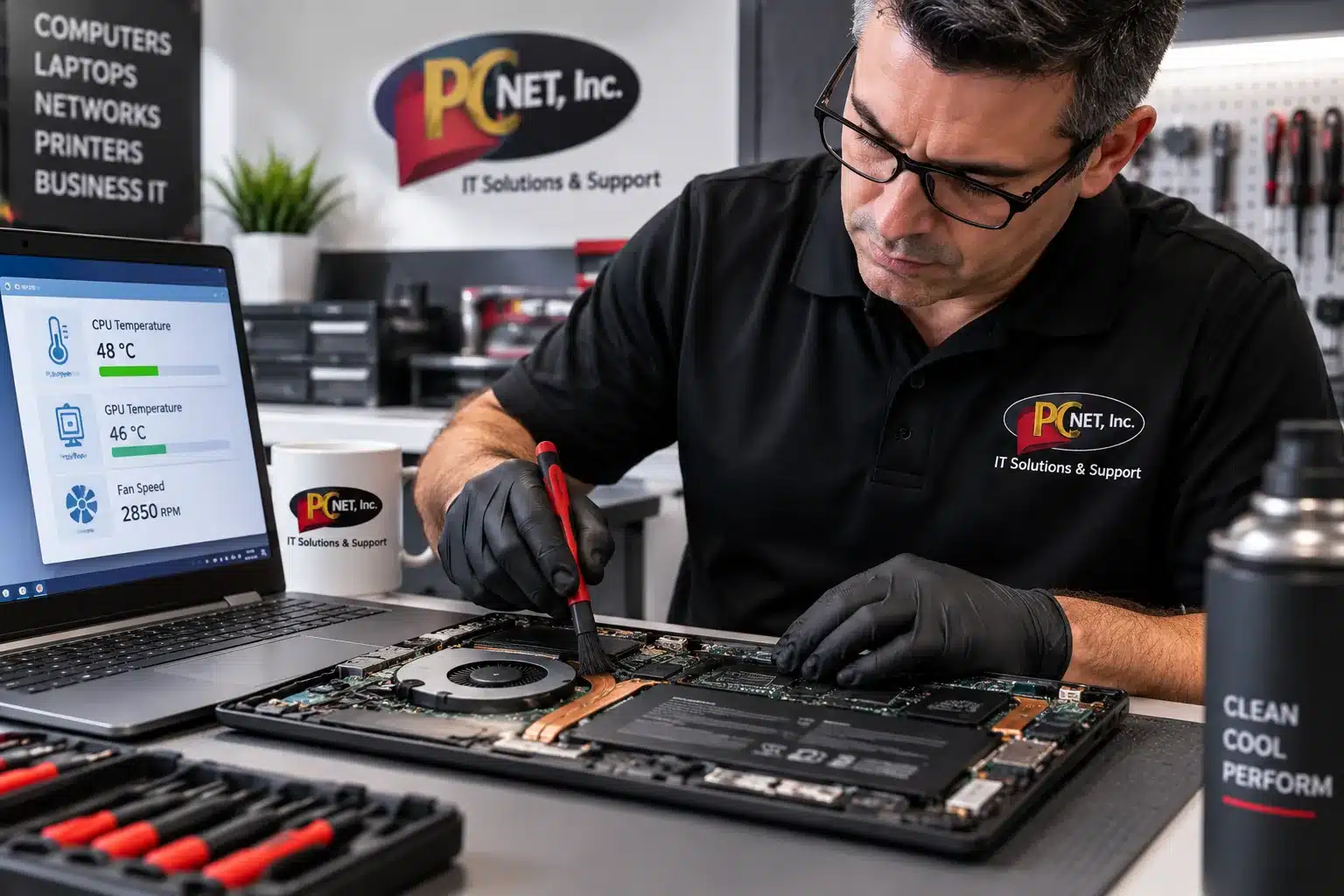
Laptops naturally generate heat, especially during demanding tasks, but excessive heat can cause slow performance, unexpected shutdowns, loud fan noise, or a laptop that becomes uncomfortable to touch. Common causes include dust restricting airflow, blocked vents, a cooling fan that is not operating correctly, or deterioration of the thermal material that helps transfer heat away from the processor.
One clue we often look for is whether the laptop becomes hot and the fan runs constantly even during light use. In other cases, the laptop may slow itself down to reduce temperature or shut off completely to protect the hardware.
Common signs include: unusually loud or constantly running fans, excessive heat around the keyboard or bottom of the laptop, performance dropping after the laptop has been running for a while, or unexpected shutdowns when the system is under load.
Avoid repeatedly using an overheating laptop that is shutting itself down. The shutdown may be a protective response, and continuing to operate the computer without identifying the cause can lead to additional problems.
Microsoft also notes that heavier workloads can cause a laptop to run warmer and make the cooling fan operate more frequently.
3. Battery Drains Quickly or Laptop Won’t Charge
Laptop batteries naturally lose capacity as they age, but a battery that suddenly drains much faster than normal does not always mean the battery itself is the only problem. Charging issues can also be caused by a failing AC adapter, damaged charging port, loose connection, Windows power settings, or an internal power-related problem.
A useful part of the diagnosis is determining whether the laptop operates normally when connected to AC power. If the computer works with the charger connected but shuts off shortly after it is unplugged, the battery may no longer be holding an adequate charge. If the laptop does not recognize the charger at all, the adapter, charging port, or internal hardware may need to be checked.
Common signs include: battery percentage dropping unusually fast, “plugged in” but not charging, intermittent charging when the connector is moved, the laptop shutting off when unplugged, or the computer not responding to the charger.
Avoid buying a replacement battery based only on the symptom. Testing the charger and power system first can prevent replacing a battery that was not actually causing the problem.
4. Laptop Screen Is Flickering, Dim, or Not Displaying Properly
A laptop display problem does not always mean the LCD screen itself has failed. A flickering, dim, distorted, or completely black screen can be caused by the display panel, an internal display cable, a driver or Windows issue, or another hardware problem affecting video output.
One useful diagnostic step is determining whether the laptop produces a normal picture on an external monitor. If an external display works correctly while the laptop screen does not, that can help narrow the problem to components associated with the built-in display. However, proper testing is still needed before replacing the screen.
Common signs include: flickering, lines or unusual colors on the display, a very dim image, intermittent video when the lid is moved, a cracked screen, or a laptop that powers on but shows no picture.
If your laptop’s power lights or fans turn on but the screen stays black, follow our guide, Computer Turns On but No Display? 7 Things to Check, for additional troubleshooting steps involving external displays, video connections, and startup hardware.
For physically cracked screens, replacement is usually straightforward once the correct panel is identified. For other display symptoms, diagnosis should come before ordering a replacement screen, since the screen itself may not be the failed component.
5. Laptop Freezes, Crashes, or Restarts Unexpectedly
Intermittent freezing or unexpected restarts can be difficult to diagnose because several different problems can produce similar symptoms. Possible causes include failing memory, storage problems, overheating, corrupted Windows files, problematic drivers, software conflicts, or other hardware issues.
The timing of the problem can provide useful clues. A laptop that becomes unstable only after it gets hot may point toward a cooling issue, while crashes that begin after a Windows, driver, or software change may have a different cause. Diagnostic testing can also help determine whether the memory or storage device is producing errors.
Common signs include: the mouse and keyboard suddenly stop responding, applications repeatedly crash, Windows displays error messages or blue screens, the laptop restarts without warning, or the computer becomes unstable during normal use.
Because freezing and restarting are symptoms rather than a diagnosis, replacing parts without testing can become expensive and may not solve the problem. Identifying when and how the failure occurs is usually the better starting point.
6. Hard Drive or SSD Problems
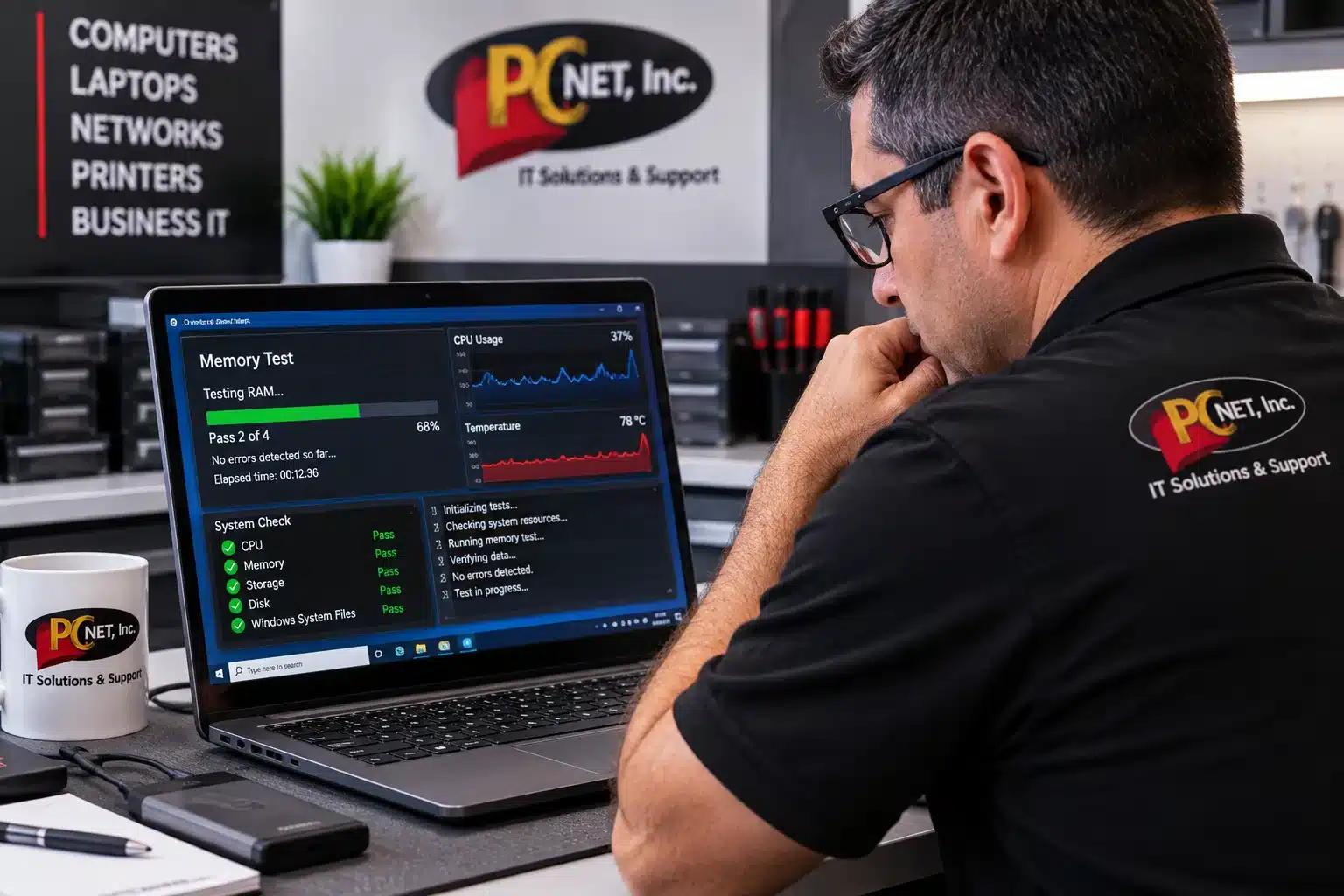
The storage drive holds Windows, applications, and personal files, so problems with a hard drive or SSD can affect much more than storage space. A failing drive may cause slow startup, freezing, corrupted files, Windows errors, or a computer that eventually will not boot.
Traditional mechanical hard drives can develop physical problems as they age, while SSDs can also fail because of controller, memory, firmware, or other electronic issues. Because the symptoms can resemble Windows or memory problems, the drive should be tested before assuming it needs replacement.
Common signs include: unusually slow startup, frequent freezing while opening or saving files, disk-related errors, corrupted or disappearing files, Windows failing to load, or the drive no longer being detected.
If important files are stored on a laptop that appears to have a failing drive, avoid repeatedly restarting the computer or performing unnecessary repair attempts. Protecting or recovering the data may be more important than immediately trying to repair Windows.
7. Laptop Won’t Turn On or Start Properly
When a laptop will not turn on, the cause can range from a simple power problem to an internal hardware failure. A bad AC adapter, discharged or failing battery, damaged charging port, memory problem, or motherboard-related issue can prevent the computer from powering on normally. In other cases, the laptop may have power but fail during the Windows startup process.
It is important to distinguish between a laptop that has no power at all and one that powers on but does not successfully boot. Lights, fan activity, keyboard illumination, startup sounds, or an image on an external monitor can provide useful clues during diagnosis.
Common signs include: no response when pressing the power button, power lights appearing but no picture, the laptop turning on and immediately shutting off, repeated startup attempts, or Windows failing to load.
If the laptop contains important data, the fact that it will not start does not necessarily mean the files are lost. The condition of the storage drive is separate from many power and startup failures and should be evaluated before assuming the data cannot be recovered.

8. Wi-Fi Keeps Disconnecting or Internet Connection Is Unstable
Wi-Fi problems are not always caused by the laptop itself. An unstable connection can result from the wireless adapter or driver, Windows network settings, weak signal strength, interference, router problems, or an issue with the internet service. Determining whether other devices are experiencing the same problem is often one of the first ways to narrow down the cause.
If other phones and computers stay connected normally while one laptop repeatedly disconnects, the problem is more likely related to that laptop. Checking the wireless adapter, drivers, Windows settings, and connection behavior on different networks can help determine whether the issue is software, configuration, or hardware related.
Common signs include: Wi-Fi disconnecting repeatedly, the laptop showing connected but having no internet access, very slow wireless performance, available networks disappearing, or the laptop failing to reconnect after sleep or restart.
Before replacing a wireless adapter or making major changes to the laptop, it is important to determine whether the problem follows the computer or occurs across the entire network.
When Should You Have a Laptop Professionally Diagnosed?
Some laptop problems can be resolved with a restart, a Windows update, or a simple setting change. However, recurring problems such as overheating, freezing, charging failures, unusual noises, startup errors, or a laptop that will not turn on usually deserve further diagnosis.
At PC Net, Inc., our technicians diagnose laptop and computer problems before recommending a repair. We provide computer and laptop repair in Miami for hardware problems, Windows and software issues, performance problems, upgrades, and other common failures.
If your laptop is experiencing one of these problems, contact PC Net to have the computer evaluated and determine the appropriate next step.
Frequently Asked Questions About Laptop Problems
Is it worth repairing an older laptop?
It depends on the laptop’s age, condition, specifications, and the cost of the repair. An older laptop with a healthy processor and overall good condition may still be worth repairing or upgrading, especially if an SSD or additional memory can improve performance. However, if the computer has multiple hardware problems or the repair cost approaches the price of a suitable replacement, replacing it may make more sense. PC Net can diagnose the laptop and explain the repair options before you decide.
How do I know if my laptop problem is hardware or software?
The symptoms alone do not always make it obvious. Slow performance, freezing, startup problems, and unexpected restarts can be caused by either hardware or software. For example, a failing storage drive or memory problem can produce symptoms that look similar to Windows corruption, driver problems, or software conflicts. Diagnostic testing helps isolate the cause before parts are replaced or Windows is repaired.
How much does laptop repair usually cost?
Laptop repair costs depend on the problem, the parts required, and the amount of work involved. A software issue, memory upgrade, screen replacement, storage-drive replacement, or power-related problem can each involve different repair costs. At PC Net, we diagnose the laptop first and provide an estimate before proceeding with the repair, so you can decide whether repairing the computer makes financial sense.
How long does laptop repair usually take?
Repair time depends on the problem and whether replacement parts are needed. Many software problems, diagnostics, upgrades, and common repairs can be completed relatively quickly, while screen replacements or other hardware repairs may take longer if a specific part must be ordered. After diagnosing the laptop, PC Net can explain the recommended repair and expected turnaround time.
Can my files be recovered if my laptop won’t start?
Possibly. A laptop that will not start does not automatically mean the files are lost. The problem may involve Windows, the power system, the display, or another component while the storage drive and its data remain accessible. If the hard drive or SSD itself is failing, recovery depends on the condition of the drive. If important files are involved, avoid repeated startup attempts or unnecessary repairs until the storage device can be evaluated.