
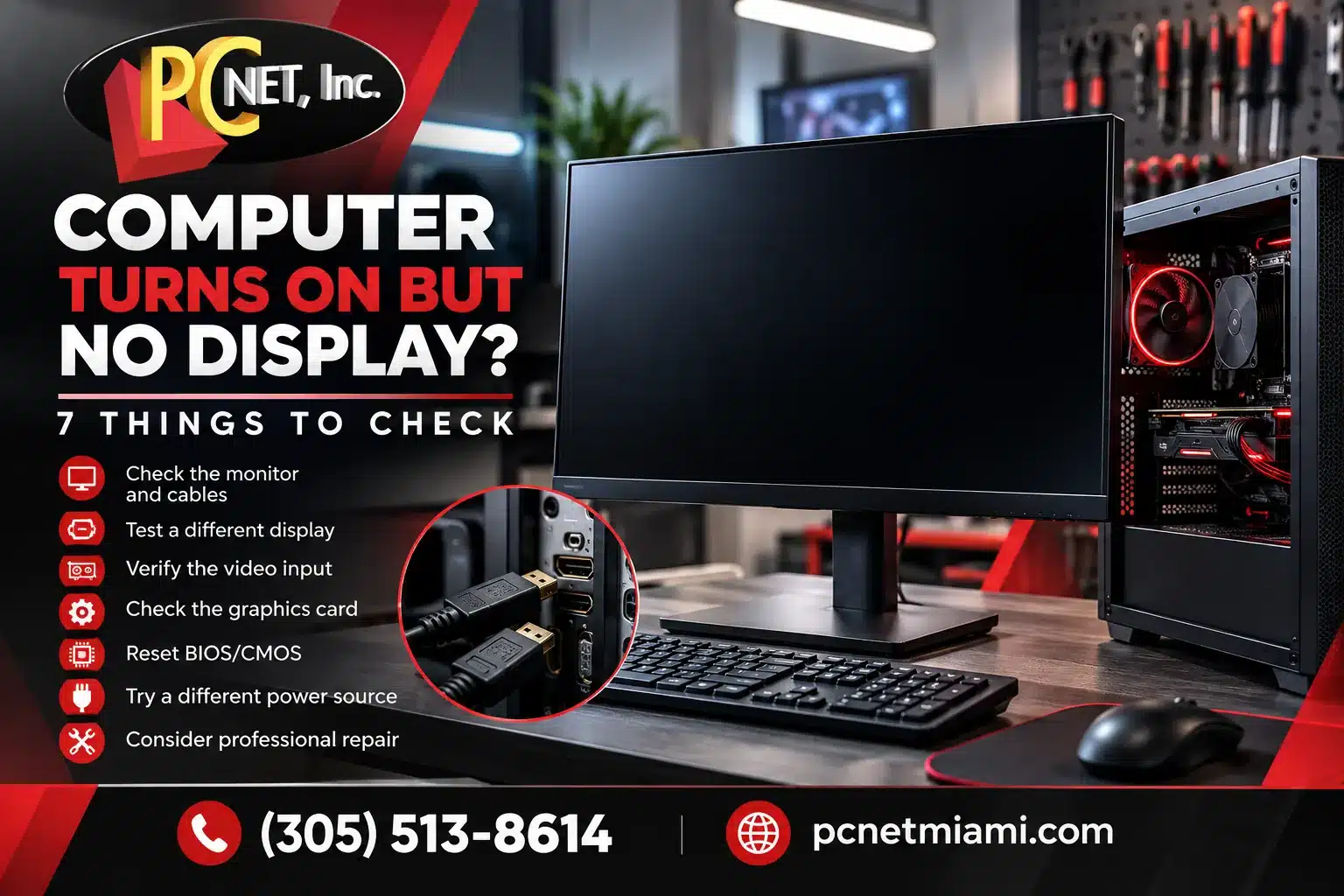
You press the power button on your computer, hear the fans spinning, and see the power lights come on—but the monitor stays completely black. If your computer turns on but no display appears, the problem could be as simple as a loose video cable or as serious as a graphics card, memory, or motherboard failure.
A black screen doesn’t always mean your computer is beyond repair. In many cases, the issue can be traced to the monitor, display connection, or a hardware component preventing the system from completing its startup process.
At PC Net, Inc., we’ve helped Miami-area customers diagnose and repair desktop and laptop problems for more than 27 years. In this guide, we’ll walk you through 7 things to check when your computer turns on but the screen stays black, starting with simple troubleshooting steps before moving to possible hardware failures.
Important: If your computer recently suffered liquid damage, produces a burning smell, or makes unusual electrical noises, turn it off and disconnect the power. Avoid further troubleshooting until a qualified technician can inspect it.
Table of Contents
- Check the Monitor, Power, and Video Cables
- Test a Different Monitor or Display
- Verify the Correct Video Output and Input
- Check for Graphics Card Problems
- Look for RAM and Startup Hardware Issues
- Check BIOS/UEFI and Startup Indicators
- Know When to Seek Professional Computer Repair
- Frequently Asked Questions
- Computer Repair Services in Miami – PC Net, Inc.
1. Check the Monitor, Power, and Video Cables
When your computer turns on but no display appears, start by checking the monitor and its connections. A loose HDMI cable, disconnected power cord, or incorrect monitor input can cause a black screen even when the computer itself is working properly.
Before assuming there’s a serious hardware problem, try these simple checks:
- Check the monitor’s power: Make sure the monitor is plugged into a working electrical outlet and that its power indicator is illuminated.
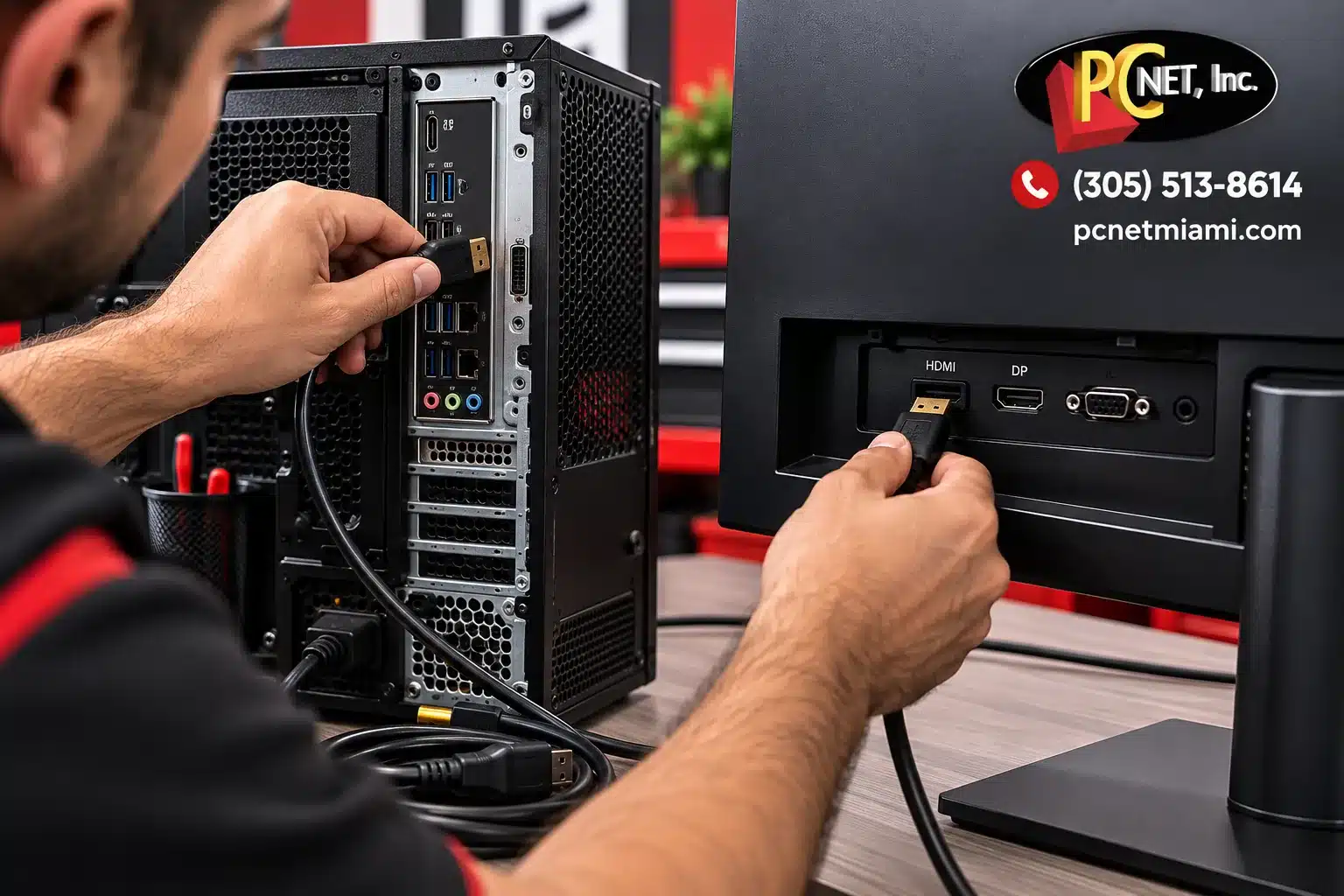
- Inspect the video cable: Disconnect and firmly reconnect the HDMI, DisplayPort, DVI, or VGA cable at both ends.
- Select the correct input source: Use the monitor’s menu to confirm that the selected input matches the cable connected to your computer.
- Look for damaged cables or connectors: Bent pins, loose ports, or damaged cables can interrupt the video signal.
- Try another video cable: If available, replace the existing cable with a known-working one to rule out a connection problem.
What Does “No Signal” Mean on a Monitor?
If your monitor displays a “No Signal” message, it generally means the monitor is powered on but isn’t receiving a usable video signal from the selected input.
This doesn’t automatically mean your graphics card or motherboard has failed. The problem could be the cable, the selected input, the computer’s video output, or the computer failing to initialize its display hardware.
PC Net Tip: If the monitor’s own menu appears normally but you still cannot see the computer’s startup screen, focus your next troubleshooting steps on the video connection and computer rather than assuming the monitor is defective.
2. Test a Different Monitor or Display
If your computer turns on but no display appears after checking the cables and power connections, the next step is to determine whether the problem is coming from the monitor or the computer itself.
A monitor can fail even when its power indicator is illuminated. Problems with the display panel, internal electronics, or video input can prevent an image from appearing.
How to Test Your Monitor
- Connect your computer to another monitor. Use a compatible HDMI, DisplayPort, or other supported video connection.
- Try a television with an HDMI input. If your computer supports HDMI output, a TV can sometimes serve as a temporary display for testing.
- Test your original monitor with another device. Connect it to a working computer or another compatible video source.
- Check the results. If your computer displays an image on the replacement monitor, the original monitor or its connection may be responsible.
What If the Second Monitor Is Also Black?
If neither display receives a video signal, the problem may be related to the computer’s video output, graphics hardware, memory, or startup process.
However, two black screens don’t automatically prove that the motherboard or graphics card has failed. The computer may be sending video through a different output, or it may not be completing its initial hardware checks.
PC Net Tip: If you’re troubleshooting a laptop, connecting an external monitor can help determine whether the problem involves the built-in screen. Depending on the laptop model, you may need to use a display-switching keyboard shortcut to activate the external display.
3. Verify the Correct Video Output and Input
If your computer turns on but the screen stays black, the monitor may be connected to a video port that isn’t currently providing a signal.
Many desktop computers have video connections in two different locations: the motherboard’s rear I/O panel and a dedicated graphics card installed in an expansion slot. Although these ports may look similar, they don’t necessarily work interchangeably.
Check Where Your Monitor Is Connected
Look at the back of your desktop computer:
- Motherboard video ports: These are usually located near the USB, Ethernet, and audio connections.
- Dedicated graphics card ports: These are generally located farther down the rear of the computer, where the graphics card is installed horizontally in an expansion slot.
If your computer has a dedicated graphics card, the monitor should generally be connected directly to that card.
Some systems disable motherboard video outputs when a dedicated graphics card is installed. Others may not support motherboard video output at all because the processor lacks integrated graphics.
How to Correct the Video Connection
- Shut down the computer.
- Identify the HDMI or DisplayPort connections on the dedicated graphics card, if one is installed.
- Connect the monitor to an appropriate output on the graphics card.
- Turn on the monitor and select the matching input source.
- Start the computer and check whether the manufacturer’s logo or startup screen appears.
If the computer displays an image after changing the connection, the problem may have been an incorrect or inactive video output rather than a failed hardware component.
What If the Computer Still Has No Display?
If you’ve verified the correct video connection and tested a working monitor, the next step is to investigate whether the graphics hardware is initializing properly.
PC Net Tip: Don’t assume that every HDMI or DisplayPort connection on the back of a computer is active. The available video outputs depend on the processor, motherboard, graphics card, and system configuration.
4. Check for Graphics Card Problems
A graphics card is responsible for generating the images displayed on your monitor. If your computer turns on but no display appears, a graphics card problem could be preventing the system from sending a usable video signal.
However, a black screen doesn’t automatically mean the graphics card has failed. Loose connections, insufficient power, overheating, or other startup hardware problems can produce similar symptoms.
Common Signs of a Graphics Card Problem
Some warning signs include:
- No video signal during startup: The computer powers on, but nothing appears on a known-working monitor.
- Display problems before the screen goes black: The computer previously showed flickering, unusual colors, distorted images, or visual artifacts.
- Unexpected shutdowns during graphics-intensive tasks: Games or graphics-heavy applications may have caused the computer to crash or restart.
- Motherboard diagnostic indicators: Some computers display a VGA warning light or diagnostic code when graphics hardware fails to initialize.
- Intermittent display output: The screen occasionally works after restarting but fails again later.
These symptoms can suggest a graphics-related issue, but they aren’t sufficient to confirm a defective graphics card.
Safe Troubleshooting Steps
Before attempting any internal hardware repairs, try the following:
- Turn off the computer completely. Disconnect the power before inspecting external connections.
- Check the video cable and graphics card output. Confirm the monitor is connected to the correct port.
- Observe the computer’s startup behavior. Look for motherboard diagnostic lights, error messages, or unusual beep patterns.
- Consider recent changes. If the problem began after installing a new graphics card or moving the computer, a connection or installation issue may be involved.
- Seek professional diagnostics if the problem continues. A technician can test graphics hardware, power delivery, and other components to identify the cause.
Should You Replace the Graphics Card?
Not necessarily.
Replacing a graphics card without confirming the cause can be expensive and may not resolve the problem. A faulty power supply, memory issue, motherboard problem, or incorrect system configuration can also prevent video output.
Professional diagnostics can help determine whether the graphics card is actually defective or whether another component is responsible.
PC Net Tip: If your computer displays a VGA diagnostic light, consult the motherboard manufacturer’s documentation for that specific model. Diagnostic indicators vary between manufacturers and don’t always identify the exact failed component.
5. Look for RAM and Startup Hardware Issues
If your computer turns on but no display appears, the problem may involve the system’s memory (RAM) or another hardware component required during startup.
When a computer starts, it performs a series of hardware initialization checks, commonly associated with the Power-On Self-Test (POST). If an essential component fails to initialize, the computer may never reach the point where it displays the manufacturer’s logo or loads Windows.
This explains why a computer can appear to be running—with spinning fans and illuminated power indicators—while the monitor remains completely black.
Can Faulty RAM Cause a Black Screen?
Yes. Faulty, incompatible, or improperly installed RAM can prevent a computer from completing its startup process.
Possible warning signs include:
- Black screen immediately after powering on: The monitor receives no usable video signal.
- Repeated restart attempts: The computer powers on and off without reaching the operating system.
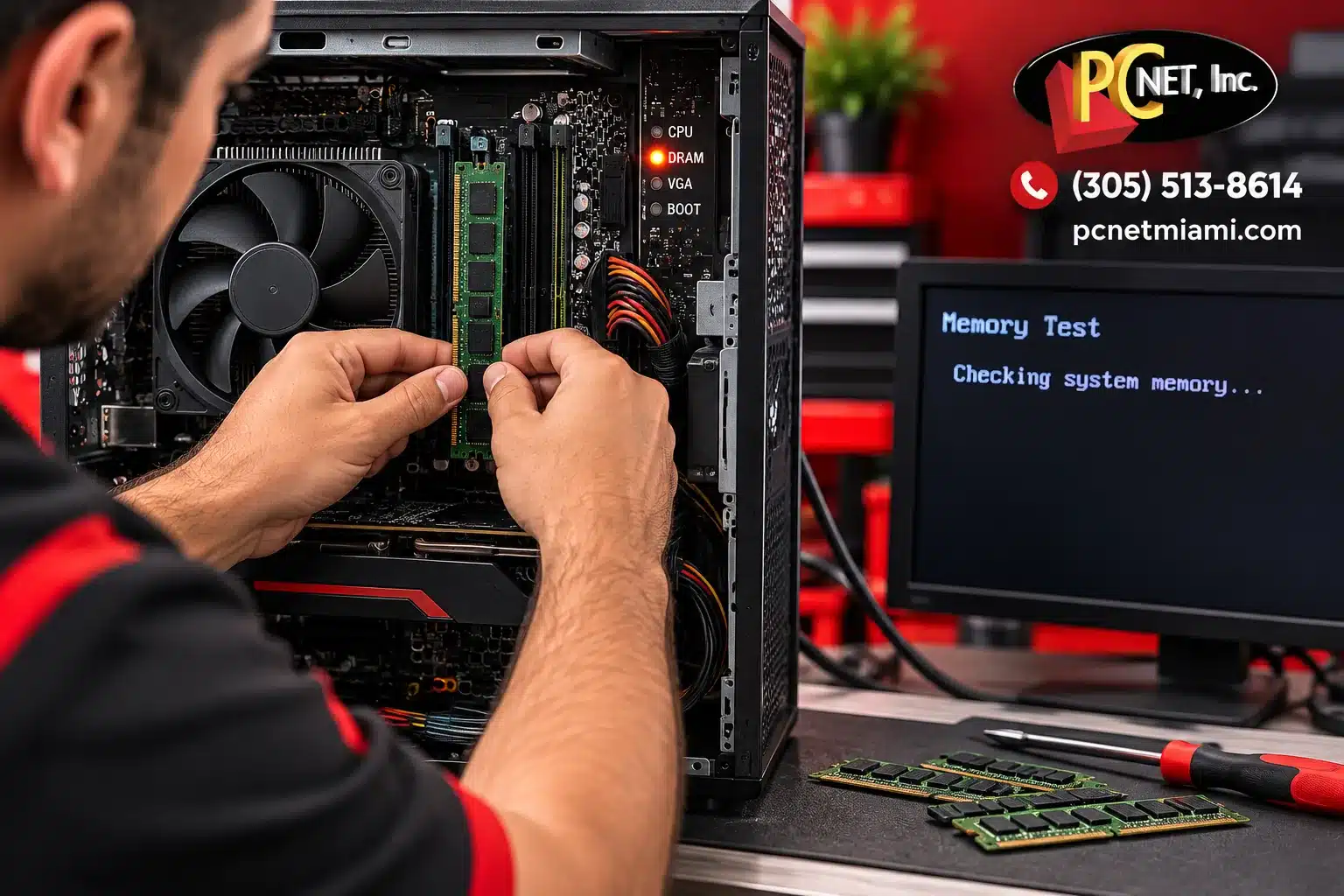
- Memory-related diagnostic lights: Some motherboards illuminate a DRAM indicator when memory initialization fails.
- Beep codes during startup: Certain computers use audible signals to report memory or other hardware initialization problems.
- Problems after a RAM upgrade: The black screen begins after installing or replacing memory modules.
These symptoms can indicate a memory problem, but they may also result from motherboard, processor, or power-related issues.
What Should You Check First?
Before attempting internal hardware troubleshooting:
- Disconnect unnecessary external devices. Remove nonessential USB accessories and restart the computer.
- Check for diagnostic indicators. Look for labeled warning lights or error codes on the computer or motherboard.
- Consider recent hardware changes. If the issue began immediately after a RAM upgrade, the new memory may be incompatible or improperly installed.
- Consult the manufacturer’s documentation. Diagnostic lights and beep patterns vary by computer and motherboard model.
- Avoid unnecessary disassembly. If you’re unfamiliar with computer hardware, have a qualified technician inspect the system.
Why Professional Hardware Diagnostics Matter
A computer that fails its startup hardware checks may require testing of the RAM, motherboard, processor, power supply, or related components.
Because several hardware failures can produce nearly identical symptoms, replacing parts without proper testing can waste time and money.
PC Net Tip: Spinning fans and illuminated power lights do not confirm that the computer has successfully completed its startup checks. A proper diagnosis should determine which component is preventing the system from initializing.
6. Check BIOS/UEFI and Startup Indicators
If your computer turns on but no display appears, the problem may occur before Windows even begins loading. During startup, the computer’s firmware—known as BIOS or UEFI—initializes essential hardware and prepares the system to start the operating system.
When a computer cannot complete this process, the monitor may remain black even though the power light is illuminated and the fans are spinning.
How to Identify a BIOS or Startup Problem
Look for these signs when powering on your computer:
- No manufacturer logo: The screen remains black before the Windows loading screen would normally appear.
- Motherboard diagnostic lights: Some desktop motherboards have CPU, DRAM, VGA, or BOOT indicators that help identify where startup is failing.
- Beep codes: Certain computers produce a sequence of beeps when they detect hardware initialization errors.
- Repeated startup attempts: The computer may turn on, shut down, and restart without displaying an image.
- Problems after a BIOS update: An interrupted or unsuccessful firmware update can sometimes prevent a computer from starting correctly.
Keep in mind that diagnostic lights and beep codes vary by manufacturer and model. They provide clues, not necessarily a definitive diagnosis.
Can You Access BIOS/UEFI When the Screen Is Black?
If the monitor receives no video signal at all, you generally cannot view or navigate the BIOS/UEFI setup screen.
However, if the manufacturer’s logo appears briefly before the screen goes black, you may be able to enter firmware settings using the appropriate startup key, commonly F2, Delete, Esc, or another manufacturer-specific key.
The correct key depends on your computer’s manufacturer and model.
Should You Reset the BIOS or CMOS?
Resetting CMOS settings can sometimes resolve startup problems caused by incorrect firmware configuration. However, it should not be the first troubleshooting step.
A reset can change important settings, including boot configuration, storage controller settings, and security-related options. On systems using BitLocker or device encryption, firmware changes may also trigger a recovery-key prompt.
For these reasons, avoid resetting BIOS/CMOS or attempting a firmware update unless you understand the manufacturer’s procedure and have the necessary recovery information.
When to Seek Professional BIOS Diagnostics
If your computer continues to display a black screen after checking the monitor, cables, video outputs, and startup indicators, professional diagnostics may be necessary.
A technician can evaluate the system’s startup behavior, interpret manufacturer-specific diagnostic codes, and determine whether the issue involves firmware configuration or a hardware component.
If your computer displays the manufacturer’s logo but the screen goes black when Windows starts, the problem may involve Windows or a display driver rather than a complete hardware startup failure. Microsoft’s blank-screen troubleshooting guidance provides additional steps for investigating Windows-related display problems.
PC Net Tip: Never interrupt a BIOS/UEFI firmware update or repeatedly attempt firmware recovery without following the manufacturer’s instructions. An unsuccessful update or recovery procedure can leave the computer unable to start.
7. Know When to Seek Professional Computer Repair
If your computer turns on but no display appears after you’ve checked the monitor, cables, video connections, and startup indicators, it’s time to consider professional computer diagnostics.
A black screen can result from several different hardware problems, and many produce nearly identical symptoms. Without proper testing, it can be difficult to determine whether the issue involves the graphics card, RAM, motherboard, power supply, or another component.
Signs Your Computer Needs Professional Attention
Consider having your computer inspected if:
- The screen remains black with a known-working monitor. You’ve already ruled out the most common external display problems.
- The computer repeatedly restarts or fails to complete startup. This may indicate a hardware initialization or power-related issue.
- Motherboard diagnostic lights remain illuminated. Persistent CPU, DRAM, or VGA indicators may require component-level troubleshooting.
- The problem started after a hardware upgrade. Newly installed RAM, graphics hardware, or other components may be incompatible or improperly connected.
- You suspect a motherboard or power supply problem. These components require appropriate testing equipment and safety precautions.
- Important business or personal files are stored on the computer. Avoid repeated repair attempts that could create additional problems or put your data at risk.
Professional Computer Diagnostics in Miami
At PC Net, Inc., we provide computer troubleshooting and repair services for residential and business customers throughout Miami and nearby areas.
Our technicians can evaluate startup failures, display problems, memory issues, and other hardware-related symptoms to help identify the underlying cause.
If your computer powers on but the screen remains black, our Computer Repair Miami services can help you determine whether the problem requires a simple correction, hardware repair, or component replacement.
PC Net Tip: Accurate diagnosis is especially important when multiple components could be responsible for the same symptom. Identifying the actual failure before replacing parts can help avoid unnecessary repair expenses.
Frequently Asked Questions
Why does my computer turn on but the screen stay black?
A computer can power on without displaying an image because of a loose video cable, incorrect monitor input, faulty RAM, graphics hardware problems, or a failure during the startup process. Start by checking the monitor and cables before investigating internal hardware.
Can faulty RAM cause a computer to turn on with no display?
Yes. Faulty, incompatible, or improperly installed RAM can prevent a computer from completing its initial hardware checks. The fans and power lights may still operate even though the system cannot display a startup screen.
How do I know if my graphics card is causing a black screen?
Possible warning signs include visual distortion before the failure, intermittent video output, or a VGA diagnostic indicator on the motherboard. However, these symptoms do not confirm a defective graphics card. Testing with known-working components may be necessary.
Why does my monitor say "No Signal" when my PC is running?
A “No Signal” message usually means the monitor is not receiving a usable video signal through the selected input. The cause could be an incorrect input setting, disconnected cable, inactive video output, or a computer that has failed to initialize its display hardware.
Can a computer have a black screen even if the fans are spinning?
Yes. Spinning fans indicate that some components are receiving power, but they do not prove that the computer has completed its startup checks. Problems involving RAM, the motherboard, graphics hardware, or power delivery can prevent an image from appearing.
Will I lose my files if my computer has a black screen?
Not necessarily. A display or startup hardware failure does not automatically mean your files have been lost. In many cases, the storage drive and its data remain intact. However, data recovery depends on the condition of the storage device, and important files should be protected before attempting major repairs.
Is it worth repairing a computer that turns on but has no display?
Often, yes. The repair may involve a simple cable replacement, memory correction, or another relatively straightforward fix. More expensive failures, such as certain motherboard problems, require comparing the repair cost with the computer’s age, condition, and replacement value.
Computer Repair Services in Miami – PC Net, Inc.
If your computer turns on but no display appears, and you’ve already checked the monitor, cables, and basic connections, PC Net, Inc. can help identify the problem.
With more than 27 years of experience serving Miami-area customers, our technicians provide professional computer diagnostics and repair services for desktops, laptops, and business workstations.
Whether the issue involves faulty RAM, a graphics card, motherboard components, or another startup-related problem, our goal is to identify the cause and recommend an appropriate repair before unnecessary parts are replaced.
Get Professional Computer Repair in Miami
PC Net offers in-shop and on-site computer support for residential customers and businesses throughout Miami and nearby communities, including Doral.
Don’t replace your computer simply because the screen stays black. A professional diagnosis can help you understand your repair options.
Contact PC Net, Inc. today:
- Phone: (305) 513-8614
- Website: https://pcnetmiami.com/
- Location: 2451 NW 109th Avenue, Suite 11, Miami, FL 33172
- Business Hours: Monday–Friday, 8:30 AM–5:00 PM
PC Net, Inc. — Professional Computer Repair and IT Support in Miami.