

A Windows slow after update problem can be frustrating, especially when your computer was working normally before Windows installed the latest updates. You may notice slower startup times, programs taking longer to open, high disk or CPU usage, freezing, or an overall drop in performance.
At PC Net, Inc., we troubleshoot Windows computers that develop performance problems after updates. While it is easy to blame the update itself, the actual cause may involve background update processes, drivers, storage space, system files, startup programs, or an underlying hardware problem that becomes more noticeable after the update.
Below are seven common reasons a Windows computer may become slow after an update, what the symptoms can tell you, and what you can do before assuming the computer needs major repairs.
1. Windows Is Finishing Background Update Tasks
After a Windows update installs, the computer may continue performing additional work in the background. Windows can be completing update components, rebuilding search indexes, optimizing system files, scanning with Microsoft Defender, or finishing other maintenance tasks.
During this time, you may notice higher CPU or disk activity, slower application launches, or a computer that feels less responsive than usual. This does not necessarily mean something is wrong with the computer.
In many cases, performance improves after Windows finishes these background processes and the computer has been restarted. However, if the slowdown continues for an extended period or becomes progressively worse, additional troubleshooting may be necessary.
2. Startup Programs Are Using Too Many Resources
After an update and restart, Windows may launch several programs and background services at the same time. Applications that automatically start with Windows can compete for processor, memory, and disk resources, making the computer feel unusually slow shortly after signing in.
Open Task Manager and review the Startup apps and Processes sections to see which programs are using system resources. Programs you do not need immediately at startup may be candidates for disabling, but avoid disabling security software, hardware utilities, or unfamiliar system processes without first determining what they do.
If the computer remains slow long after startup activity has settled, the problem may involve something other than startup programs.

3. A Driver Is Causing Performance Problems
Windows updates sometimes install or change device drivers for components such as graphics, network adapters, storage controllers, and other hardware. If a new driver does not work properly with the computer’s hardware or conflicts with an existing driver, Windows may become slower, freeze intermittently, or take longer to start.
You may also notice other symptoms, such as Wi-Fi problems, display issues, unusual CPU usage, or a device that stopped working correctly after the update.
Checking Device Manager and Windows Update can help identify driver-related problems. In some cases, installing the correct driver from the computer or hardware manufacturer may resolve the issue. Avoid downloading drivers from unknown third-party websites, since incorrect or unsafe drivers can create additional problems.
4. Windows Update Files or System Files Are Corrupted
Occasionally, files used by Windows during or after an update can become damaged or incomplete. When this happens, the computer may experience slow startup, delayed applications, freezing, error messages, or other unusual behavior.
Windows includes built-in tools such as System File Checker (SFC) and Deployment Image Servicing and Management (DISM) that can check for and repair certain Windows system-file problems.
However, recurring corruption can sometimes be a symptom of another issue, such as storage problems, unexpected shutdowns, or failing hardware. If Windows continues finding errors or performance does not improve after repairs, further diagnostics may be necessary.
5. The Computer Is Low on Available Storage
Windows updates often require several gigabytes of free storage for downloading files, installing components, creating temporary files, and completing system maintenance. If the drive is nearly full, Windows may have difficulty performing these tasks efficiently.
A computer with very little available storage may take longer to start, open programs slowly, or become less responsive while Windows performs background operations. This can be especially noticeable after a major Windows update.
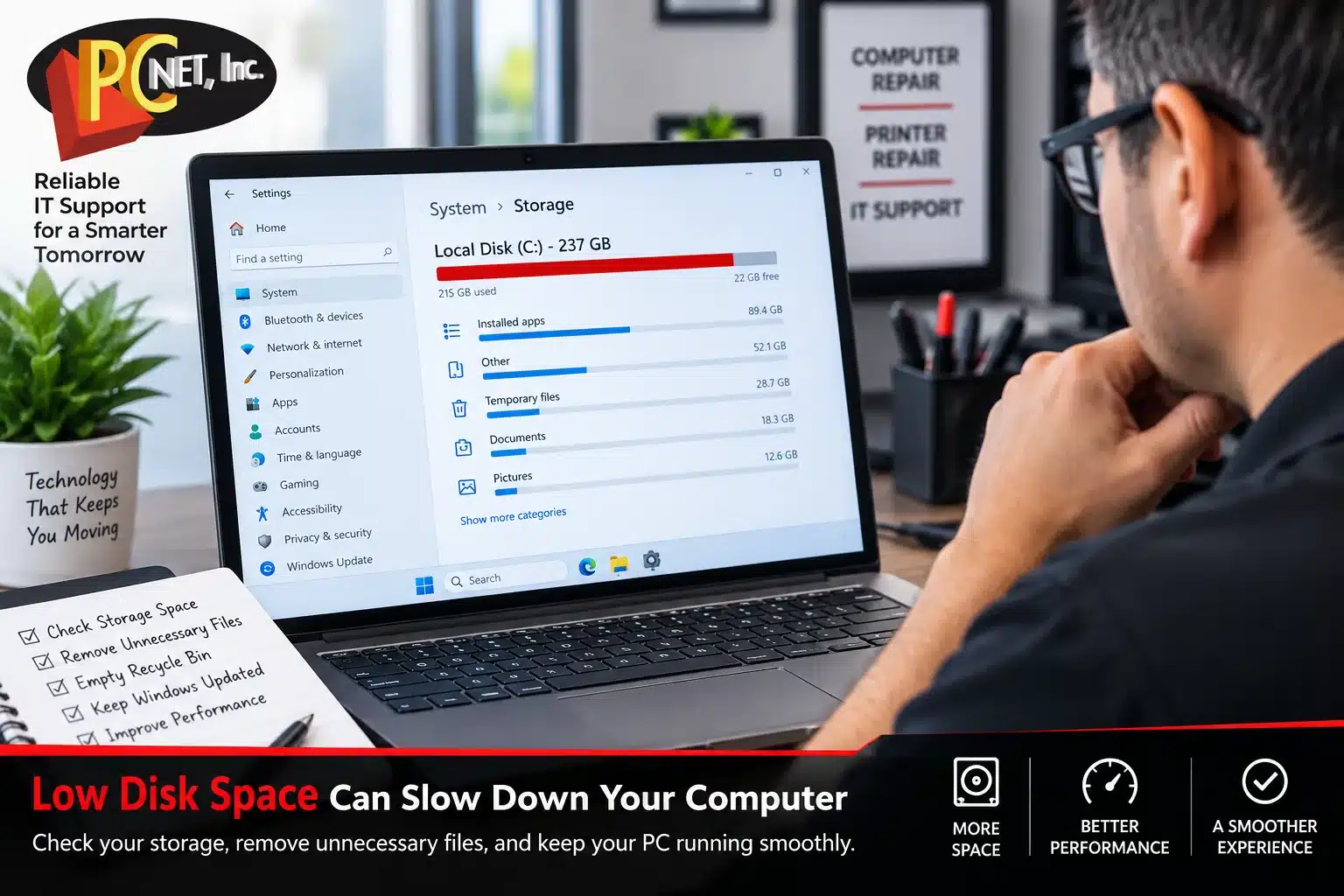
Check Settings > System > Storage to see how much space is available. Removing unnecessary temporary files, old downloads, or unused applications may help, but avoid manually deleting unfamiliar Windows or system folders.
If storage space appears adequate but the computer remains unusually slow, the issue may involve the condition of the SSD or hard drive rather than simply the amount of free space.
6. The Update Exposed an Existing Hardware Problem
Sometimes a Windows update is blamed for a slowdown simply because the symptoms appeared immediately afterward. However, the update and restart process can place additional demand on the computer, making an existing hardware problem more noticeable.
A deteriorating hard drive or SSD, insufficient memory, overheating, or another hardware issue may cause slow startup, freezing, unusually high disk activity, or applications that take much longer than expected to open.
If the slowdown continues after Windows has finished its update activity, hardware diagnostics can help determine whether the problem is actually related to the update or whether a component is beginning to fail.
If you also notice corrupted files, disk errors, clicking noises, or problems booting Windows, review our guide on Hard Drive Failing? 7 Warning Signs You Shouldn’t Ignore.

Windows Slow After Update? What Should You Do Next?
If your computer is still slow after Windows has had time to finish its update tasks and you have restarted the system, the next step is to determine whether the slowdown is being caused by software, drivers, storage, or hardware.
Pay attention to when the problem occurs. For example, does the computer remain slow immediately after startup, only when opening certain programs, or whenever disk or CPU usage becomes high? These details can help narrow down the cause.
Avoid making several major changes at once or immediately resetting Windows. Troubleshooting one possible cause at a time makes it easier to identify what is actually affecting performance.
If the problem continues, professional computer diagnostics and repair in Miami can help determine whether the issue is related to Windows or an underlying hardware problem.
Frequently Asked Questions About a Slow Computer After a Windows Update
How long should a computer be slow after a Windows update?
Some temporary slowdown can occur while Windows completes background tasks after an update. Performance may improve after these processes finish and the computer is restarted. If the computer remains unusually slow for an extended period, further troubleshooting may be needed.
Why is my computer using 100% disk after a Windows update?
High disk usage can occur while Windows is installing updates, indexing files, running security scans, or performing maintenance. If disk usage remains near 100% for long periods, storage problems, background applications, or other system issues may need to be investigated.
Can a Windows update cause driver problems?
Yes. Windows updates can sometimes change or install device drivers. If a driver is incompatible with specific hardware or software, you may notice slower performance, freezing, display problems, network issues, or other unusual behavior.
Should I uninstall a Windows update if my computer becomes slow?
Not automatically. First determine whether Windows is still completing background tasks and check for additional updates, driver problems, storage limitations, or other causes. Removing an update without identifying the problem may not resolve the slowdown.
Can a failing hard drive or SSD make Windows slow after an update?
Yes. An update can make an existing storage problem more noticeable because installation and background processes place additional demands on the drive. Persistent slow performance, disk errors, corrupted files, or boot problems may indicate that the storage device should be tested.
Windows Computer Repair in Miami
If your computer remains slow after a Windows update, the cause may involve drivers, Windows system files, storage, startup programs, or an underlying hardware problem.
PC Net, Inc. provides professional computer diagnostics and repair for businesses and residential customers in Miami and nearby areas. Our technicians can diagnose Windows performance problems and determine whether the issue is software-related or caused by failing hardware.
If your Windows computer is running unusually slow, freezing, or experiencing problems after an update, contact PC Net for professional assistance.
PC Net, Inc.
📞 (305) 513-8614
🌐 pcnetmiami.com
📍 2451 NW 109th Ave, Suite 11, Miami, FL 33172
Serving Miami since 1998.