

If your computer keeps shutting down or restarting unexpectedly, it can interrupt your work and may indicate a problem that should not be ignored. Random shutdowns and restarts can be caused by overheating, power problems, Windows or driver issues, failing hardware, or other system problems.
Some causes can be resolved with basic troubleshooting, while others may require professional diagnostics. In this guide, we’ll explain seven common reasons a computer may suddenly shut down or restart, what you can safely check yourself, and when it may be time to have the computer professionally inspected.
Why Does My Computer Keep Shutting Down or Restarting?
A computer may shut down or restart unexpectedly when Windows detects a serious error, the system becomes too hot, power delivery becomes unstable, or a hardware component is no longer operating reliably.
When the problem occurs can provide useful clues. A computer that shuts down during demanding tasks may be overheating, while a system that restarts after a Windows update or software change may have a driver or operating system issue. Sudden power loss without a warning can also point to a power supply, electrical, or hardware problem.
Pay attention to any error messages, unusual fan noise, excessive heat, blue screens, or patterns that occur before the computer shuts down. These details can help narrow down the cause and make troubleshooting more effective.
7 Common Reasons Your Computer Keeps Shutting Down or Restarting
1. The Computer Is Overheating
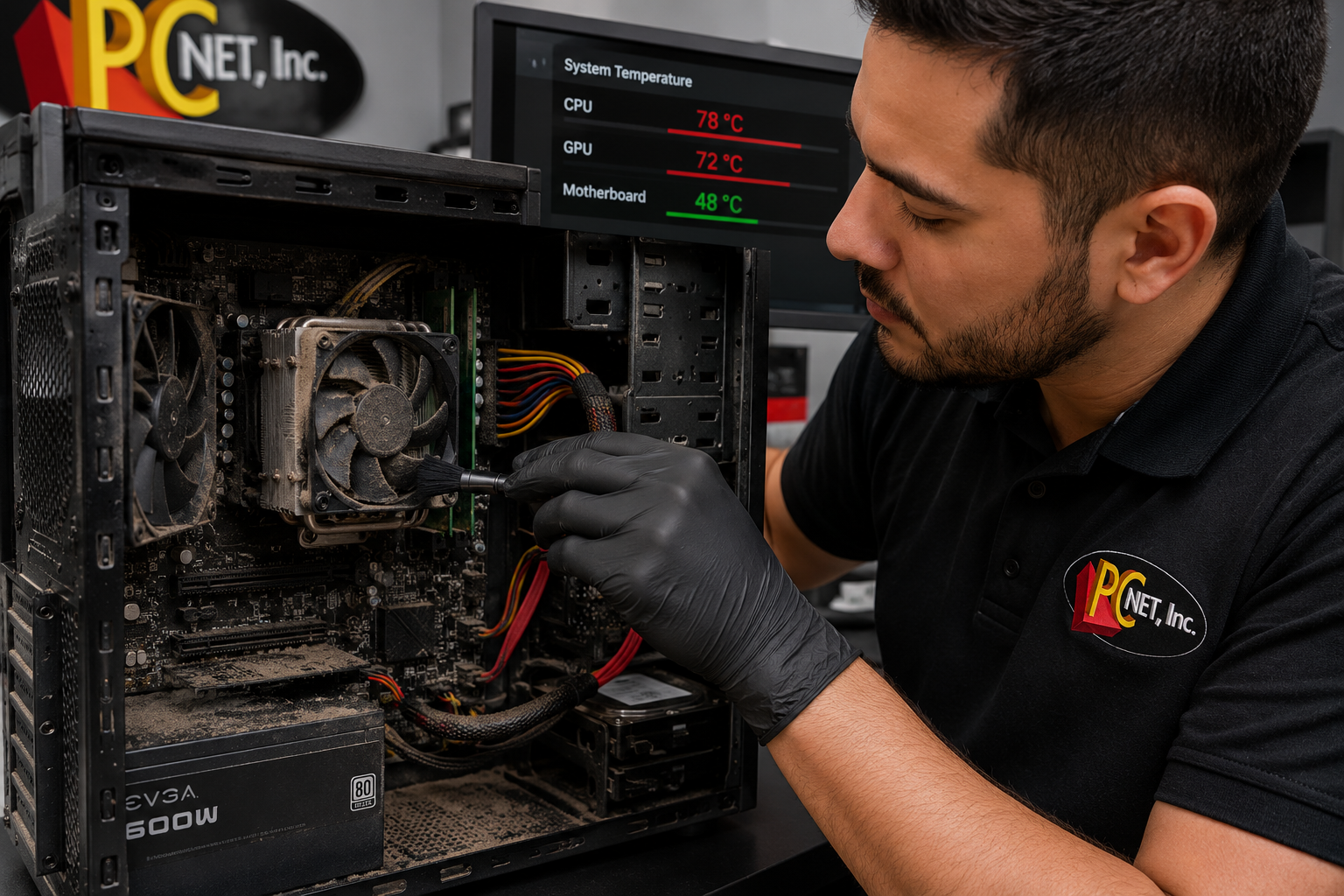
Overheating is a common cause of unexpected shutdowns. Dust buildup, blocked air vents, failing cooling fans, or problems with the CPU cooling system can cause temperatures to rise. Some computers automatically shut down to help protect internal components from excessive heat.
2. The Power Supply Is Failing
A failing or unstable power supply can cause a desktop computer to suddenly lose power or restart. If the computer shuts off without warning, especially when performing demanding tasks, the power supply or another power-related component may need to be tested.
3. Windows or a Driver Has a Problem
Operating system errors, damaged system files, or incompatible drivers can cause unexpected restarts or blue-screen errors. If the problem began after a Windows update, driver installation, or software change, the timing may help identify the cause.
4. The Computer Has a Memory Problem
Faulty or unstable RAM can cause crashes, freezes, blue screens, and unexpected restarts. Memory problems may occur intermittently, making professional testing useful when the cause is not immediately obvious.
5. A Storage Drive Is Failing
A failing SSD or hard drive can cause Windows errors, freezing, slow performance, startup problems, and unexpected crashes. If you also notice unusual system behavior or difficulty accessing files, the storage device should be checked.
6. Malware or Problematic Software Is Affecting the System
Malicious software, damaged applications, or software conflicts can interfere with normal Windows operation. If the shutdowns or restarts began after installing unfamiliar software or the computer is displaying other unusual behavior, a software or security issue may be involved.
7. Another Hardware Component Is Failing
Problems with the motherboard, graphics card, cooling system, electrical connections, or other internal components can also cause random shutdowns and restarts. Hardware-related problems often require diagnostic testing to identify the component responsible.
What to Check Before Calling for Computer Repair
If your computer keeps shutting down or restarting, there are several safe checks you can perform before scheduling a repair:
- Check for overheating. Make sure the computer’s air vents are not blocked and pay attention to unusually hot surfaces or fans that are constantly running at high speed.
- Look for excessive dust. Dust buildup around vents and cooling fans can restrict airflow. If the computer is visibly dusty, it may need cleaning to restore proper cooling.
- Check power connections. Make sure the power cable is securely connected to the computer and wall outlet. If you use a power strip or surge protector, verify that it is functioning properly.
- Pay attention to error messages. If Windows displays a blue screen or another error before restarting, write down the error message or take a photo of it. This information can be useful during diagnostics.
- Think about recent changes. Consider whether the problem started after a Windows update, driver installation, new application, or hardware change.
- Check Windows Update. Make sure important Windows updates have completed successfully. An interrupted or problematic update can sometimes contribute to system instability.
- Back up important files. If the computer continues shutting down unexpectedly, back up important documents and other data while the system is still accessible. Repeated crashes can sometimes be associated with failing storage or other hardware problems.
If the computer continues shutting down or restarting after these basic checks, or you notice excessive heat, burning smells, electrical noises, repeated blue screens, or difficulty starting the computer, stop troubleshooting and have the system professionally inspected.
For additional Windows troubleshooting, you can also review Microsoft’s official guidance for unexpected restarts and stop code errors.
When to Call a Computer Repair Technician
If your computer continues shutting down or restarting after checking for overheating, power connections, Windows updates, and recent software changes, professional diagnostics may be needed.
Repeated shutdowns, blue screens, excessive heat, startup problems, or sudden loss of power can indicate problems with the power supply, memory, storage drive, cooling system, motherboard, or other internal components. Diagnostic testing can help identify the cause before replacing parts unnecessarily.
If your computer has also become unusually slow, review our guide on ways to improve a slow Windows 11 computer.
For recurring shutdowns, restarts, or other hardware and software problems, learn more about our professional computer repair services in Miami.
Frequently Asked Questions
Why does my computer randomly shut down without warning?
A computer that suddenly shuts down without warning may be overheating, experiencing a power problem, or having trouble with an internal hardware component. If the shutdowns happen repeatedly, diagnostic testing can help identify the cause.
Can overheating cause my computer to restart?
Yes. Excessive heat can make a computer unstable and may cause it to shut down or restart to help protect internal components. Dust buildup, blocked airflow, failing fans, or cooling-system problems can contribute to overheating.
How can I tell if the power supply is causing my computer to shut down?
Sudden power loss, especially when the computer is under heavier workloads, can sometimes indicate a power-supply problem. However, similar symptoms can be caused by other components, so testing the power supply and system hardware is usually necessary before replacing parts.
Need Help With a Computer That Keeps Shutting Down or Restarting in Miami?
If the computer continues shutting down or restarting after these basic checks, further diagnostics may be necessary. If you notice a burning smell, smoke, sparking, or another obvious electrical problem, shut the computer down, disconnect it from power if it is safe to do so, and do not continue using it until it has been professionally inspected.
PC Net provides professional computer diagnostics and repair for businesses and home users in Miami, FL and nearby communities. Our technicians can identify the cause of recurring shutdowns and restarts and recommend the appropriate repair based on the condition of your computer.
Need help with a computer that keeps shutting down? Contact PC Net today or call (305) 513-8614 to schedule service.