

Why Does My Computer Keep Freezing?
If your computer keeps freezing, the problem can come from software, hardware, overheating, low storage space, or a combination of issues. A frozen computer may stop responding completely, become extremely slow, display a spinning cursor, or require a restart before you can continue working.
Occasional slowdowns do not always indicate a serious problem. However, repeated freezes—especially when opening programs, starting Windows, browsing the web, or performing everyday tasks—are a sign that something should be investigated.
The way and timing in which a computer freezes can provide useful clues about the cause. Below are eight common reasons computers freeze and what you can safely check before deciding whether professional diagnosis is needed.
1. Too Many Programs Running at the Same Time
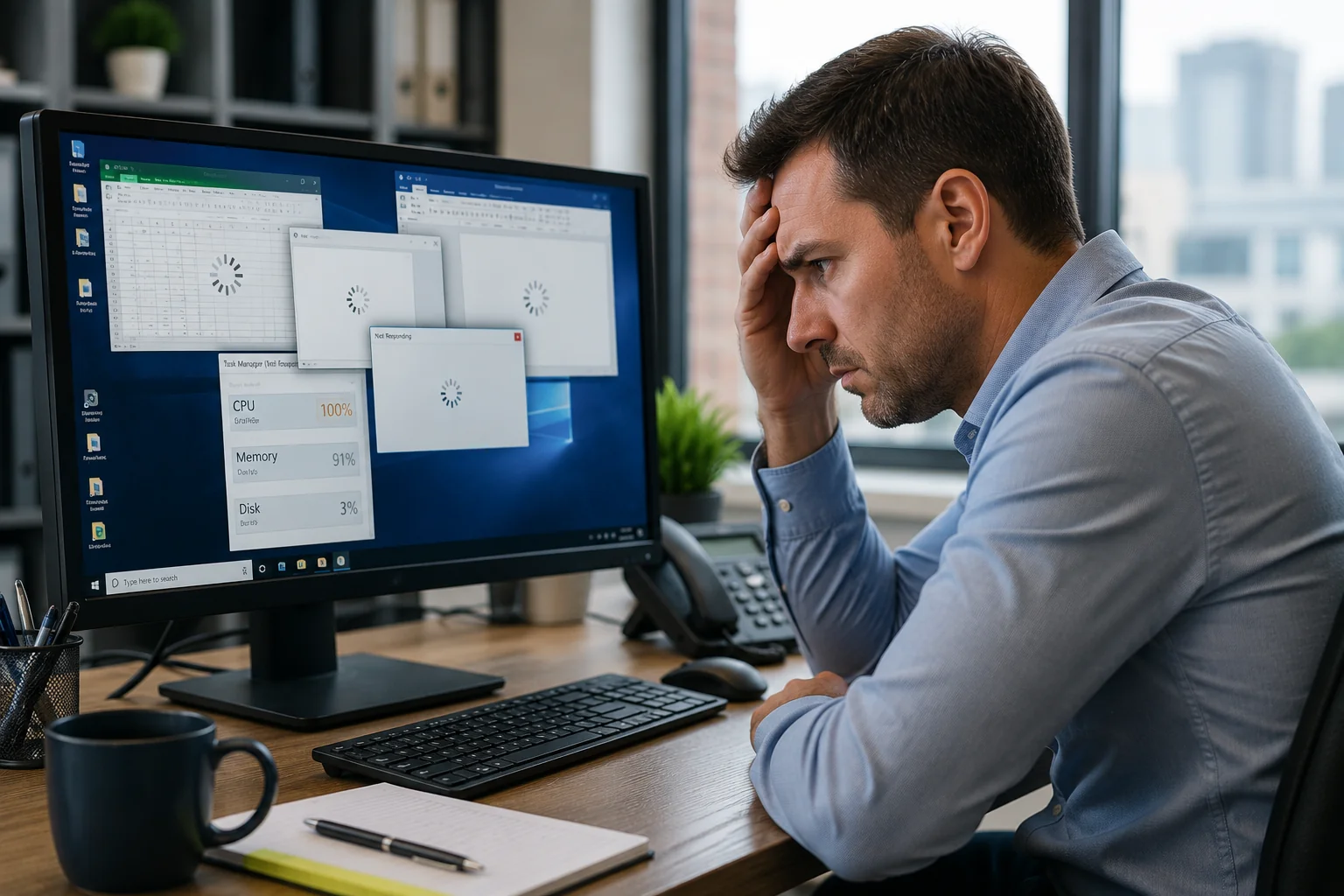
One of the most common reasons a computer keeps freezing is that too many programs are competing for system resources at the same time.
Every application uses a portion of your computer’s memory (RAM) and processor. When available resources become too low, Windows may slow down significantly, applications may stop responding, or the entire computer may temporarily freeze.
This is especially common in business environments where employees may have multiple browser tabs, Microsoft 365 applications, accounting software, cloud applications, communication tools, and other programs open simultaneously.
What you can do:
- Close programs and browser tabs you are not using.
- Restart the computer if it has been running for several days.
- Open Task Manager and check whether memory or CPU usage is unusually high.
- Review programs that automatically launch when Windows starts.
If the computer regularly runs out of resources during normal business use, additional RAM or other hardware diagnostics and upgrades may be worth considering.
2. Not Enough Available Memory (RAM)
Your computer uses RAM to temporarily store information needed by Windows and the programs you are actively using. When there is not enough available memory, the computer may become extremely slow, applications may stop responding, and the system can appear to freeze.
This can happen more frequently on computers with limited RAM, especially when running modern business applications, video meetings, multiple browser tabs, large spreadsheets, or several programs at the same time.
What you can do:
- Open Task Manager and check the Memory percentage under the Performance tab.
- Close applications that are using large amounts of memory when they are not needed.
- Restart the computer to clear memory being used by programs and background processes.
- Consider a RAM upgrade if memory usage regularly remains very high during normal work.
If memory usage is consistently near its limit even when only essential programs are running, the computer may simply need more RAM for today’s workload.
3. Your Computer Is Overheating
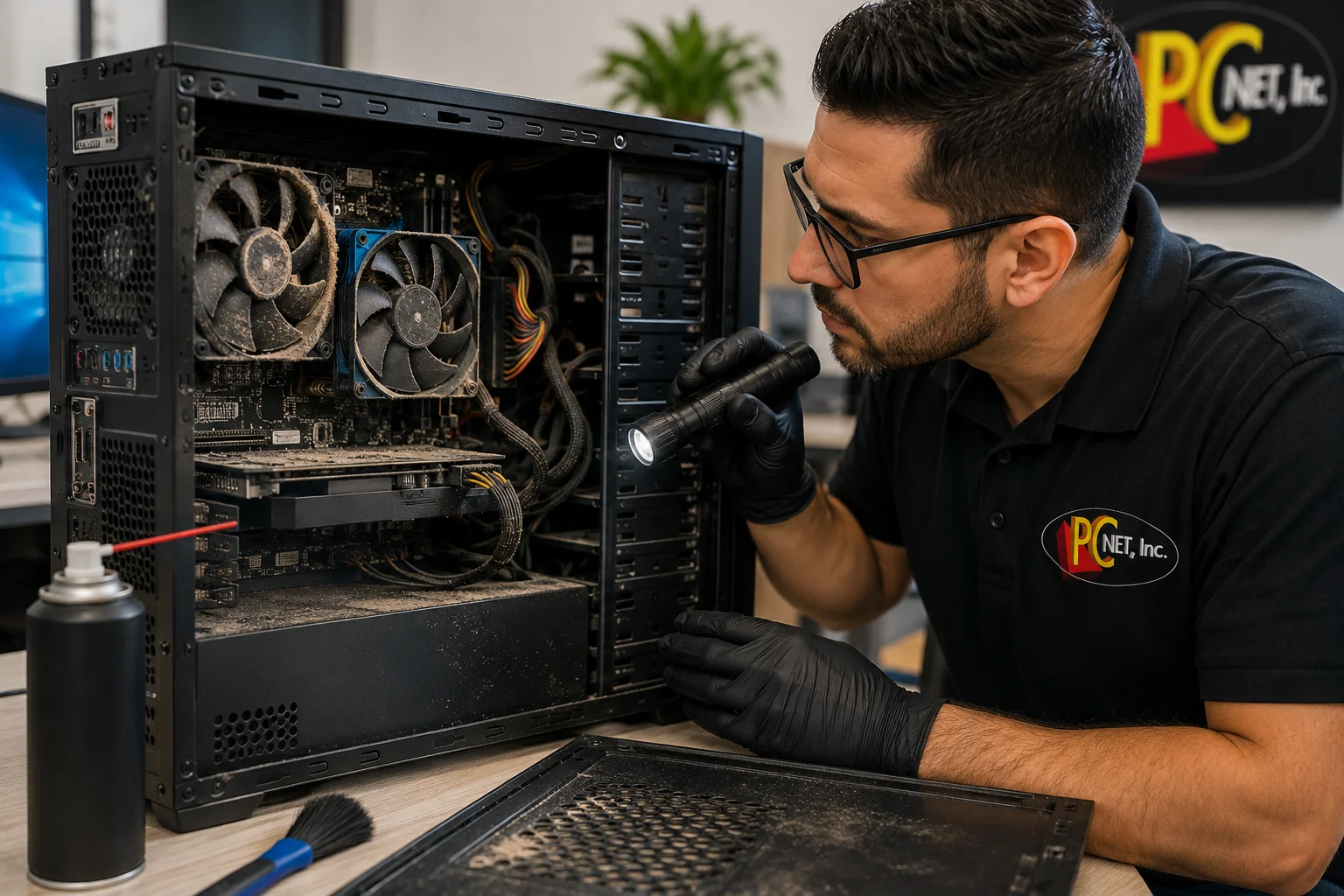
Overheating can cause a computer to slow down, freeze, restart unexpectedly, or shut down completely. Modern computers are designed to reduce performance when internal temperatures become too high in order to help protect components from damage.
Dust buildup, blocked air vents, failing cooling fans, poor airflow, or dried thermal compound can all contribute to excessive heat. Laptops can be especially vulnerable when they are used on soft surfaces that restrict airflow.
Signs of overheating may include:
- Fans running loudly or constantly
- The computer becoming unusually hot
- Freezing during demanding applications
- Sudden restarts or shutdowns
- Performance becoming worse after the computer has been running for a while
What you can do:
Make sure ventilation openings are not blocked and avoid placing laptops on beds, cushions, or other soft surfaces while in use. If the computer continues overheating, the cooling system may need professional cleaning or inspection.
4. Low Disk Space or Storage Problems
A computer needs sufficient free storage space for Windows, applications, temporary files, updates, and normal system operations. When the drive becomes extremely full, performance can suffer and the computer may become slow or unresponsive.
Storage problems can also occur when an older hard drive begins to fail. In that situation, freezing may happen while opening files, starting programs, or booting Windows.
Signs of a possible storage problem include:
- Very little free space remaining on the drive
- Programs taking unusually long to open
- Files taking longer than normal to save or load
- Windows becoming slow or temporarily unresponsive
- Frequent freezing during startup or everyday tasks
What you can do:
Check the available storage space in Windows and remove files or applications you no longer need. Large temporary files and unnecessary downloads can also consume significant space.
If the computer continues freezing despite having adequate free space—especially if you notice unusual drive behavior or repeated errors—the storage device should be checked before important business data is put at risk.
5. Outdated or Problematic Drivers
Drivers allow Windows to communicate with hardware such as graphics cards, network adapters, printers, and other devices. When a driver is outdated, corrupted, or incompatible with a recent update, it can sometimes cause applications—or even the entire computer—to freeze.
Driver-related problems may appear after installing new hardware, updating Windows, or making other system changes.
Signs that a driver may be involved include:
- Freezing after a Windows or software update
- Problems that begin after installing new hardware
- Screen freezing, flickering, or going black
- A particular device repeatedly stops responding
- Windows becoming unstable when performing a specific task
What you can do:
Check Windows Update for available updates and use the computer or hardware manufacturer’s official support resources when a specific driver needs to be updated.
Avoid downloading drivers from unfamiliar third-party websites. If the freezing started immediately after a driver or Windows update, identifying exactly what changed can help determine the next troubleshooting step.
For additional guidance on keeping Windows up to date, visit Microsoft Support.
6. Malware or Unwanted Software
Malware and unwanted programs can consume system resources, run processes in the background, change system settings, and interfere with normal Windows operations. In some cases, this can cause a computer to become unusually slow or freeze repeatedly.
Not every slow or frozen computer has malware, but unexpected changes in performance should not be ignored—especially if other unusual behavior appears at the same time.
Possible warning signs include:
- Sudden slowdowns or frequent freezing
- Unexpected pop-ups or browser redirects
- Programs appearing that you do not remember installing
- Unusually high CPU or memory usage
- Browser settings changing unexpectedly
- Security software being disabled without explanation
What you can do:
Make sure Windows and your security software are up to date and run a security scan using trusted antivirus or endpoint-protection software.
For a business computer, avoid installing random “PC cleaner,” “speed booster,” or unknown antivirus programs found through advertisements. These applications can sometimes create additional problems rather than solve the original issue.
If you suspect an infection on a company computer, it is also important to consider the security of business files, passwords, email accounts, and network resources.
Unfamiliar software can also raise security concerns even when it does not cause noticeable performance problems. In a recent investigation, PC Net discovered an unauthorized remote-support application on a business computer. Read our real-world unauthorized remote access case study to learn what we found and how we handled the incident.
7. Windows or Software Problems
Sometimes the hardware is working properly, but Windows or an application is causing the computer to freeze. Corrupted system files, problematic updates, software conflicts, or applications that are no longer functioning correctly can all affect system stability.
If the freezing consistently happens while using one particular program, that application may be the source of the problem. If multiple programs freeze or Windows itself becomes unresponsive, the issue may be affecting the operating system more broadly.
Signs of a software-related problem may include:
- The same application repeatedly stops responding
- Freezing begins after installing or updating software
- Windows becomes unstable after an update
- Programs crash or close unexpectedly
- The computer freezes during startup or shutdown
- Error messages appear before or after the system freezes
What you can do:
Restart the computer and make sure Windows and important applications are up to date. If the problem began after installing new software, consider whether that program may be contributing to the issue.
Avoid making multiple major system changes at once. Troubleshooting one change at a time makes it much easier to identify what is actually causing the computer to freeze.
8. Failing Hardware
If a computer keeps freezing after software, memory, storage space, overheating, and other common causes have been ruled out, a hardware component may be starting to fail.
Problems with the storage drive, RAM, motherboard, power supply, or other internal components can cause intermittent freezing that becomes more frequent over time. Hardware problems can be particularly difficult to diagnose because the computer may work normally for hours or days before freezing again.
Warning signs of a possible hardware problem include:
- Freezing becomes progressively more frequent
- The computer restarts or shuts down unexpectedly
- Windows has difficulty starting
- Files become corrupted or inaccessible
- Unusual noises come from the computer
- The computer freezes even when very few programs are running
What you can do:
If you suspect hardware failure, make sure important business files are backed up before continuing extensive troubleshooting. Diagnostic testing can then help determine whether components such as the memory or storage drive are failing.
For business computers, repeated freezing should not be ignored. Waiting until a component fails completely can result in additional downtime and may put important data at risk.
When Should You Call a Computer Repair Technician?
Some computer freezing problems can be resolved with a restart, software update, or by closing unnecessary applications. However, if the problem keeps returning, professional diagnosis may help identify the underlying cause before it leads to additional downtime or data loss.
Consider having the computer professionally checked if:
- The computer freezes several times a week or every day
- Freezing continues after restarting and installing updates
- The computer unexpectedly shuts down or restarts
- Windows frequently fails to start normally
- You hear unusual noises from the computer
- The system becomes excessively hot
- Important business applications repeatedly stop responding
- You suspect the storage drive or another hardware component may be failing
For business computers, repeated freezing can be especially disruptive because the problem may affect employee productivity, access to files, accounting software, email, or other daily operations.
A technician can perform hardware diagnostics, review system performance, check temperatures and storage health, investigate software problems, and determine whether a repair or upgrade makes sense.
If your computer keeps freezing or becoming unresponsive despite basic troubleshooting, professional diagnosis may help identify the underlying problem.
Computer Repair for Miami Businesses
When a business computer keeps freezing, repeatedly restarting, or becoming unresponsive, the problem can quickly interfere with daily operations. Employees may lose time restarting computers, reopening applications, or waiting for systems to respond.
PC Net provides professional computer repair and troubleshooting services for businesses in Miami. We can diagnose hardware and software problems, performance issues, overheating, storage problems, Windows errors, and other conditions that may cause computers to freeze or become unstable.
Our goal is to identify the underlying problem and recommend the appropriate repair or upgrade rather than simply treating the symptoms.
If your business computer keeps freezing, contact PC Net, Inc. at (305) 513-8614 or visit our Computer Repair Miami service page to learn more.