
If your scan to email is not working, you are not alone. The copier or multifunction printer (MFP) may still scan, copy and print normally, yet the emailed scans never arrive, or the screen shows a “failed to send” message.
In many Miami offices, the cause is not the printer’s scanner. It is how the printer signs in to your email service. This guide explains why scan to email stops working, seven common causes, the safe checks you can do yourself, and the changes that should be handled by your IT provider or a technician.
Why Did Scan to Email Stop Working?
What Scan to Email Actually Does
A printer cannot send email by itself. When you press Scan to Email, the printer creates the scan and then hands it to a mail server, usually the same service your office uses for email. To do that, it needs the right server address, port, encryption and sign-in method. If any one of those no longer matches what the mail service expects, the scan fails even though the scanner works.
Microsoft’s Basic Authentication Change
Many printers send scans through Microsoft 365 using a stored email address and password. This is called SMTP AUTH with Basic authentication. Microsoft is phasing it out in favor of modern sign-in (OAuth 2.0).
As of October 2026, Microsoft’s most recent published timeline, updated January 27, 2026, says:
- SMTP AUTH Basic authentication behavior stays unchanged through December 2026.
- At the end of December 2026, it is disabled by default for existing Microsoft 365 tenants. Administrators will still be able to turn it back on if needed.
- New tenants created after December 2026 will not have it available by default, and OAuth will be the supported method.
- Microsoft plans to announce the final removal date in the second half of 2027.
Microsoft has adjusted this schedule more than once, so confirm the current dates in Microsoft’s updated Exchange Team timeline before you plan around them. If your scan to email stopped working before then, one of the other causes below is more likely.
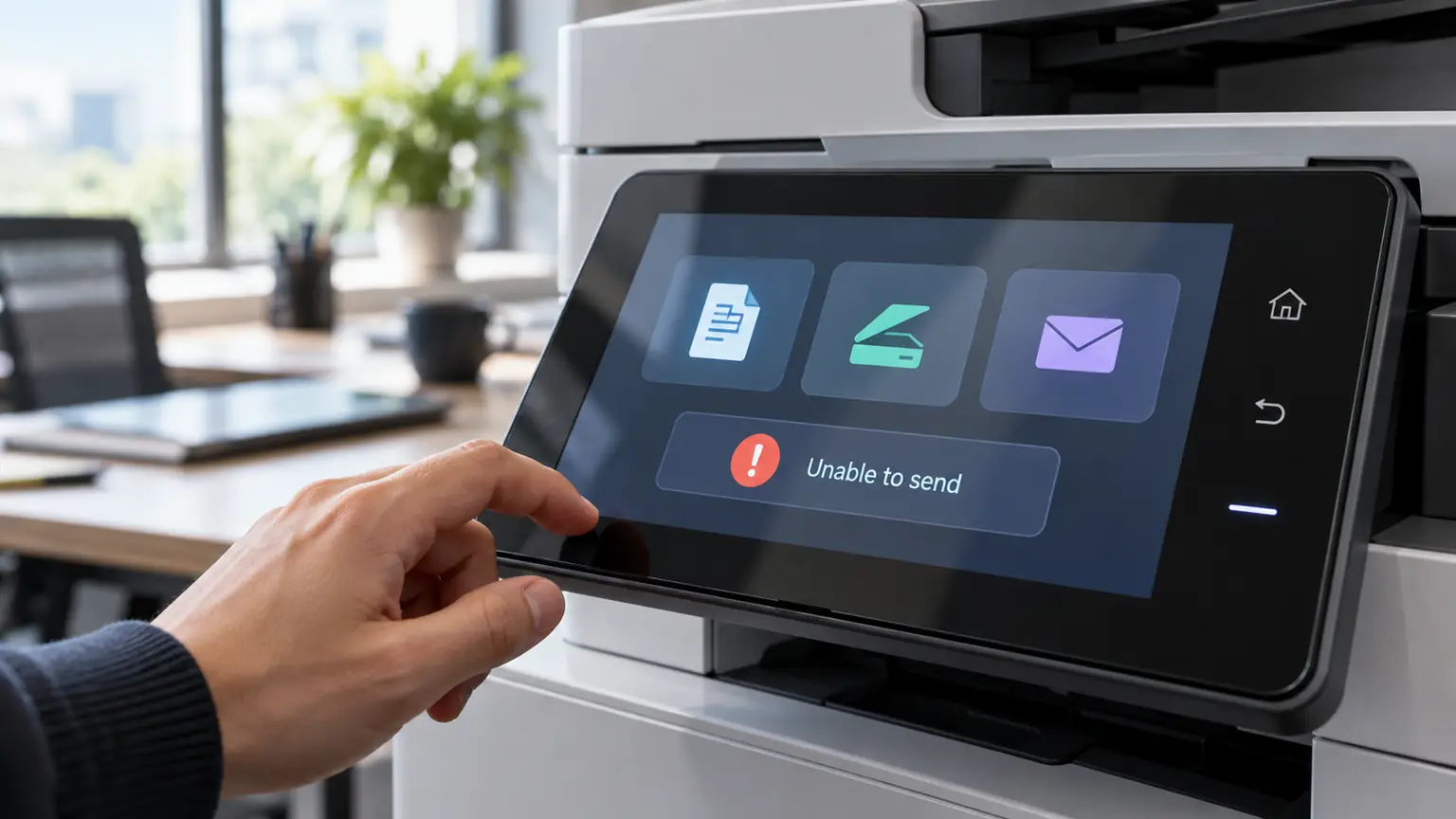
7 Common Causes of Scan to Email Not Working
1. The Account Password or Security Settings Changed
A printer signs in with a specific mailbox. If that password was changed, or the account is now affected by multifactor authentication, security defaults or a Conditional Access policy, the printer’s saved sign-in can stop working. Changes to those security settings should be made by whoever administers your Microsoft 365 account, because loosening them can weaken your protection.
2. SMTP AUTH Is Turned Off for the Mailbox
Microsoft notes that SMTP AUTH is disabled by default for organizations created after January 2020, and it can be turned on per mailbox. If the printer’s mailbox does not have it enabled, the sign-in is rejected. Errors such as “535 5.7.3 Authentication unsuccessful” can point to this.
3. The Printer Does Not Support Modern Sign-In (OAuth 2.0)
Support for OAuth 2.0 varies by manufacturer, model and firmware. Newer office MFPs may support it after a firmware update, while older or entry-level models may not support it at all. A printer that cannot do modern sign-in will need a different sending method.
4. The Printer’s Encryption Is Too Old
Microsoft requires devices to support TLS 1.2 or newer when sending through its mail service. Older printers that only offer outdated encryption cannot connect. Microsoft also notes that a device that defaults to port 465 does not support the required TLS versions for this method. A firmware update from the printer’s manufacturer sometimes resolves this.
5. The Server Address or Port Is Wrong, or the Port Is Blocked
For authenticated sending through Microsoft 365, Microsoft’s documented settings are the server smtp.office365.com on port 587 (or 25), with TLS enabled. A typo, an old server name left from a previous email provider, or a firewall or internet provider blocking the port can all stop scans from leaving the network.
6. The “From” Address Does Not Match the Sign-In Account
If the printer signs in as one mailbox but tries to send as a different address, Microsoft rejects the message unless the signed-in account has “Send As” permission. The error often reads “5.7.60 SMTP; Client does not have permissions to send as this sender.” This is common when the “From” address is set to the user rather than the account the printer signs in with.
7. The Message Was Blocked or Filtered
If the mailbox was flagged for suspicious sending, Microsoft may restrict it. Scans may also land in recipients’ Junk folders. For printers that send through a relay connector, a changed internet address can break the connection or cause filtering. These are admin-level checks.
Safe Checks You Can Do Yourself
Before calling anyone, you can safely try the following:
- Read the printer’s message. Note the exact wording or error code on the control panel or in the printer’s web page.
- Send a simple test. Scan one page to your own address and wait a few minutes.
- Check Junk or Spam folders. The scan may have arrived but been filtered.
- Test other scan destinations. If scan to USB or scan to a computer works, the scanner is fine and the email path is the issue.
- Restart the printer. Power it off for about 30 seconds and turn it back on.
- Print a network or configuration report from the printer’s menu, which shows its network settings.
- Check for firmware updates on the printer manufacturer’s official support page for your exact model.
Avoid changing security settings on your Microsoft 365 account to get a printer working. If a fix requires turning off protections, it is better handled by your IT provider, who can weigh the risk.
When to Call Your IT Provider or a Technician
Contact a professional if:
- The printer shows authentication, permission or TLS errors.
- Your Microsoft 365 settings need to be changed.
- The printer needs OAuth 2.0 configured or a firmware update across several devices.
- Scan to email worked for years and stopped without any change you know about.
- The printer does not support modern sign-in.
Your Options When the Printer Cannot Do OAuth 2.0
According to Microsoft’s documentation, there are alternatives to a stored-password sign-in. Which one fits depends on your office, your printers and who the scans go to:
- SMTP relay through a connector: lets the printer send without a mailbox password, but requires a connector in Microsoft 365 and either a static public IP address or a certificate.
- High Volume Email: a Microsoft option for sending to internal recipients only.
- Azure Communication Services Email: Microsoft’s suggested option for sending to both internal and external recipients.
- An on-premises mail server for relay, if your office has one.
- Replacing or upgrading the device, if it cannot meet the requirements of any supported method.
For a full comparison, see Microsoft’s guide to setting up a multifunction device to send email with Microsoft 365, and its troubleshooting guide for printers and scanners that send email, which explains many of the common error messages.
Prepare Before December 2026
If your scan to email still works today, it is worth checking now rather than waiting for it to fail:
- List every device that sends email. Include copiers, MFPs, scanners and any software that sends mail through your Microsoft 365 account.
- Review which accounts still use Basic authentication. Microsoft’s Exchange admin center includes an SMTP AUTH clients report your administrator can use.
- Check each device’s model and firmware against the manufacturer’s support information for OAuth 2.0.
- Choose a sending method for each device that cannot support OAuth.
- Test a real scan to a real mailbox after any change, before your staff depend on it.
If your office relies on scanning invoices, contracts or signed forms by email, planning ahead avoids a sudden stop in the middle of a work week. If printer connection problems are also an issue, our guides on what to check when a printer says offline and what to check when a printer is not printing may help.
Frequently Asked Questions
The most common causes are a changed password, a security setting that blocks the printer’s sign-in, SMTP AUTH being disabled for the mailbox, outdated printer encryption or firmware, or a “From” address that does not match the signed-in account. Reading the exact error on the printer helps narrow it down.
No. Microsoft is phasing out Basic authentication (a stored username and password) for sending mail through SMTP AUTH. Printers can still send scans if they use a supported method, such as OAuth 2.0 or another option Microsoft documents. As of October 2026, Microsoft’s published timeline disables Basic authentication by default for existing tenants at the end of December 2026.
It depends on the manufacturer, model and firmware version. The printer’s manufacturer support page for your exact model is the most reliable place to check. If it is not supported, there are other sending methods your IT provider can evaluate.
Yes. PC Net can help determine whether the problem is in the printer, the network or the email configuration, and can work with your Microsoft 365 setup as part of our business IT support.
Need Help With Scan to Email in Miami?
If your scan to email is not working and the checks above have not solved it, PC Net can help find out whether the cause is the printer, the network or your Microsoft 365 configuration.
PC Net, Inc. provides printer repair and business IT support for offices in Miami, Doral and nearby communities. Learn more about our printer repair services in Miami and our Managed IT Services.
Scan to email not working? Contact PC Net today or call (305) 513-8614.