

If your printer is not printing even though it appears to be powered on and ready, the problem may be simpler than it seems. A stalled print queue, incorrect printer selection, connection problem, paper or toner issue, or software error can all prevent a printer from completing a print job.
Before calling for repair, there are several safe checks you can perform yourself. In this guide, we’ll explain eight common reasons a printer may stop printing, what you can troubleshoot on your own, and when the problem may require professional attention.
Why Is My Printer Not Printing?
A printer can appear ready but still fail to produce a document when something interrupts the printing process. The problem may occur between your computer and the printer, within the network connection, in the print queue, or inside the printer itself.
The symptoms can also provide useful clues. For example, a print job that remains stuck on the computer may indicate a communication or software issue, while a printer displaying a warning light or error message may require attention to paper, toner, ink, or another printer component.
Identifying where the printing process is being interrupted can help determine whether the problem is something you can resolve yourself or whether the printer needs professional diagnostics.
8 Common Reasons Your Printer Isn’t Printing
1. A Print Job Is Stuck in the Queue
A stalled or corrupted print job can prevent everything behind it from printing. If documents remain in the print queue without progressing, clearing the failed jobs may restore normal printing.
2. The Wrong Printer Is Selected
Computers with multiple printers installed may accidentally send a document to another printer, an old printer connection, or a virtual printer. Verify that the correct printer is selected before trying again.
3. The Printer Is Paused or Showing an Error
A printer may stop processing jobs if it is paused or requires attention. Check the printer’s control panel for warning messages, open covers, paper problems, or other conditions that need to be corrected.
4. Paper, Toner, or Ink Needs Attention
An empty paper tray, improperly loaded paper, or depleted toner or ink can prevent a print job from completing. Check the printer’s supplies and make sure paper is loaded correctly.
5. There Is a Connection or Network Problem
USB, Ethernet, Wi-Fi, or network communication problems can prevent print jobs from reaching the printer. A printer that has lost communication with the computer or network may also appear offline.
6. The Printer Driver or Software Has a Problem
Printer drivers allow your computer and printer to communicate. A damaged driver, software conflict, or system change can sometimes prevent documents from printing correctly.
7. There Is an Internal Printer Hardware Problem
Worn rollers, sensors, paper-feed components, or other internal parts can prevent a printer from completing a print job. Recurring errors or unusual noises may indicate that professional diagnostics are needed.
8. A Print Quality or Consumable Problem Is Interrupting Printing
Some printers may stop or display an error when a toner cartridge, drum, imaging component, or other consumable requires attention. Following the printer’s displayed message can help determine what needs to be checked.
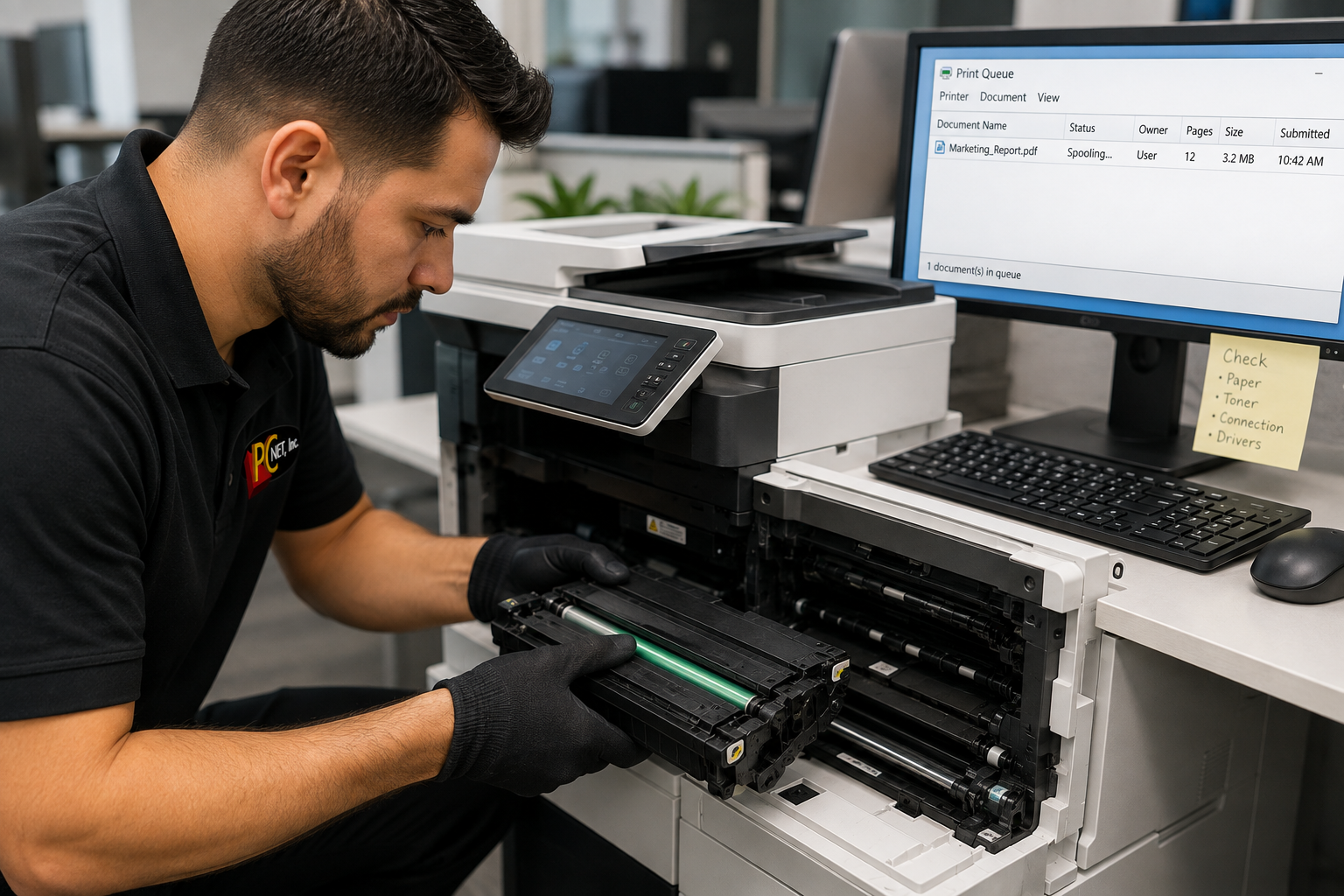
What to Check Before Calling for Printer Repair
If your printer is not printing, try these basic checks before assuming that the equipment needs repair:
- Check the printer display. Look for error messages, warning lights, paper notifications, or toner and ink alerts that may explain why printing has stopped.
- Verify the paper and supplies. Make sure paper is loaded correctly and that the printer is not reporting an empty or improperly installed toner or ink cartridge.
- Check the print queue. Open the print queue on your computer and look for documents that are stuck or showing an error. Canceling a failed print job may allow other documents to print normally.
- Confirm the correct printer is selected. If several printers are installed, make sure the document is being sent to the correct device.
- Check the connection. For a wired printer, verify that the USB or Ethernet cable is secure. For a network or wireless printer, make sure the printer is connected to the appropriate network.
- Restart the printer and computer. A restart can clear temporary communication or software problems. Turn the printer off, wait about 30 seconds, and then turn it back on before trying another print job.
- Try printing from another computer. If another computer can print successfully, the problem may be isolated to the original workstation rather than the printer itself.
If the printer still does not print after these checks, repeatedly displays an error, or stops working again shortly afterward, further diagnostics may be necessary.
For additional Windows printer troubleshooting, you can also review Microsoft’s official printer troubleshooting guidance.
When to Call a Printer Repair Technician
If your printer is still not printing after checking the print queue, supplies, connections, and basic settings, the problem may require professional diagnostics. Recurring errors can be caused by printer hardware, network communication, drivers, sensors, paper-feed components, or other internal issues.
If the printer is showing as offline, see our guide on what to check when your printer says offline.
If the printer is working but the pages are faded, streaky, or uneven, see our guide on troubleshooting faded or streaky printer output.
For problems that continue after basic troubleshooting, learn more about our professional printer repair services in Miami.
Frequently Asked Questions
Why is my printer not printing even though it says ready?
A printer can show a ready status while a problem elsewhere prevents the document from printing. Common causes include a stuck print queue, incorrect printer selection, connection problems, driver issues, or a print job that is not reaching the printer correctly.
Why does my printer receive the print job but nothing comes out?
If the printer receives the job but does not print, check the printer display for errors or warnings. Paper-feed problems, toner or ink issues, internal hardware problems, or a stalled print job can prevent the printer from completing the request.
Should I repair or replace a printer that stops printing?
It depends on the printer’s age, condition, usage, and the component causing the problem. Many business printers are worth repairing when the issue involves a replaceable component or can be corrected through professional diagnostics. If repair costs are high compared with the printer’s value, replacement may be the better option.
Need Help With a Printer That Isn’t Printing in Miami?
If your printer is not printing and the basic troubleshooting steps haven’t solved the problem, PC Net can help determine whether the issue is related to the printer, computer, network connection, software, or internal hardware.
PC Net provides professional printer diagnostics and repair for businesses and home users in Miami, FL and nearby communities. Our technicians can troubleshoot recurring printing problems and help get your printer working reliably again.
Need help with a printer that won’t print? Contact PC Net today or call (305) 513-8614 to schedule service.