

If your printer is making grinding or clicking noises, it may be warning you that something inside the printer is not moving or feeding correctly. Unusual noises can be caused by something as simple as incorrectly loaded paper or a poorly seated toner cartridge, but recurring sounds can also indicate worn rollers, gears, or other internal components.
Ignoring a new mechanical noise can sometimes allow a minor problem to become more serious. In this guide, we’ll explain six common causes of grinding and clicking noises, what you can safely check yourself, and when it may be best to stop using the printer and have it professionally inspected.
Why Is My Printer Making Grinding or Clicking Noises?
Printers contain rollers, gears, motors, cartridges, and paper-feed components that work together whenever a document is printed. If one of these parts cannot move normally, you may hear clicking, grinding, squeaking, or other unusual mechanical sounds.
The timing of the noise can provide an important clue. A sound that begins when the printer picks up paper may point to the paper-feed system, while a noise that starts immediately after installing a toner cartridge or other consumable may be related to that component.
If the noise is loud, persistent, or accompanied by a paper jam or error message, avoid repeatedly sending print jobs until you identify the cause. Continuing to operate a printer with a mechanical problem could potentially damage other components.
6 Common Causes of Printer Grinding or Clicking Noises
1. Paper or a Small Object Is Obstructing the Paper Path
A small piece of torn paper, label material, paper clip, or other foreign object can interfere with rollers and gears as they move. Even if you do not see a full paper jam, something inside the paper path may be preventing the mechanism from moving normally.
2. The Toner Cartridge or Drum Is Not Seated Correctly
A toner cartridge, drum, or imaging component that is not installed correctly can produce clicking or grinding sounds when the printer attempts to operate. If the noise started immediately after replacing a consumable, check that the component is installed properly and is compatible with the printer.
3. Worn or Damaged Paper-Feed Rollers
Paper-feed rollers wear over time, especially in office printers that handle a high volume of pages. Worn rollers may slip, struggle to pick up paper, or create unusual sounds during the feeding process.
4. A Gear or Drive Component Is Worn or Damaged
Internal gears help move rollers, cartridges, and other printer components. A worn, damaged, or misaligned gear can create repetitive clicking or grinding noises and may eventually prevent the printer from operating correctly.
5. Paper Is Loaded Incorrectly
Overfilled trays, improperly positioned paper guides, or paper that is curled or damaged can interfere with normal feeding. If the noise occurs when the printer attempts to pick up a sheet, check the paper tray and reload the paper correctly.
6. An Internal Printer Component Needs Service
Motors, fuser-related components, drive assemblies, and other internal parts can develop mechanical problems as a printer ages. If the noise continues after basic checks or is becoming louder, professional diagnostics may be necessary to identify the affected component.
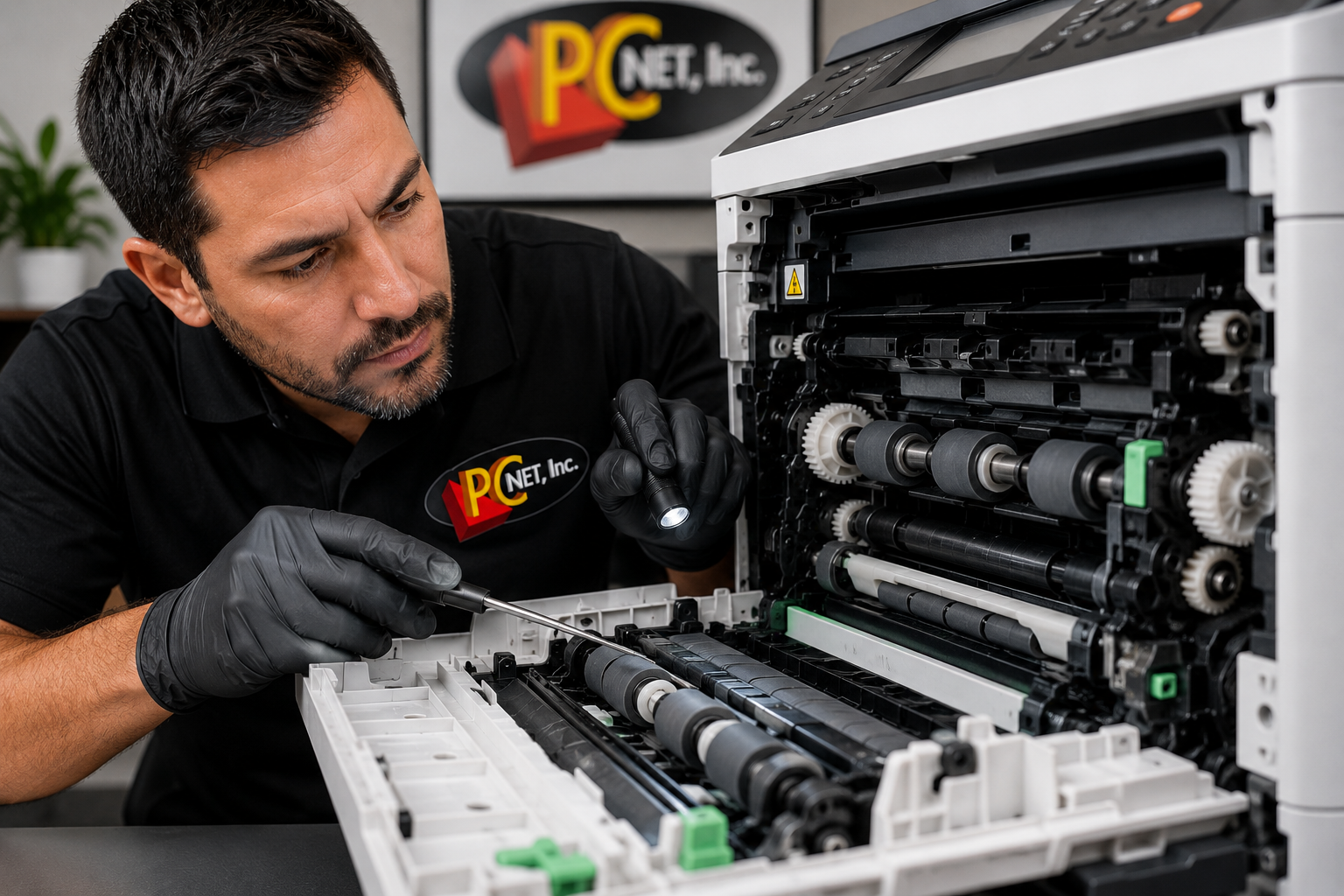
What to Check Before Calling for Printer Repair
If your printer is making grinding or clicking noises, there are a few safe checks you can perform before scheduling a repair:
- Stop the current print job. If the noise is loud or unusual, avoid repeatedly sending documents to the printer while you investigate the problem.
- Check for visible paper jams. Open the areas designed for normal jam removal and look for sheets or small pieces of torn paper. Do not force components that are difficult to move.
- Inspect the paper tray. Make sure the tray is not overfilled, the paper is properly aligned, and the paper guides are positioned correctly.
- Check recently replaced consumables. If the noise began after installing a toner cartridge, drum, or other replaceable component, confirm that it is properly seated and compatible with the printer.
- Look for visible foreign objects. Paper clips, labels, torn paper, or other small objects can sometimes enter the paper path and interfere with moving components.
- Pay attention to when the noise occurs. Note whether the sound begins during startup, when the printer picks up paper, or while a page is moving through the printer. This information can help a technician identify the source of the problem.
If you cannot identify the cause, or the grinding or clicking continues after these basic checks, stop using the printer and have it inspected. Avoid disassembling internal components, gears, or electrical areas that are not intended for routine user maintenance.
For additional guidance on unusual printer noises, you can also review HP’s official troubleshooting guidance for printers making grinding noises.
When to Call a Printer Repair Technician
If your printer continues making grinding or clicking noises after checking for paper jams, foreign objects, paper-loading problems, and recently replaced consumables, the issue may involve worn or damaged internal components.
Repeated mechanical noises can be related to paper-feed rollers, gears, drive assemblies, motors, or other components that require professional diagnostics. If the noise becomes louder, the printer stops feeding paper, or an error repeatedly appears, continuing to operate the printer may cause additional damage.
If the unusual noise is accompanied by a paper jam, see our guide on what to check when an office printer keeps jamming.
If the printer has stopped producing documents altogether, see our guide on common reasons a printer is not printing.
For persistent mechanical problems, learn more about our professional printer repair services in Miami.
Frequently Asked Questions
Why is my printer making a grinding noise when it prints?
A grinding noise may occur when paper or another object is obstructing the paper path, a toner or drum component is not seated correctly, or internal rollers and gears are having difficulty moving normally. If the noise continues after basic checks, the printer may need professional diagnostics.
Why does my printer make a clicking noise when picking up paper?
Clicking during paper pickup can be related to improperly loaded paper, worn paper-feed rollers, an obstruction, or a problem with the printer’s paper-feed mechanism. Check the paper tray and visible paper path before continuing to print.
Should I keep using a printer that is making a grinding noise?
If the grinding noise is new, loud, or persistent, it is best to stop using the printer until the cause is identified. Continuing to operate a printer with a mechanical problem could potentially damage other internal components.
Need Help With a Noisy Printer in Miami?
If your printer is making grinding or clicking noises and the basic checks haven’t identified the problem, PC Net can help determine whether the issue involves the paper-feed system, rollers, gears, consumables, or other internal components.
PC Net provides professional printer diagnostics and repair for businesses and home users in Miami, FL and nearby communities. Our technicians can diagnose unusual printer noises and help determine the appropriate repair before the problem leads to additional downtime.
Need help with a noisy printer? Contact PC Net today or call (305) 513-8614 to schedule service.