

Last Updated: July 30, 2026
Reading Time: 6 minutes
Category: Printer Repair
If your office printer keeps jamming, you’re not alone. An office printer that keeps jamming is one of the most common problems businesses experience, and it can quickly interrupt productivity, delay important documents, and frustrate employees. Whether you manage a medical office, law firm, warehouse, or small business, a printer that constantly jams can bring daily operations to a halt.
The good news is that most paper jams have an identifiable cause. In many cases, the problem isn’t the printer itself—it could be worn pickup rollers, damp paper, an overloaded tray, or improper paper loading. Understanding what causes paper jams is the first step toward preventing them.
In this guide, we’ll explain the most common reasons office printers jam, show you how to clear the problem safely, and help you recognize when it’s time to call a professional printer technician.
Office Printer Keeps Jamming? Here’s Why
Paper jams happen when a sheet of paper cannot move smoothly through the printer’s paper path. While it may seem like a random problem, most paper jams are caused by normal wear and tear, improper paper handling, or lack of preventive maintenance.
Here are the five most common causes we see when repairing office printers.
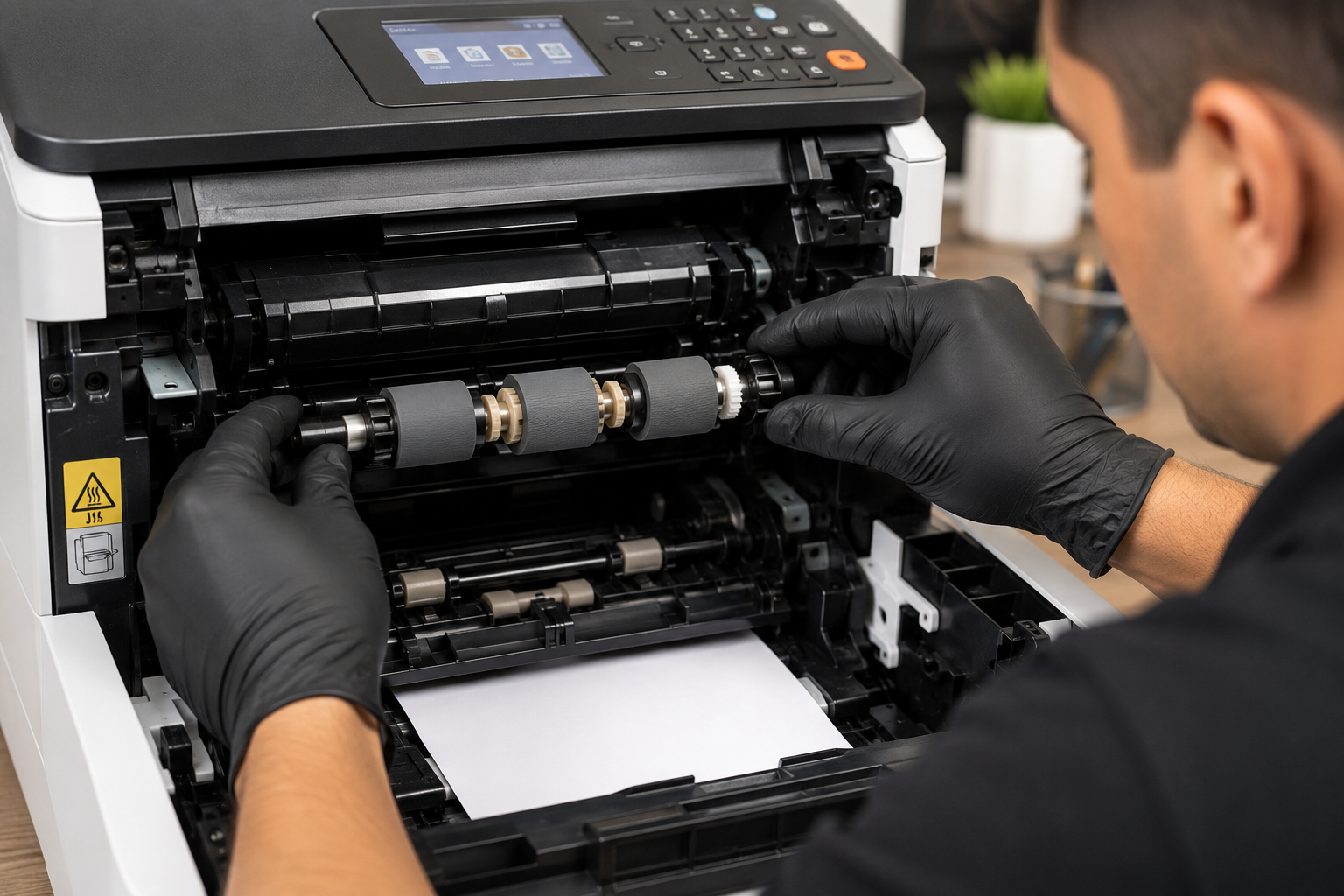
1. Worn Pickup Rollers
Pickup rollers are responsible for feeding a single sheet of paper into the printer. As they wear down, they lose their grip, causing misfeeds, multiple sheets to feed at once, or recurring paper jams.
2. Poor Paper Quality
Low-quality or damp paper can stick together, curl, or create excess paper dust, making it difficult for the printer to feed paper consistently.
3. Incorrect Paper Loading
Overfilled paper trays, damaged paper, or incorrectly adjusted paper guides are common causes of paper jams and are often easy to correct.
4. Worn Internal Components
Over time, components such as separation pads and feed rollers wear out. Regular maintenance helps replace these parts before they begin causing frequent paper jams.
5. Paper Left Inside the Printer
After clearing a paper jam, even a small piece of torn paper can remain inside the printer and trigger another jam. Always inspect the paper path carefully before closing the printer.
How to Fix a Paper Jam Safely
Before pulling out jammed paper, avoid using excessive force. Removing paper too quickly can tear it, damage internal rollers, or bend sensitive paper sensors. Follow these simple steps to clear a paper jam safely.
1. Cancel the Print Job
Stop the current print job from your computer or the printer’s control panel before opening the printer.
2. Turn Off the Printer
Power off the printer to prevent damage to moving parts while removing the paper.
3. Open All Access Doors
Check every paper path, including the front cover, rear door, and paper tray area.
4. Remove the Paper Carefully
Pull the paper slowly in the direction it normally travels through the printer. If it tears, remove every remaining piece before closing the printer.
5. Reload the Paper Properly
Use clean, dry paper, avoid overfilling the tray, and adjust the paper guides so they lightly touch the paper stack.
6. Print a Test Page
After restarting the printer, print a test page. If the printer jams again immediately, the issue is likely mechanical rather than a paper-loading problem.
If you’re using an HP printer and need model-specific instructions, HP provides official paper jam troubleshooting guides that can help identify issues unique to your printer model.
When Should You Call a Professional?
Occasional paper jams can usually be resolved by clearing the paper path and reloading the tray correctly. However, recurring jams often indicate worn or damaged internal components.
Contact a professional printer technician if:
- The printer jams several times a day.
- Paper repeatedly jams in the same location.
- Multiple sheets feed at the same time.
- The printer makes grinding, clicking, or squealing noises.
- A paper jam message remains even when no paper is visible.
- The rollers appear smooth, cracked, or worn.
For businesses that depend on invoices, medical records, legal documents, shipping labels, or customer paperwork, frequent printer downtime can quickly become more expensive than the repair itself.
From Our Service Bench
One of the most common problems we find is worn feed rollers. Replacing these parts during routine maintenance is often faster and less expensive than waiting until the printer stops feeding paper completely.
Paper Jam FAQs
Why does my office printer keep jamming?
Most recurring paper jams are caused by worn pickup rollers, poor-quality paper, incorrect paper loading, or small pieces of paper left inside the printer after a previous jam.
Can humidity cause paper jams?
Yes. In humid climates like South Florida, paper can absorb moisture and stick together, increasing the chances of paper jams. Store paper in its original packaging until you’re ready to use it.
Should I pull jammed paper out by force?
No. Pulling paper forcefully can damage rollers, gears, or paper sensors. Always remove the paper slowly and in the direction of the paper path whenever possible.
How do I know if my printer needs repair?
If your printer continues to jam after you’ve followed the recommended troubleshooting steps, or if the jams always occur in the same location, it likely has a mechanical issue that should be inspected by a technician.
Need Professional Printer Repair?
If your office printer continues to jam after trying these troubleshooting steps, the experienced technicians at PC Net Miami are here to help.
We provide professional printer repair in Miami, preventive maintenance, and business printer support throughout Miami-Dade County. Our goal is to minimize your downtime and keep your office running smoothly.
📞 (305) 513-8614
🌐 www.pcnetmiami.com