

If your printer is printing blank pages, the problem may be as simple as an empty toner or ink cartridge, but it can also indicate an issue with the cartridge, printhead, printer settings, driver, or internal hardware. A printer that appears to operate normally but produces completely blank sheets can quickly interrupt work in a busy office.
Before replacing the printer, there are several things you can check. In this guide, we’ll explain seven common reasons a printer may produce blank pages, what you can safely troubleshoot yourself, and when it may be time to have the printer professionally inspected.
Why Is My Printer Printing Blank Pages?
A printer can produce blank pages when the printing process is interrupted somewhere between the computer and the paper. The cause may involve the toner or ink supply, cartridge installation, printer settings, software, or an internal component responsible for transferring the image to the page.
The type of printer also matters. Laser printers use toner, imaging components, and a fusing process, while inkjet printers typically use liquid ink and printheads. Because these technologies work differently, the reason for blank pages can vary depending on the printer.
Pay attention to whether every page is completely blank or whether the printer occasionally produces faint text, missing sections, or partially printed pages. Also check whether the problem occurs when printing from every application or only from one program. These details can help narrow down whether the issue is related to supplies, software, or the printer itself.
7 Things to Check When Your Printer Is Printing Blank Pages
1. Check the Toner or Ink Level
Start by checking the printer’s toner or ink levels. A depleted cartridge may cause blank or extremely faint pages. Keep in mind that the printer’s supply-level indicator is an estimate, so a cartridge can sometimes have a problem even when the printer reports that some toner or ink remains.
2. Make Sure the Cartridge Is Installed Correctly
If the problem started after installing or replacing a cartridge, make sure it is properly seated and that any protective tape, sealing strip, shipping material, or cover required for installation has been removed. Avoid touching sensitive cartridge or imaging surfaces.
3. Print a Test or Configuration Page
Try printing a test, status, or configuration page directly from the printer’s control panel when that option is available. If the printer’s own internal page is also blank, the problem is less likely to be caused by the computer or the application you were printing from.
4. Check the Printer Settings
Review the selected printer, paper settings, print quality options, and other preferences before printing again. If the blank-page problem occurs only from one application, try printing a simple document from another program to determine whether the issue is software-related.
5. Check the Printer Driver
An incorrect, outdated, or damaged printer driver can cause unusual printing behavior. Verify that the computer is using the appropriate driver for the printer model. If the problem began after a software, operating system, or driver change, that timing may provide an important troubleshooting clue.
6. Check the Printhead on an Inkjet Printer
On inkjet printers, dried ink or clogged printhead nozzles can result in missing print or blank pages. If your printer provides a built-in nozzle check or printhead-cleaning function, follow the manufacturer’s instructions. Avoid repeatedly running cleaning cycles unnecessarily because they can consume a significant amount of ink.
7. Consider an Internal Printer Hardware Problem
If supplies are installed correctly and the printer’s own test pages remain blank, an internal component may require inspection. Depending on the printer technology and model, the problem could involve imaging, toner or ink delivery, electrical contacts, transfer components, the printhead, or other internal hardware.
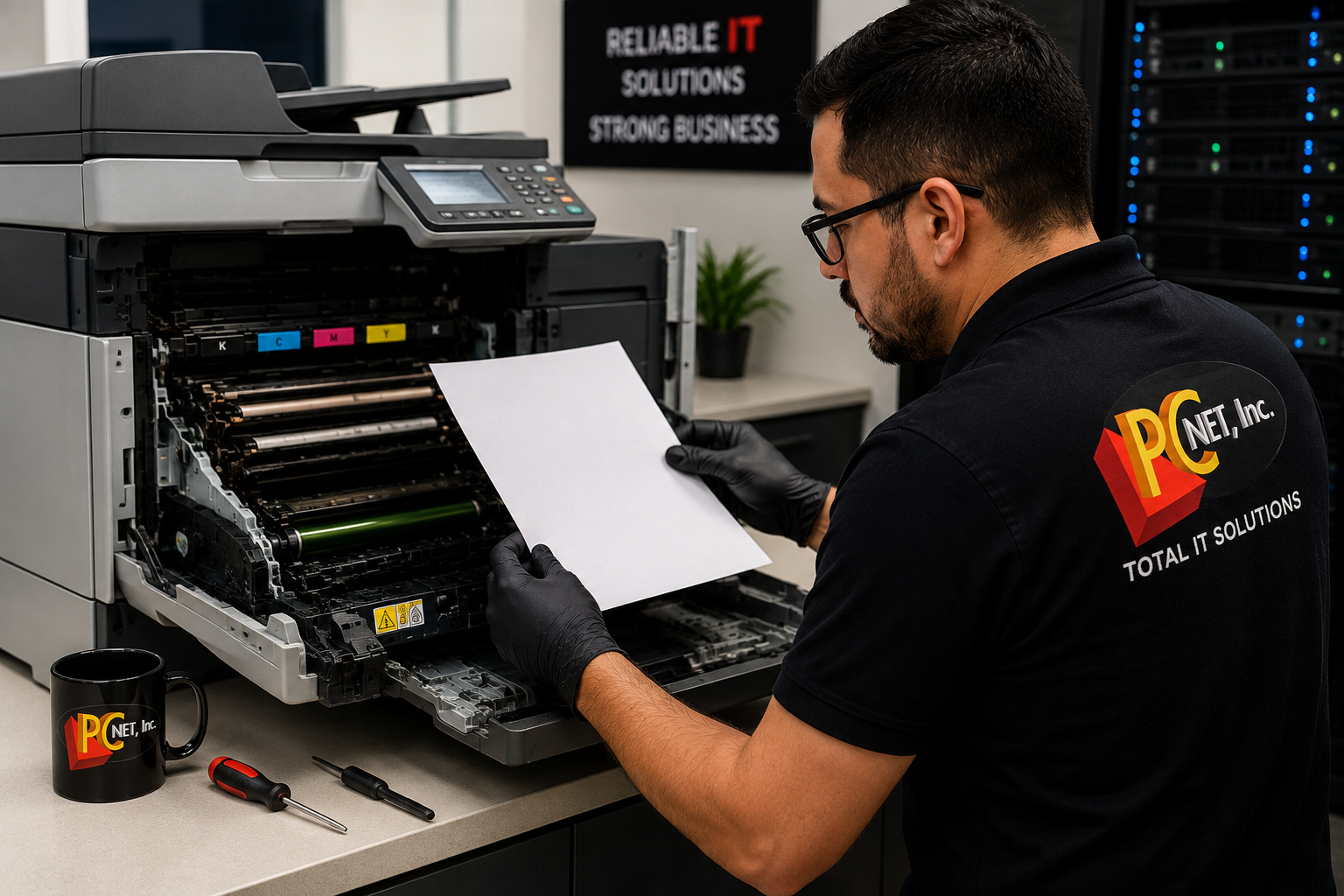
What to Check Before Calling for Printer Repair
If your printer is printing blank pages, there are several safe troubleshooting steps you can try before scheduling a repair:
- Check the toner or ink level. Verify that the printer is not reporting an empty or depleted cartridge.
- Reseat the cartridge. If you recently replaced a toner or ink cartridge, confirm that it is installed correctly and that all required protective packaging or sealing material has been removed.
- Print a page directly from the printer. Use the printer’s control panel to print a configuration, status, or test page if your model provides that option. If this page is also blank, the problem is more likely related to the printer or supplies than to the computer.
- Try printing from another application. If only one program produces blank pages, test a simple document from another application to help determine whether the problem is software-related.
- Restart the printer and computer. Turn the printer off using its normal power control, restart the computer, and then try printing again after the printer is ready.
- Check for printer errors. Look at the printer’s display or status software for cartridge, supply, maintenance, or hardware messages that may help identify the problem.
- Use built-in maintenance tools when appropriate. For inkjet printers, a nozzle check or manufacturer-recommended printhead cleaning may help with clogged nozzles. Follow the instructions for your specific printer model.
If the printer’s own test or configuration page remains completely blank after these checks, further diagnostics may be necessary. Avoid disassembling internal printer components unless you are trained to service the equipment, as some parts can be delicate, electrically energized, or hot during and shortly after operation.
For additional manufacturer troubleshooting, you can also review HP’s official guide for printers that print blank pages.
When to Call a Printer Repair Technician
If your printer continues printing blank pages after checking the supplies, cartridge installation, printer settings, driver, and available maintenance options, professional diagnostics may be needed.
A printer that produces blank internal test pages may have a problem with the toner or ink delivery system, printhead, imaging components, electrical contacts, transfer system, or other internal hardware. Testing the printer can help identify the actual cause before replacing cartridges or expensive components unnecessarily.
If you are experiencing recurring blank pages or other print-quality problems, learn more about our professional printer repair services in Miami.
If your Brother printer is still under manufacturer warranty, you can also learn more about our Brother warranty repair services in Miami.
Frequently Asked Questions
Why is my printer printing blank pages even though it has toner or ink?
A printer printing blank pages can still have toner or ink remaining, because the problem is not always caused by an empty cartridge.
Why does my printer print a blank test page?
If a test or configuration page printed directly from the printer is also blank, the problem is more likely related to the printer, supplies, or internal components rather than the computer or application. This can be a useful diagnostic step when troubleshooting blank pages.
Can a printer driver cause blank pages?
Yes. An incorrect, damaged, or incompatible printer driver can sometimes cause unusual printing behavior. If the printer’s internal test page prints correctly but documents from the computer are blank, the driver, application, or print settings should be investigated.
Should I replace my printer if it keeps printing blank pages?
Not necessarily. Blank pages can be caused by replaceable supplies, software problems, printhead issues, or repairable internal components. Diagnosing the cause first can help determine whether repairing the printer makes more sense than replacing it.
Need Help With a Printer Printing Blank Pages in Miami?
If your printer is printing blank pages and the basic troubleshooting steps haven’t solved the problem, PC Net can help identify whether the issue involves the toner or ink supply, cartridge, printhead, imaging system, driver, or another internal printer component.
PC Net provides professional printer diagnostics and repair for businesses and home users in Miami, FL and nearby communities. Our technicians can diagnose blank-page and print-quality problems and help determine the appropriate repair before unnecessary parts are replaced.
Need help with a printer that keeps producing blank pages? Contact PC Net today or call (305) 513-8614 to schedule service.