

If your computer won’t turn on, it doesn’t always mean it’s beyond repair. In many cases, the problem is something simple, such as a loose power cable, a faulty power strip, or a hardware component that needs attention.
Before assuming the worst, there are several safe troubleshooting steps you can try. In this guide, we’ll explain the most common reasons a desktop computer won’t power on, what you can check yourself, and when it’s time to contact a professional computer repair technician.
Why Won’t My Computer Turn On?
A computer that won’t power on can be caused by power issues, failing hardware, overheating, or internal component failures. Identifying the cause early can help prevent further damage and determine whether the problem can be resolved with a simple fix or requires professional repair.
Whether your computer is completely unresponsive or powers on without displaying anything on the screen, understanding the possible causes is the first step toward getting it working again.
If your computer powers on, the fans are running, but the monitor remains black, the issue may be different from a complete power failure. Read our guide, Computer Turns On but No Display? 7 Things to Check, to learn how to troubleshoot display connections, RAM, and startup hardware problems.
8 Common Reasons Your Computer Won’t Turn On
1. Loose or Unplugged Power Cable
Check that the power cable is securely connected to both the computer and the wall outlet. A loose connection is more common than many people realize.
2. Faulty Power Strip or Outlet
Power strips and surge protectors can fail over time. Try plugging the computer directly into a known working wall outlet.
3. Failed Power Supply
If the power supply has failed, the computer may show no signs of life. This is one of the most common hardware failures in desktop computers.
4. Faulty RAM
Improperly seated or failing memory modules can prevent a computer from completing the startup process.
5. Overheating
Dust buildup and poor airflow can cause components to overheat, sometimes preventing the computer from starting properly.
6. Motherboard Problems
A damaged motherboard can prevent power from reaching critical components and may require professional diagnostics.
7. Graphics Card Issues
If the computer powers on but the monitor remains black, a failing graphics card or a loose video connection may be the cause.
8. Internal Hardware Failure
Hard drives, SSDs, processors, and other internal components can fail over time and prevent the computer from starting normally.
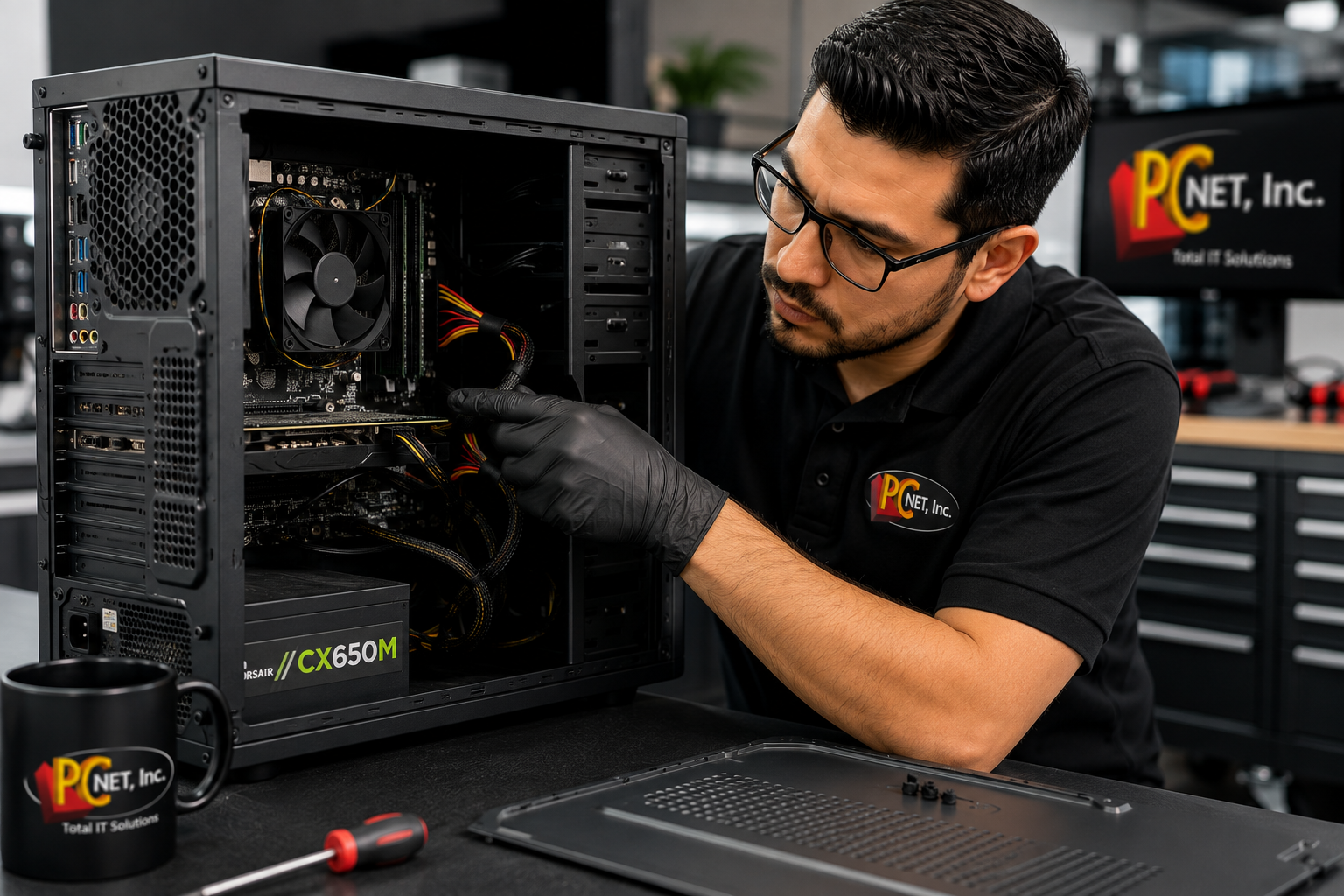
What You Can Check Safely
Before opening your computer or replacing any components, try these simple troubleshooting steps:
- Verify the power cable is firmly connected to both the computer and the wall outlet.
- Test a different electrical outlet to rule out a faulty power source.
- Check the monitor to make sure it has power and is connected to the correct input.
- Disconnect external devices such as USB drives, printers, and external hard drives that could interfere with startup.
- Listen for sounds or look for indicator lights. Fans spinning, beep codes, or flashing LEDs can provide valuable clues about the problem.
If your computer still shows no signs of powering on, avoid repeatedly pressing the power button or opening the power supply. Professional diagnostics can help identify the issue safely and prevent additional damage.
For additional troubleshooting guidance, you can also review Microsoft’s official Windows support resources.
When Is It Time to Call a Computer Repair Technician?
If your computer still won’t turn on after checking the power source, monitor, and external devices, the problem may involve the power supply, motherboard, memory, storage drive, or another internal component that requires professional testing.
Continuing to troubleshoot without the proper tools can sometimes make the problem worse or lead to accidental damage. A professional diagnosis can quickly identify the root cause and recommend the most cost-effective repair.
If your computer powers on but is running very slowly, freezing, or taking a long time to start, check out our guide on why your computer is running slow and how to improve its performance.
Frequently Asked Questions
Why won’t my computer turn on even though it’s plugged in?
A failed power supply, faulty power cable, defective outlet, motherboard issue, or internal hardware failure can all prevent a computer from powering on, even when it is plugged in.
Should I replace the power supply myself?
If you’re experienced working with desktop computer hardware, replacing a power supply may be possible. However, if you’re unsure of the cause or unfamiliar with computer repairs, professional diagnostics are the safer option.
Is it worth repairing a computer that won’t turn on?
In many cases, yes. Problems such as failed power supplies, memory issues, or storage drive failures can often be repaired for much less than the cost of replacing the computer. A professional diagnosis can help determine the best solution.
Get Your Computer Working Again
A computer that won’t turn on doesn’t always need to be replaced. Many startup issues are caused by components that can be repaired or replaced, helping you avoid the expense of purchasing a new computer.
At PC Net, we’ve been providing professional computer repair services to homeowners and businesses throughout Miami-Dade since 1998. Our experienced technicians diagnose power problems, hardware failures, startup issues, and other computer problems quickly and professionally.
Need help with a computer that won’t turn on? Contact PC Net today or call (305) 513-8614 to schedule professional computer diagnostics and repair.