

Blue screen Windows errors can appear suddenly and cause your computer to restart, freeze, or display a stop code. Sometimes the problem happens once and never returns, but repeated blue screens can indicate a Windows, driver, memory, storage, overheating, or other hardware problem.
At PC Net, Inc., we diagnose computers that experience blue screen errors to determine what is actually causing the crash rather than assuming that one particular component is responsible. The error message or stop code can provide useful information, but proper troubleshooting often requires checking Windows, drivers, hardware, and recent system changes.
Below are seven common causes of Windows blue screen errors, the warning signs to look for, and what you should do if the problem keeps happening.
1. Recently Installed or Problematic Drivers
A device driver allows Windows to communicate with hardware such as the graphics adapter, network card, storage controller, printer, and other components. If a driver is corrupted, incompatible, or develops a problem after an update, Windows may crash and display a blue screen.
Driver-related blue screens sometimes begin shortly after installing new hardware, updating Windows, or installing or updating a device driver. However, the timing alone does not prove that the driver is responsible, so other possible causes should still be considered.
Warning signs to watch for: blue screens that started after a recent driver or Windows update, crashes when using a particular device, the same stop code appearing repeatedly, or problems that began shortly after new hardware was installed.
If the crashes began after a recent change, identifying what was installed or updated can be an important part of the diagnostic process. Avoid randomly downloading drivers from unfamiliar websites, since incorrect or modified drivers can create additional problems.
2. Memory (RAM) Problems
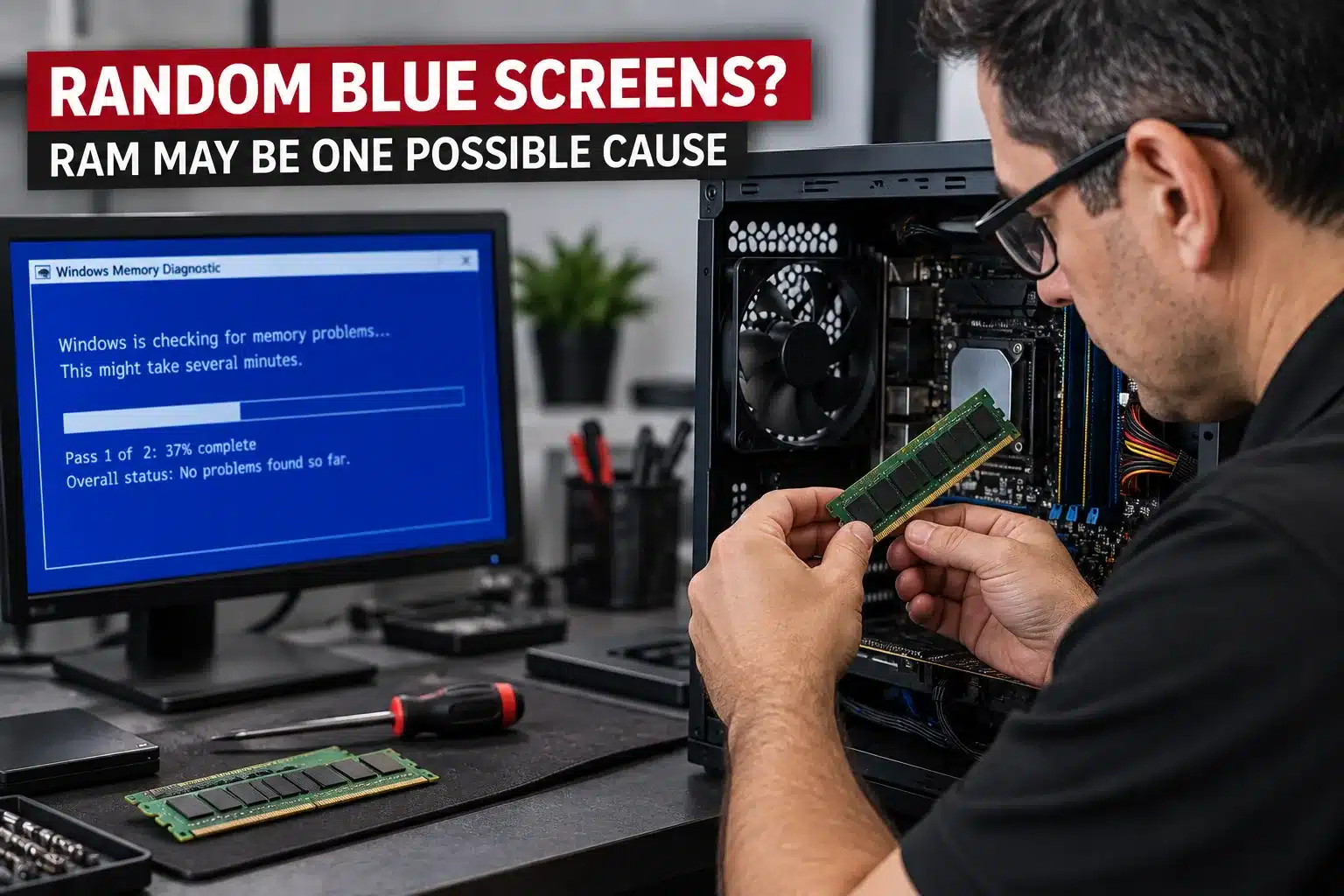
Faulty or unstable memory can cause Windows to crash unexpectedly and display a blue screen. Because Windows constantly uses RAM while programs and system processes are running, memory errors can affect different parts of the operating system and may cause crashes that seem random.
RAM-related problems can develop because of a failing memory module, an unstable configuration, poor contact in a memory slot, or compatibility problems after a memory upgrade. However, a blue screen by itself does not confirm that the RAM is defective.
Warning signs to watch for: blue screens occurring at different times without an obvious pattern, crashes when several programs are open, problems that started after adding or replacing memory, applications closing unexpectedly, or repeated memory-related errors.
Memory diagnostic testing can help identify certain RAM problems, but intermittent faults may require additional testing. The memory should be properly diagnosed before replacing RAM based only on a blue screen error.
3. Hard Drive or SSD Problems
Problems with a hard drive or SSD can sometimes cause Windows to crash and display a blue screen, particularly when the operating system has difficulty reading critical system files or accessing data reliably.
Storage-related crashes may occur because of a failing drive, file-system corruption, bad sectors on a mechanical hard drive, SSD errors, or problems with the connection between the drive and the computer. However, disk errors and blue screens can also have other causes, so the storage device should be tested before assuming it needs replacement.
Warning signs to watch for: blue screens occurring while opening or saving files, unusually slow file access, corrupted files, repeated disk errors, Windows having difficulty starting, or the storage drive occasionally disappearing from the system.
If you are also experiencing storage-related symptoms, they may indicate a separate drive problem that requires diagnosis. Important files should be backed up when possible before performing extensive troubleshooting on a drive that may be failing.
4. Overheating or Cooling Problems
Excessive heat can make a computer unstable and may contribute to crashes or blue screen errors. The processor, graphics hardware, and other components generate heat while the computer is operating, and the cooling system must keep temperatures within a safe operating range.
Overheating can occur because of dust buildup, blocked air vents, a failing cooling fan, poor airflow, or other cooling-related problems. Laptops can be particularly affected because their cooling components are packed into a smaller space. However, a computer running warm does not automatically mean overheating is responsible for the blue screen.
Warning signs to watch for: fans running unusually fast or loudly, the computer becoming very hot, crashes during demanding applications, blue screens after the computer has been running for a while, or the system shutting down when temperatures increase.
If overheating is suspected, the cooling system and operating temperatures should be checked as part of the diagnosis. Repeatedly operating a computer at excessive temperatures can contribute to instability and may shorten the life of hardware components.
5. Corrupted Windows System Files
Windows relies on many system files to start properly and keep the operating system stable. If important Windows files become damaged or corrupted, the computer may experience crashes, startup problems, or blue screen errors.
System-file corruption can occur after an interrupted Windows update, improper shutdown, storage errors, malware, or other software problems. In some cases, Windows may attempt an automatic repair after a crash but continue experiencing the same problem.
Warning signs to watch for: repeated blue screens after a Windows update, Windows Automatic Repair appearing frequently, system files reporting errors, Windows features no longer working correctly, or crashes occurring even when no particular program or device is being used.
Windows includes diagnostic and repair tools that can check certain operating-system files, but repeated blue screens should be diagnosed rather than repeatedly running repair commands without determining the underlying cause. If a storage or hardware problem is responsible for the corruption, repairing Windows alone may not solve the problem.
6. Malware or Problematic Software
Malware and certain software problems can sometimes contribute to Windows instability and blue screen errors. Security software, system utilities, hardware-monitoring programs, or applications that install low-level drivers may interact closely with Windows and can cause problems if they become corrupted or incompatible.
If blue screens begin shortly after installing a new application or system utility, that recent change should be considered during troubleshooting. However, the presence of a recently installed program does not automatically mean it caused the crash.
Warning signs to watch for: blue screens that began after installing new software, crashes when launching a particular application, unusual system behavior, unexpected programs running in the background, or other signs of possible malware infection.
Removing suspicious or recently installed software may be part of the diagnostic process, but repeated blue screens should not automatically be attributed to a virus. Hardware, drivers, Windows, and other possible causes should also be evaluated.
7. Failing Hardware or Other Component Problems
A blue screen can also be caused by hardware problems that do not involve the RAM or storage drive. Components such as the motherboard, graphics hardware, power supply, or other internal devices can become unstable and cause Windows to crash.
Hardware-related blue screens can be difficult to identify because the symptoms may resemble driver or Windows problems. The computer may operate normally for hours and then crash under a particular workload, or the errors may become more frequent as a component deteriorates.
Warning signs to watch for: blue screens during demanding applications, crashes after installing or replacing hardware, display problems occurring before a crash, random system instability, or repeated errors even after Windows and driver problems have been ruled out.
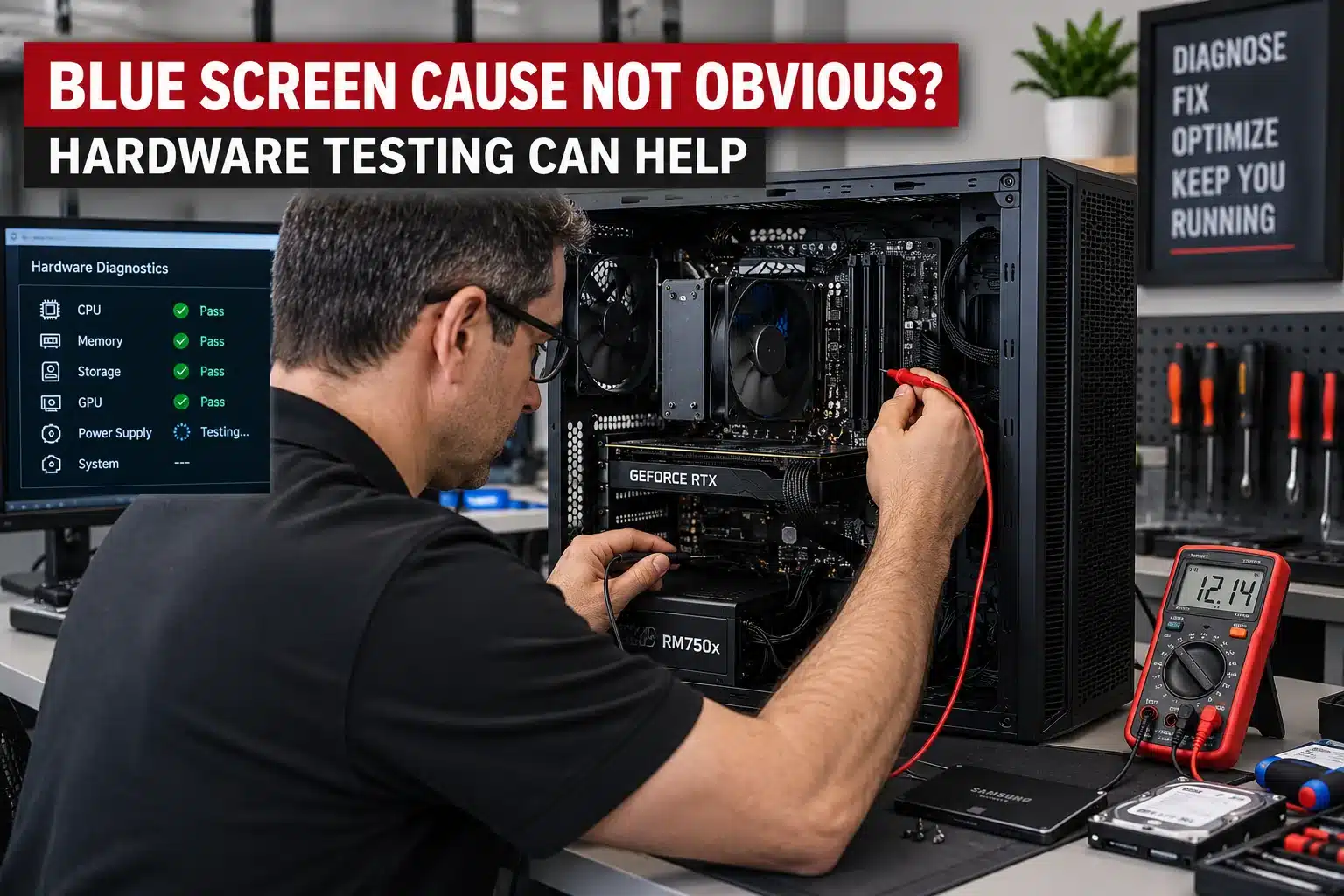
When blue screen Windows errors continue to occur without an obvious software cause, hardware diagnostics can help narrow down the problem. Testing components systematically is preferable to replacing parts based only on the stop code or error message.
What Does the Stop Code on a Blue Screen Mean?
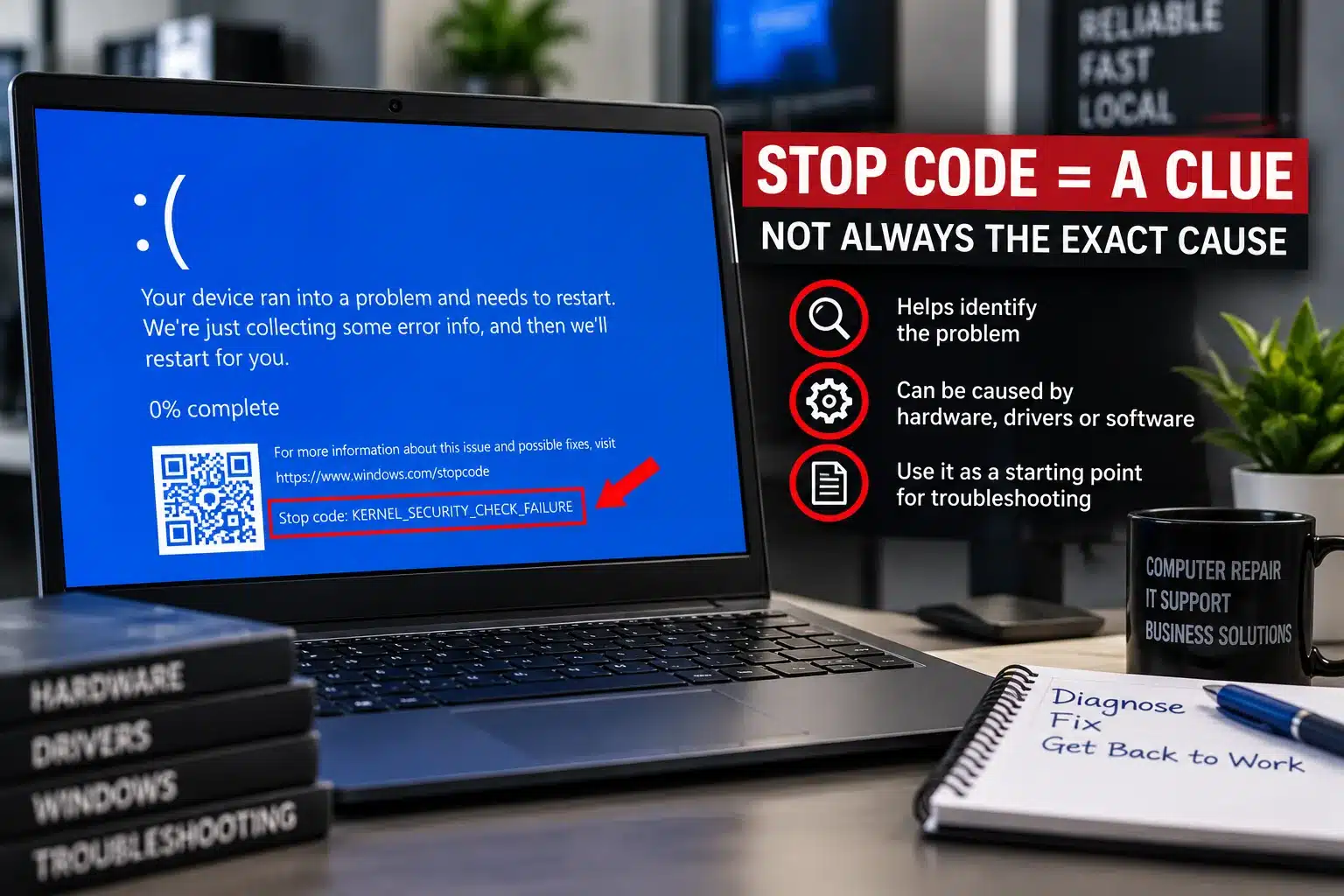
When Windows displays a blue screen, it may show a stop code such as MEMORY_MANAGEMENT, CRITICAL_PROCESS_DIED, IRQL_NOT_LESS_OR_EQUAL, or another error message. The stop code can provide a useful clue about what Windows was doing when the crash occurred, but it does not always identify the exact component responsible for the problem. Microsoft provides additional guidance for troubleshooting Windows blue screen and stop code errors.
For example, a memory-related stop code does not automatically mean the RAM needs to be replaced. Drivers, corrupted Windows files, storage problems, or other hardware issues can sometimes produce similar errors. The stop code should be considered together with the computer’s symptoms and diagnostic results.
If possible, take a photo of the blue screen before the computer restarts. Record the stop code and note what you were doing when the crash occurred. Also note whether new hardware, software, drivers, or Windows updates were recently installed.
If the same stop code appears repeatedly, that information can be especially useful when diagnosing the cause of the crashes.
Blue Screen Windows Errors: What Should You Do Next?
If your computer displays a blue screen once and then continues working normally, it may have been an isolated problem. However, if the blue screen keeps returning, the same stop code appears repeatedly, or the computer becomes increasingly unstable, the cause should be investigated.
Start by noting the stop code and any recent changes to the computer, such as Windows updates, new software, drivers, or hardware. If the computer remains usable, make sure important files are backed up before performing extensive troubleshooting.
Avoid replacing components based only on the wording of a stop code. A blue screen that appears to indicate a memory, driver, or storage problem may still require additional testing to determine the actual cause.
At PC Net, Inc., we provide computer diagnostics and repair in Miami for desktops and laptops experiencing blue screens, crashes, startup problems, and other Windows errors. We can evaluate Windows, drivers, memory, storage devices, temperatures, and other hardware to help identify the source of the problem before recommending a repair.
Frequently Asked Questions About Windows Blue Screen Errors
A blue screen itself usually does not damage the computer. Windows displays the error and stops operating to help prevent a more serious problem when it detects a condition it cannot safely continue with.
However, repeated blue screens should not be ignored. If the underlying cause is failing hardware, overheating, storage problems, or another developing issue, continuing to use the computer without identifying the cause could lead to additional problems or possible data loss.
Why does my computer keep getting a blue screen?
Repeated blue screens usually mean Windows is encountering a problem serious enough that it cannot continue operating safely. Possible causes include problematic drivers, faulty memory, storage errors, corrupted Windows files, overheating, incompatible software, or other hardware problems.
The pattern of the crashes can provide useful clues. For example, note whether the blue screen occurs during startup, while using a particular program, after the computer has been running for a while, or after a recent Windows, driver, software, or hardware change.
Because several different problems can produce similar symptoms, the stop code alone should not be used to determine which component needs to be replaced. Repeated crashes should be diagnosed using the stop-code information together with appropriate Windows and hardware testing.
Can a Windows update cause a blue screen?
Yes. A blue screen can sometimes begin after a Windows update, particularly if the update introduces a driver compatibility problem or encounters an issue during installation. However, the timing does not necessarily mean the Windows update itself is defective.
An update may also expose an existing problem with a driver, storage device, memory, or other hardware that had not previously caused noticeable symptoms.
If blue screens started immediately after an update, the update history, recently changed drivers, stop codes, and overall system condition should be reviewed before deciding what needs to be removed or repaired.
Can a blue screen be caused by bad RAM?
Yes. Faulty or unstable RAM can cause Windows to crash and display blue screen errors because the operating system depends on memory to store and process data while the computer is running.
Possible signs of a memory problem include random blue screens, crashes that occur under heavier workloads, applications closing unexpectedly, or problems that began after memory was installed or upgraded.
However, a memory-related stop code does not automatically confirm that the RAM is defective. Drivers, Windows corruption, storage problems, or other hardware issues can sometimes produce similar errors. Memory testing and additional diagnostics may be needed before replacing the RAM.
Should I reinstall Windows if I keep getting blue screens?
Not necessarily. Reinstalling Windows may resolve certain software-related problems, but it will not correct defective RAM, a failing storage device, overheating, or another hardware problem.
Reinstalling Windows too early can also make troubleshooting more difficult because it removes information about the original problem. If important files are stored on the computer, those files should also be protected before reinstalling or resetting Windows.
If blue screens occur repeatedly, it is better to identify the likely cause first and determine whether the problem involves Windows, drivers, software, or hardware before deciding that a reinstall is necessary.
Blue Screen Computer Repair in Miami
If your desktop or laptop keeps displaying blue screen Windows errors, PC Net, Inc. can diagnose the problem and help determine the appropriate repair.
Our goal is to identify the actual cause of the blue screen before recommending hardware replacement or major Windows repairs.
Call PC Net, Inc. at (305) 513-8614 to schedule computer service or bring your computer to our Miami service location.