
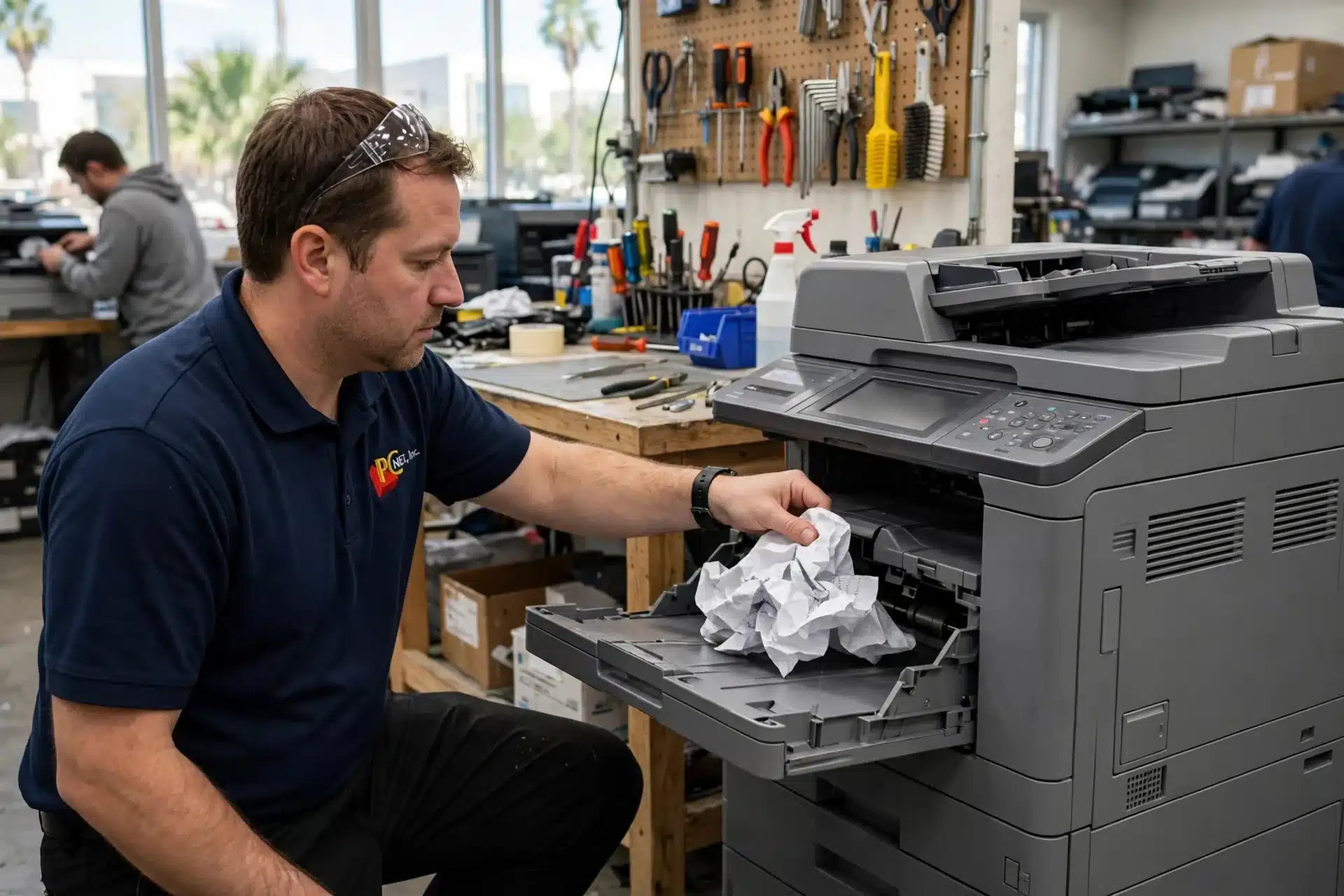
A LaserJet that jams once in a while is an annoyance. A LaserJet that jams every day is a diagnosis waiting to be read. On the HP LaserJet Enterprise M604, M605 and M606, most everyday jamming — sheets getting stuck, the printer failing to pick up paper at all, or two and three sheets feeding through together — traces back to the same small group of rubber parts: the pickup, feed and separation rollers. In printer repair, that pattern is the whole game. This guide shows you how to read it, the free checks to run before you blame the rollers, and when a roller kit is the fix.
At a glance
Fault: repeated paper jams, no pickup, or several sheets feeding at once
Usual cause: worn pickup, feed and separation rollers
Key parts: Trays 2–6 roller kit E6B67-67905 · Tray 1 roller kit E6B67-67906 · torque limiter E6B67-67926
Do it yourself? Tray rollers are among HP’s easiest customer-replaceable parts; the Tray 1 kit needs a tool
Our diagnostic: $35 in-shop for printers — we confirm the fault before any parts are ordered
In this guide:
- What the pickup, feed and separation rollers actually do
- Read your jam: four patterns, four stories
- Free checks before you blame the rollers
- The torque limiter: the double-feed part nobody suspects
- Rollers alone, or the whole maintenance kit?
- Can you replace the rollers yourself?
- Frequently asked questions
- Printer repair in Miami: when to bring it to PC Net, Inc.
What the pickup, feed and separation rollers actually do
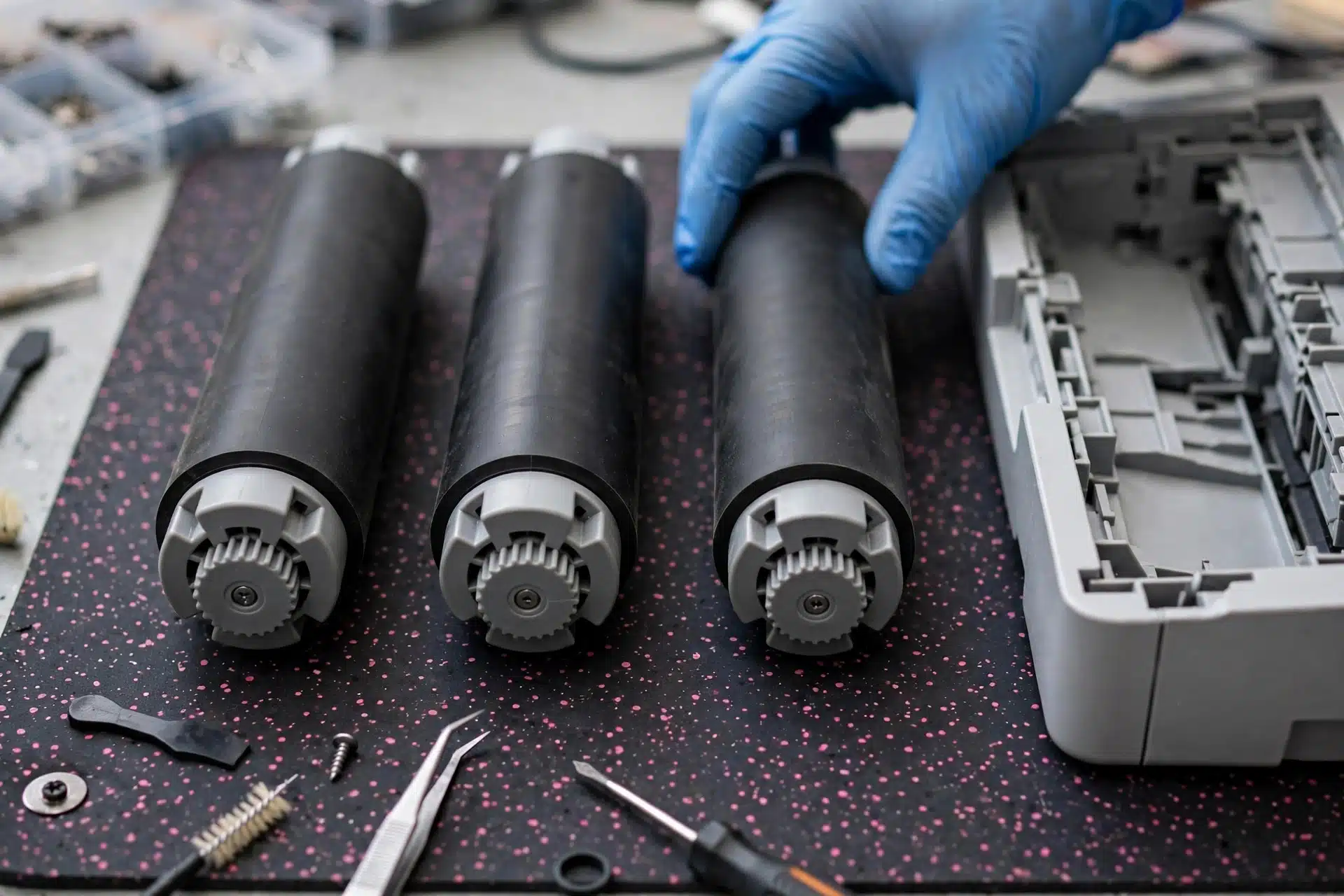
Every sheet your printer prints starts in a tray, and three rollers cooperate to move exactly one sheet out of that tray and into the paper path:
- The pickup roller presses against the top of the stack and pulls the first sheet out of the tray.
- The feed roller carries that sheet onward into the printer.
- The separation roller works against the feed, holding the rest of the stack back so a second sheet does not sneak through underneath the first.
All three are rubber, and rubber ages. Heat, dust and thousands of pages leave rollers smooth, shiny, hardened or cracked — and a smooth roller cannot grip paper. The rollers for Tray 2 and the optional feeders are sold as one kit, E6B67-67905, and the same kit is also part of the preventive maintenance kit. Tray 1 — the multi-purpose tray — uses its own separate roller kit, E6B67-67906. Any honest printer repair shop will check these rollers early in a jam diagnosis, because they are the cause so often.
Read your jam: four patterns, four stories
Before you order parts or book a repair, watch how the printer fails. The pattern narrows the diagnosis faster than anything else:
- Jams from one tray only. If Tray 2 jams but Tray 3 feeds cleanly all day, the problem lives in that tray’s rollers.
- No pickup at all. The printer sounds like it is trying, the job fails, and the sheet never left the tray. That is a pickup roller with no grip left: it spins against the stack and moves nothing.
- Multiple sheets feeding together. Two or three pages arrive as one — the separation side has lost the fight. Suspects: the separation roller, and the torque limiter described below.
- Jams from every tray, further into the machine. If every tray fails and sheets get stuck deep in the path rather than at the tray, the story is bigger than tray rollers — something further along the path needs a technician’s eyes. That is printer repair territory, not a parts swap.
Note the pattern and the tray — that is the first thing we would ask.
Jams every day? That’s a pattern we can read.
In-shop printer diagnostic $35 — we confirm exactly which rollers your printer needs before any parts are ordered. Call (305) 513-8614, Monday to Friday.

Free checks before you blame the rollers
Not every jam is a worn part. Run these five checks first — they cost nothing and they fix more jams than you would expect:
- Check the paper itself. Damp, curled or recycled-rough paper jams in a healthy printer. Try a fresh ream, fan the stack, and see if the fault follows the paper or stays with the printer.
- Respect the fill line. An overfilled tray defeats the separation system by design. Pull the stack down below the line marked inside the tray.
- Set the tray guides snug. Loose guides let sheets enter the path crooked, and a crooked sheet is a stuck sheet waiting for a corner to catch on.
- Run the tray test. Print the same job from a different tray. If the fault moves with the tray, you have isolated it to that tray’s rollers or the tray itself. If it happens everywhere, note that too — it changes the diagnosis.
- Print a configuration page and note the page count. Rollers are volume parts. A high count next to classic feeding faults points at wear, and confirms you are not chasing a settings problem.
If the jams survive all five checks, stop reloading paper and hoping. In our experience with printer repair in Miami, a fault that consistent, on a machine with real volume on it, is hardware — and it will not heal itself.
The torque limiter: the double-feed part nobody suspects
If your printer’s speciality is feeding two or three sheets together, there is one more part in the story. The torque limiter (kit E6B67-67926) works with the separation roller: it provides controlled resistance so the separation system can hold the second sheet back while the first one feeds. When it wears, its resistance fades — and the stack starts travelling together even if the rollers themselves look acceptable.
This is why double-feed problems sometimes survive a roller change, and why a proper diagnosis matters: rollers and torque limiter do the same job as a team. Replacing the team, when the evidence points that way, is cheaper than replacing one member twice. Reading that evidence correctly is the heart of good printer repair.
Rollers alone, or the whole maintenance kit?
If the tray test isolated your fault to one tray’s rollers and the rest of the printer is healthy, the roller kit on its own is the right, economical fix: E6B67-67905 covers Tray 2 and the optional 500-sheet and 1,500-sheet feeders, and E6B67-67906 covers Tray 1.
But step back before you decide. The Tray 2–6 roller kit is also inside the preventive maintenance kit (F2G76-67901), alongside the fuser and transfer roller — because those parts wear at a similar pace. If your page count is high and print quality is also looking tired — toner rubbing off, patchy prints — the kit usually wins on simple arithmetic: one visit, one labor charge, every wear part fresh. We break the whole comparison down in our maintenance kit guide, including the signs that tell you which side of the line your printer is on.
Can you replace the rollers yourself?
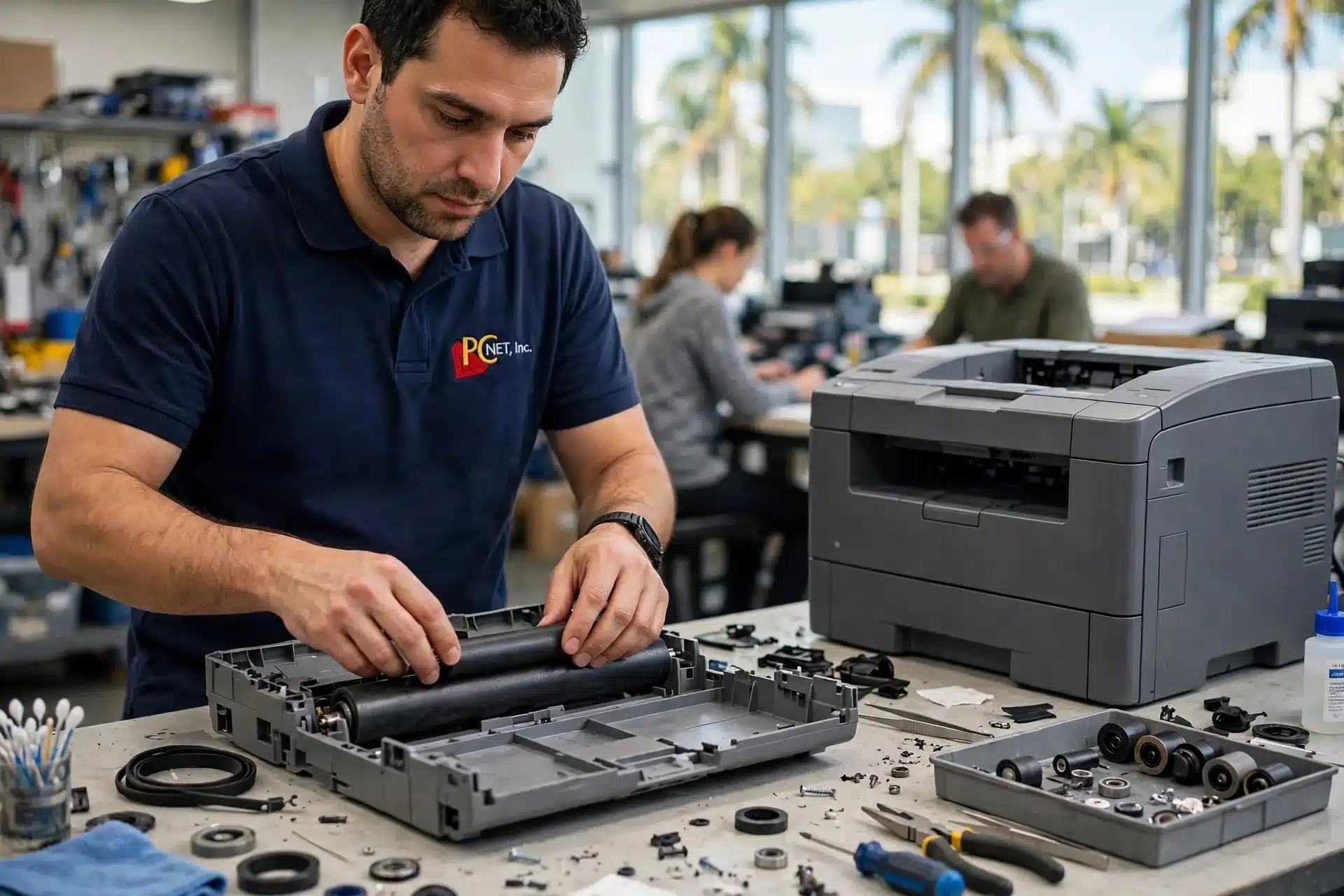
Mostly, yes — with one exception. HP rates the Tray 2–6 roller kit and the torque limiter among its easiest customer-replaceable parts: the rollers are reached through the tray cassettes and clip or slide into place without special tools. The Tray 1 roller kit is the exception — HP classes it a step up, a job that requires a tool, because access on the multi-purpose tray is tighter.
Three habits separate a clean roller job from a frustrating one, and any printer repair technician will give you the same list:
- Power off and unplugged first, as with any work inside the machine.
- Handle new rollers by their edges. Skin oil on the rubber surface you just paid for works against the grip you bought it for.
- Test with the tray that failed. Print from the problem tray first, several jobs in a row — a single clean page proves less than twenty do.
Frequently asked questions
Why does my printer jam from one tray but not the others?
Because each tray has its own pickup, feed and separation rollers, and they do not wear evenly — the tray you use most wears first. A fault that follows one tray is that tray’s rollers (or that tray itself) until proven otherwise. The tray test in this guide confirms it in two minutes.
Can I just clean the rollers instead of replacing them?
Cleaning can restore a little grip temporarily, and a printer repair shop may clean rollers as a diagnostic step. But it does not reverse hardened, shiny or cracked rubber — if your jams come back within days, the rollers are telling you they are done. Replacement is the fix; cleaning is the test.
How much does a roller replacement cost?
The Tray 2–6 roller kit is E6B67-67905 and the Tray 1 kit is E6B67-67906 — both modest parts. Our in-shop diagnostic is $35 for printers: we confirm the jam pattern points at rollers before any parts are ordered, and quote the full printer repair up front.
My printer pulls several sheets at once. Is that rollers too?
Usually, yes — but with a partner suspect: the separation roller and the torque limiter work as a team to feed one sheet at a time. Double-feeds are the fault this team owns. If a roller change alone does not cure it, the torque limiter (E6B67-67926) is the next place a technician looks.
Is a jamming M604, M605 or M606 worth repairing?
Almost always. Feeding faults on this series are wear-part problems on machines built for heavy volume — the least alarming diagnosis a workhorse printer can get. Fresh rollers restore the feeding it had when it was younger, for a fraction of replacement cost.
Printer repair in Miami: when to bring it to PC Net, Inc.
If you have run the free checks, read your jam pattern, and the fault is still there, it is time for hands on the machine. PC Net, Inc. has handled printer repair for Miami-Dade businesses since 1998, our head technician Robert brings more than 25 years of experience to jam diagnosis, and repairs carry our 90-day parts and labor warranty. Tell us the pattern — which tray, stuck or double-feeding — and the $35 diagnostic will confirm exactly which parts your printer needs before we quote anything. And if the printer can’t come to us, we can come to it — we do on-site printer repair for business machines across Miami-Dade.
If you have been searching for printer repair near me with a LaserJet that eats paper for breakfast, bring it in — or start on our Printer Repair page, and reach us through our Contact page or at (305) 513-8614, Monday to Friday. For drivers, firmware and HP’s own product help for this series, see HP’s official support page.
PC Net, Inc. is an independent repair company. HP and LaserJet are trademarks of HP Inc. This guide is not published or endorsed by HP.